|
Company
Name |
|
|||
|
Employee
Names |
|
|||
|
Team
Lead |
|
|||
|
Module
Name |
What is a Network |
|||
|
Certification
Test |
|
Vendor |
|
|
|
Objectives
covered |
|
|||
|
Time
allotted |
10 Days |
Time
Taken |
|
|
|
Date
Started |
|
Date
Completed |
|
|
Portfolio Contents
|
Item |
Complete |
Incomplete |
Points
Awarded |
|||
|
Lab reports for all labs (List labs) |
|
|
|
|||
|
Lab 1-1 Installing Server 2008 |
|
|
|
|||
|
Lab 1-2 Installing Drivers |
|
|
|
|||
|
Lab 1-3 Joining the CSN Domain |
|
|
|
|||
|
Lab 1-4 Turning Off Enhanced Security in IE |
|
|
|
|||
|
Lab 1-5 Changing your product key and activating |
|
|
|
|||
|
Lab 1-6 Running Windows Updates |
|
|
|
|||
|
Lab 1-7 Windows 2008 Family |
|
|
|
|||
|
Lab 1-8 Installing Hyper-V |
|
|
|
|||
|
Lab 1-9 Parent and Child Disks |
|
|
|
|||
|
Lab 1-10 Testing Network Connectivity |
|
|
|
|||
|
Completed solution to problem portfolio |
||||||
|
:
Model of the Model |
|
|
|
|||
Notes
What
is a network?
u
A
network is a group of ____________________ connected together for the purpose
of sharing ____________________.
u
A
network can be one computer connected to another to share a printer, or…
u
____________________
computers connected together sharing ____________________,
directories, ____________________, plotters, ____________________,
processor ____________________, and lots
of other ____________________.*
Physical
Parts of a Network
u ____________________
u ____________________
u ____________________ Media
u ____________________ Devices
u ____________________ to share
n ____________________ and other
peripherals
n ____________________ / ____________________
power*
Internal
Network Components
u Network ____________________ Systems
u ____________________
u ____________________ to share
n ____________________
n ____________________
n ____________________ *
Draw
A Simple Network
Types
of Networks
u ____________________ /Server
u ____________________ to Peer (also
known as ____________________).
Client
Server Network
u
One
or more servers running a ____________________ ____________________ system.
u
Clients
connected to the server via ____________________
hardware.
u
Required
if ____________________ is a major
issue.
u
Required
if the network is larger than ____________________
computers.
u
Allows
for ____________________ management.
u
____________________
…can grow as a company grows
u
Requires
less ____________________ for users.*
Draw
a Client/Server Network
Label the client and the server
Advantages
of using client/server networks
n User
____________________ accounts and passwords can be assigned in one place
n Access to multiple ____________________ resources can be
centrally granted to a single user or ____________________
of users
n Problems can be ____________________, ____________________,
and often fixed from one _________________________
n __________________________!*
Peer
to Peer Network (workgroup)
u
A
group of client computers that act as _________________________.
They can work like a client or a server.
u
Good
for up to _________________________ computers.
u
Provides
no real network _________________________.
u
Requires _________________________ for users.
u
No _________________________ management of
resources.
u
Difficult
to _________________________ as network
grows.*
Draw
Sharing on a Simple Peer to Peer Network
Centralized
vs Distributed Networks
u Describe where _________________________ takes place
u Centralized
n One system provides both _________________________ storage and _________________________ power
n _________________________ and _________________________ terminals
n No processing or storage capabilities
at the _________________________
u Distributed
n Processing power _________________________ between _________________________ and _________________________ *
LANs,
WANs, CANs, and MANs
u Large networks are defined by their
size and their implementation.
u The most common network is a __________: _________________________ Area
Network.*
LAN-Local
Area Network
u Transfer data at _________________________ speeds
u Exist in a _________________________ geographical area
(office, building, classroom)
u Connectivity and resources are
usually managed by the _________________________
running the LAN.*
WAN-Wide
Area Network
u Exist in a _________________________ geographical area
u Usually connect a number of _________________________
u Often transmit data at _________________________ speeds
u Connectivity and resources are
usually managed by a third party such a _________________________
company or _________________________ company.*
CAN-Campus
Area Network
u Exist in a limited geographical area,
but encompass a number of buildings such as on a _________________________ campus or _________________________ campus.
u Connect individual _________________________
u Owned by _________________________.
u Basically a _________________________ *
MAN-Metropolitan
Area Network
u Exist in a _________________________ geographical area,
but encompass a number of _________________________
/ _________________________ in a city.
u Connect individual _________________________
u Run by a _________________________ government.
u Basically a _________________________ *
Internet
vs Intranet
u The Internet is a collection of
computers and _________________________ connected
throughout the world.
u An
_________________________ is a collection of computers within a company.
There is generally no access to an intranet from outside the company.*
Review
(notice all that white space…perhaps this means you’re supposed to answer the
questions. Hmmmm.)
u What is a network?
u What are the physical components
required for a network?
u What are the internal components
required for a network?
u What is a server?
u What is a network operating system?
u
Purple
McGee has a business office with 8 computers. He wants to set up a small
network. His users are pretty bright and security is not an issue.
u
Green
LaMean has a business office with 8 computers. The business is growing. He
works with sensitive data, so security is an issue.
u
What
defines a LAN?
u This network is on a school or
company campus.
u This network connects LANs.
u This type of network is usually run
by a city government.
u Which generally runs slower, a LAN or
a WAN?
u Which is larger, a LAN or a CAN?
u What type of network is internal to a
company and cannot be accessed from outside?
u What is a protocol?
u What is transmission media?
u How much wood would a woodchuck chuck
if a woodchuck could chuck wood?
Standardization and the OSI Model
Standardization
and Reference Models
u There is a purpose to learning about
reference models and standardization, even though at first it might seem
obscure. Reference models allow different
_________________________ to create hardware and software that will work
with other technology that use the same model and standards.
u The OSI model is the main reference
model used in networking.*
The
OSI Model
u The OSI model is a _________________________ model that defines
the way _________________________ communications
take place between two _________________________.
u There are _________________________ layers on the OSI
model*
The
OSI Model
u To understand the OSI model is to
understand how computers communicate.
u Is mainly used for _________________________ _________________________ issues (different
protocols work at different levels).*
The OSI Model
- _________________________
- _________________________
- _________________________
- _________________________
- _________________________
- _________________________
- _________________________
How
the layers of the OSI Model Work Together
u
As
a piece of information is sent from computer A it works _________________________ the layers of the
OSI model.
u
Each
layer (except the _________________________)
adds information to the packet headers that can be read by the _________________________ layer on the other
computer.
u
On
the receiving computer the data goes from the bottom up.
u
Each
layer then _________________________ off
and uses the _________________________ information
from the corresponding layer.*
So
what does each layer do?
u Each layer works with different _________________________ kind of like an
assembly line.
u Different pieces of _________________________ hardware work with
different protocols at different layers.
u On a
_________________________ test you might be asked about either of these
things.*
OSI Model Assignment
u
Get
together as a team and split up the seven layers of the OSI model.
u
Look
online for websites related to the OSI model.
u
Learn
your level of the OSI model be prepared to share:
n
What
happens at that level.
n
What
protocols work at that level.
n
What
hardware works at that level.*
(this part of the lecture gone so you can look it up on your own…yeah, I’m evil like that.)
Review
u
Which
layer is responsible for breaking data into bits?
u
Which
layer is responsible for breaking data into packets?
u
What
is the purpose of a message header?
u
If
a sending computer adds information to
the header on the transport layer, what does the receiving computer do
with that information?
u
At
what layer does the router work?
u
At
what layer does a bridge work?
u
At
what layer does a switch work?
u
What
kind of addressing does a router use?
u
What
kind of addressing does a bridge use?
u
What
is a broadcast message?
u
At
what layer does a NIC work?
u
Which
layer is responsible for placing bits on the media?
u
Which
layer is responsible for opening and maintaining communications between two
systems?
IEEE
802 Family
u
Institute of Electrical
u
The _________________________ section specifically
deals with networking*
IEEE
802 Family
u
There
are _________________________ subcommittees
in the 802 family.
u
Each
subcommittee is responsible for a specific part of networking.
u
You
should be aware of the IEEE because it is where you will go when you need to
understand, in depth, the standard for a certain _________________________.*
IEEE
Assignment
u Get online and look up the IEEE 802
information from your reading.
u As a group, split the 802 IEEE
committees and find out:
n What it does
n If it is still active
u You have ten minutes to do this.
IEEE
802 Family
u
802.1—Defines
internetwork communications standards between devices and includes
specifications for routing and bridging. 802.2—Defines the LLC sublayer of the
data link layer of the OSI model.
u
802.3—Defines
Ethernet communication standard, including the MAC sublayer use of CSMA/CD
u
802.11
Wireless LAN
u
802.15
Wireless Personal Area Network (WPAN)*
802
Family Continued
u 802.16 Broadband Wireless Access
u 802.17 Resilient Packet Ring
u 802.18 Radio Regulatory
u 802.19 Coexistance TAG
u 802.20 Mobile Broadband Wireless
Access (MBWA)
u 802.21 Media Independent Handoff
Working Group
u 802.22 Regional Wireless Area
Networks
802
Family Inactive
u
802.2
Logical Link Control
u
802.5
Token Ring
u
802.12
Demand Priority
u
Disbanded
n 802.4 Token Bus
n 802.6 MAN
n 802.7 Broadband
n 802.8 Fiber Optic
n 802.9 Integrated services LAN
n 802.10 Security
n 802.14 Cable Modem
Characteristics
specified in each standard
u
Speed
u
Access
methods
n CSMA/CD
n Token passing
n CSMA/CA
n Demand priority
u
Topology
u
Media
u
White
papers—contain information on implementation of the technologies, including new
patents.*
Know:
u The purpose of the 802s
u Which 802 committee defines Ethernet
networking
u Which 802 separates the Data Link
layer by defining the LLC layer
u Which layer is responsible for
wireless communications
u Who works with token ring networks
Where security is handled*
How Ethernet Works
Reading Review Questions
Read the article, How Ethernet Works, at www.howstuffworks.com and answer the questions below.
- Give three examples of networks used in the article.
- A company has two offices and would like to connect those offices together. What kind of network would this entail?
- This same company has a group of ten computers in one office. They would like to hook those computers together to share a printer and other resources. This would be what kind of network?
- Who designed and developed the first Ethernet network and what did he connect?
- These are a set of rules that allow computers on a network to talk to each other.
- Define:
- Medium
- Segment
- Node
- Frame
- A computer that listens on the wire before sending data is ____________________ ____________________.
- If two computers talk at once, a ________________________ occurs.
- Cables have limitations in how far the signal can travel down them before it fades out. Using a __________________ can extend the limits of the cable.
- When a network becomes congested you can ___________________________ off busy parts of it to handle a high number of collisions.
- This hardware connects two or more segments.
- Describe how a bridge keeps one segment from receiving traffic destined for the other segment, thus eliminating unnecessary traffic.
- This device can take a large network and chop it into two distinctly separate networks.
- How fast can data on Ethernet networks travel?
- How is a switch better than the old method of sharing the media (cables)?
- Ethernet switching allows for ____________-_____________ communication, which means sending and receiving computers can communicate at the same time.
- What the heck is the IEEE? (Not what does IEEE stand for, but what IS the IEEE?)
- Which committee defines Ethernet standards?
- What is the most common LAN?
- Describe how a token-ring LAN works
- _________________________________________________________________________
- _________________________________________________________________________
- _________________________________________________________________________
- _________________________________________________________________________
- Which token passing topology uses fiber instead of copper media?
- What are some benefits of ATM over previous Ethernet WAN technologies?
Lab 1-1: Installing Server 2008
Instructions
- Pop in your Server
2008 disk.
- You are going to
install it on your lab computer. Put the DVD in and boot.
- Delete ALL current
partitions.
- Create a new partition
that is 100 GB in size.
- Start the
installation.
- Select Standard
Edition 64 bit
- You will notice a few
things:
- It installs REALLY
fast. This is because some options can be added later.
- It’s very “
- Your drivers may not
be available.
- Once it starts you
have to set a password. The password
must meet three of the following complexity requirements:
- Must contain one letter
- One letter must be
capitalized
- Must contain one
number
- Must contain one
alternate character
- Give it the password: P@ssw0rd
(where 0 is zero).
- Go right in and change
the name of the computer:
- Start
- Right click on
Computer
- Select properties
- Click advanced system
settings
- Click computer name
- Click change
- Name your computer
something simple containing the word Server. (Example: Nerdserver). DO NOT USE LEET SPEAK! I don’t want
to see S3rv3r1337 because it makes it challenging to access via a UNC
pathname.
- Restart.
Answer the questions below
- What is the name of
your server?
- What is the first
thing you must do when your server starts up before you can use it?
- What are the password
complexity requirements for Server 2008?
- Look it up; what are the minimum requirements
for Server 2008?
- RAM
- Hard drive space
- Processor
- Monitor
- Other
- How is accessing the name change different in
Server 2008 compared to Server 2003?
- What name did your server originally have?
- What did you name it?
- What is your IP address?
Lab 1-2: Installing Drivers in Server 2008
Instructions
- Pop in your Server
2008 disk.
- Go under StartàComputeràRight click to
Properties
- Where can you get to
Device Manager from here?
- Close this window.
- Go to StartàControl PanelsàDevice Manager
- What devices are
showing without drivers?
- Locate driver disks
and right click on each device and select Update Drivers.
- Update all drivers.
What should you do if you can’t find a driver?
- If you try to update
from the Internet, you can’t. Why?
Lab 1-3: Joining the CSN Domain
Instructions
- Start up your server.
- Log in as
administrator.
- Go StartàNetwork
- Click the yellow bar
to change Network Discovery and File Sharing. All the computers in your
network will show up.
- What do you see?
- Why?
- Go StartàComputerà(right click for) PropertiesàAdvanced System Settings
- Click on Computer Name
- Click Change
- Under domain type
csn.com
- Provide the
administrative username and password. I
will give this to you!
- Restart the computer.
- Go into the Network
Control Panel.
- Now what computers are
showing?
Questions:
- What is a workgroup?
- What is a domain?
- What is the benefit of
a workgroup?
- What are 4 benefits of
a domain?
|
|
|
|
|
|
|
|
Lab 1-4: Turning off IE Enhanced Security Configuration
Instructions
- Start up your server.
- Log in as
administrator.
- Open Internet
Explorer.
- Set up your proxy.
- Go to www.teechur.com
- What happens?
- Why?
- How can you allow
access to teechur.com?
- What is the purpose of
Enhanced Security in Internet Explorer?
- Let’s turn it off
because it just gets in our way.
a.
Go to StartàControl PanelsàPrograms
b.
Select Turn Windows features on or off.
c.
The Server Manager will open.
d.
Click on Features
e.
Select Remove Features
f.
Oh darn! It isn’t here! That’s how you used to turn it off in Server
2003.
- Go back to Server
Manager.
- Look under Security
Information. What does it say about ESC?
- Click Configure IE
ESC.
- Turn it off for
administrators.
- Now go back and go to www.tory.com.
- What is different?
- If it asked you about
Phishing, what did you select?
- Why?
- As an administrator,
do you feel that YOU should enable the Phishing Filter?
- Why?
- What about for users?
When should it be enabled for users?
Lab 1-5: Changing Your Product Key and Activating Your Server
Instructions
- Start up your server.
- Log in as
administrator.
- Control PanelàSystem
- Click Change Product
Key
a.
The product key that is automatically installed requires a Key
Activation Server, which we don’t have.
b.
We need a lab license key: it is on your Product Keys list.
- It’ll take a few
minutes, then activation will be successful. Huzzah!
- Go online and read
this article: www.microsoft.com/genuine/ProgramInfo.aspx
- Answer the following
questions.
a.
What is the purpose of the WGA program?
b.
How does software piracy impact industries?
c.
How long do you have before you must activate your copy of
d.
What are three ways to activate your copy of
Lab 1-6: Running Windows Update
Instructions
- Start up your server.
- Log in as
administrator.
- This might be more
challenging than you anticipate!
- First make sure your
proxy server is set up.
- Then add the following
entries into your exception list. Go to OptionsàInternet OptionsàSecurityàTrusted sites. Click
OFF require authentication for https sites.
e.
http://*.update.microsoft.com
f.
https://*update.microsoft.com
g.
http://download.windowsupdate.com
- Start Windows Update
(under all programs).
- Run it.
- What happened?
- Note that down at the
bottom it indicates how you’re getting Windows Updates.
- Click that you want to
get Windows Updates from the Internet. Now run again.
- Ta da! If that doesn’t
work:
h.
Go to www.update.microsoft.com
i.
It should open Windows Update.
j.
Find that link at the bottom.
- Go to www.microsoft.com/downloads.
Go to Windows Security and Updates (or something like that…Microsoft
changes their website every ten minutes).
- Accept the terms of
use.
- Install the updater.
- Restart after all the
updates are done.
Answer the Questions
- Go online and locate
the Windows Update Support website where you can find answers to Windows
Update problems.
- How many updates did
you have to install?
- What’s the latest
version of Server 2008? (i.e. are we on a service pack yet?)
- List three updates you
installed on Windows Update.
Lab 1-7: Windows Server 2008 Fambly
Instructions
There are a lot of options for Server 2008. In
fact, there are so many it might be hard to figure out which would be best for
a given company.
Go to www.wikipedia.org/wiki/windows_2008
and read the article. Answer the questions below.
Scroll down and find the system requirements for
Server 2008.
Note: On the
certification you would be required to look at a computer setup and identify if
it would meet minimum requirements, or you might have to determine what would
need to be upgraded.
|
|
Minimum |
Recommended |
|
Processor |
|
|
|
RAM |
|
|
|
Video |
|
|
|
Hard
disk free space |
|
|
|
Drives
(optical) |
|
|
|
Other
devices |
|
|
- What was the codename
of Server 2008?
- What is Server Core?
- What’s missing from
Server Core?
- What is the benefit of
not having that particular thingy installed?
- What are the only
roles you can assign to a server using Server Core?
- What is the primary
reason for using Server Core?
- Understanding commands
in what OS will help in Server Core implementation.
- What is Terminal
Services Remoteapp?
- What could it be used
for in a network?
- What could you provide
for your users by implementing Terminal Services Web Access?
- What can you use to
allow your users in your domain to print to any networked printers they
have permission to from the Internet?
- What is the feature of
Windows that uses the .NET Framework to allow for administration of the
server through scripting? (We’ll have a guest come in and teach us some
scripting. It’ll be neato.)
- What is the name of
Server 2008’s Virtual Server shell?
- How does self-healing
NTFS improve “up time”. (Remember, in a network environment, up time is
CRUCIAL.)
- How can a network
admin control the amount of processes given services on a server are
using?
- What is EFI?
- What is the highest
encryption level on Server 2008? (WHEW!)
- What is the new
proprietary VPN protocol?
- When
- NT Backup is no longer
here…sadness. What do we use now?
- What’s an issues with
this new backup program that may mean the purchase of different storage
solutions for archiving?
- What is Windows Small
Business Server (clicky clicky)?
- What is Windows
Essential Business Server? (in other words, click the link and read more)
- What’s the purpose of
Datacenter edition?
- Which edition is
designed for high performance clusters?
- What is a server
cluster?
- What version of server
would you use to set up a SAN?
- What version of server
should you use for home?
- What is the latest
service pack?
Lab 1-8 Installing Hyper-V & Workstations
Before you start:
- Before you start, go into your BIOS. Go into AdvancedàCPU configurationàSecure Virtual Machine enabled. Some motherboards don’t allow virtualization. Yours does, but you have to make sure that is enabled.
- Save and restart.
- Once in your 2008, go to //nettech02/isos and copy the server installer ISO to your hard drive.
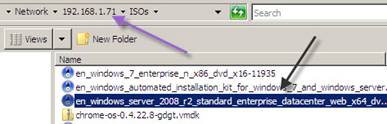
Directions
|
|
|
|
Create a Virtual Machine |
|
|
|
|
|
|
|
|
|
|
|

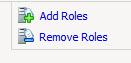
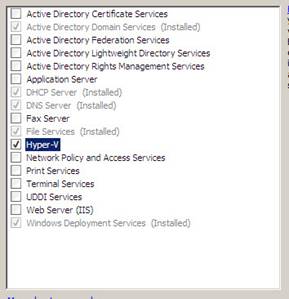

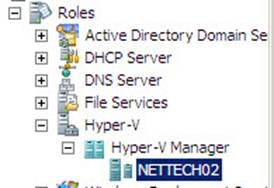
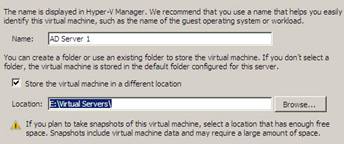
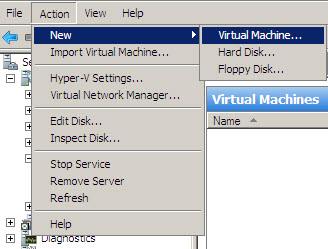
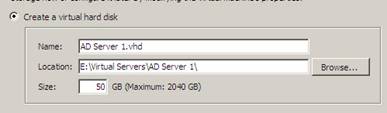
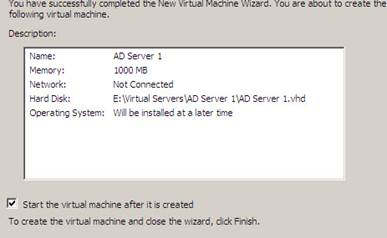
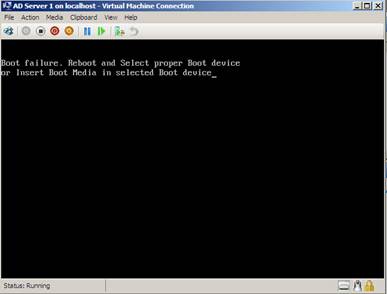
Install an Operating System on your Virtual Machine |
|
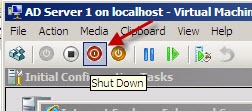
5. Ah ha! Shut down is an OS command, and there IS no OS. So right click and select turn off. Confirm. It should now say AD Server 1 Off. |
|
|
|
|
|
|
|

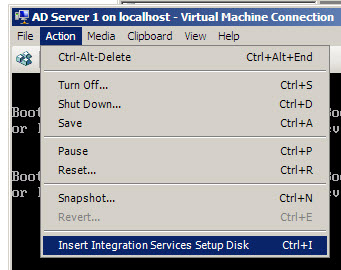

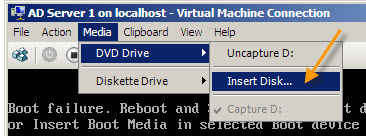
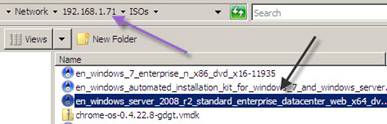
Virtual Machine Settings
|
|
|
|
|
|
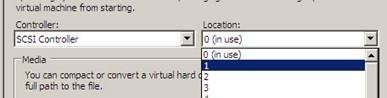
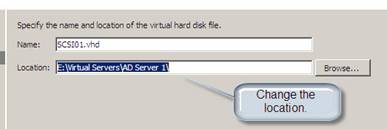

Create a Virtual Workstation |
|||||||||||||
|
|
||||||||||||
Create a Virtual Network |
|||||||||||||
i. If not, go into the properties of your network adapters and make sure TCP/IP v4 and Microsoft Virtual Network Switch Protocol are selected (you can also have TCP/IP v6) ii. If it can, good.
i. Make sure your VM is off. ii. Go into Settings iii. Select Adapter iv. Click and drag to External Net
|
|
||||||||||||
|
|
||||||||||||


Lab 1-9 Parent and Child Disks
Create two more servers |
|
|
|
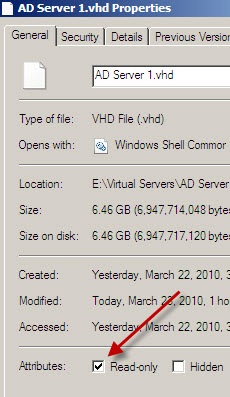
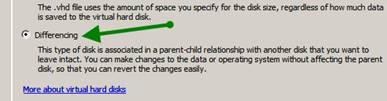
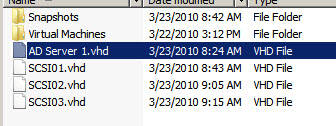
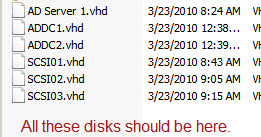
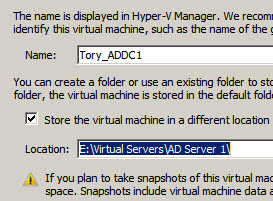
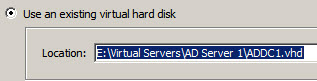
14. Open Hyper-V manager and select your host server name. 15. Under the Action menuàNewàHard disk. 16. The virtual disk wizard will come up. 17. You are going to select a Differencing Disk. Read the description, what is a Differencing Disk for? 18. Name the disk ADDC-1.vhd. Make sure it saves where the rest of your virtual disks are. 19. On the next screen you have to tell it where your parent disk is. That’s you AD Server 1.vhd disk. Click Browse and then Open. 20. Click Next. It will show you your setup. Make sure everything is correct. Click finish. 21. Repeat this step one more time, but name the second drive ADDC2.vhd. Once again, you want to use the AD Server 1.vhd. Check your folder to make sure you have a total, at this point, of six disks. One parent (AD Server 1.vhd), 2 children (ADDC1 and ADDC2), and your three SCSI drives. |
|
For your IP address: Group One: IPs 192.168.1.201-215 Group Two: IPS 192.168.1.216-230 Group Three: IPs 192.168.1.231-254 Group Four: IPs Default gateway: 192.168.1.1 Subnet mask: 255.255.255.0 DNS: 192.168.1.70 and 192.168.1.71 X=the number of your workstation in the classroom. |
|
Lab 1-10 Testing Network Connectivity
One of the protocols used in the TCP/IP suite is called
Parker Sneevle is trying to get to the server named teechur.com
but it’s not working. You can test his computer’s connectivity to that computer
by using
- Open your command prompt (DOS prompt in Windows 9x). Do this in your DELL!
- At the prompt type ping www.teechur.com.

- You see the information above. This means that for some reason, the ICMP packets did not reach the remote computer. This could be caused by a number of situations:
- The server is down
- The network is using a firewall that blocks ICMP packets
- The network card on the local computer isn’t working.
- The network card on the remote computer isn’t working.
- The DNS server is not resolving the IP address correctly.
- You have a couple of options here. If you know the IP address of the remote computer and you know that the network is not blocking ICMP packets, you can type ping followed by the IP address. You can also test your local network card to ensure that it is working. Since troubleshooting protocol dictates that you start locally and work your way out, you’re going to start by testing your local network card.
- You can use the ping command to do this using the loopback address of 127.0.0.1. At the command prompt type ping 127.0.0.1.
- You
see the following:
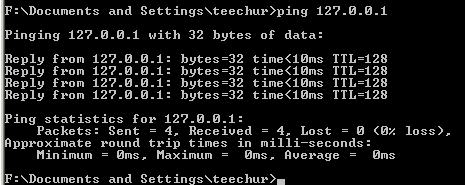
- You determine that the network card is working. How can you tell? (Answer below)
- Obtain the IP address of teechur.com from me. Ping the ip address.
- Is Teechur.com working? (answer below)
You can use the ARP (Address Resolution Protocol) to identify the hardware address of a computer you have connected to by domain name, mapped network drive, or UNC pathname.
- Log into Windows XP.
- Open the command prompt.
- At the command prompt type ARP and hit enter.
- List the switches you can use with this command.
|
Switch |
Purpose |
|
|
|
|
|
|
|
|
|
|
|
|
|
|
|
|
|
|
|
|
|
- Type arp –a and hit enter.
- List the computers your computer is currently connected to.
|
IP Address |
Network Address |
|
|
|
|
|
|
|
|
|
|
|
|
Which one is the server?
No go into your server, make sure everyone is started up and network cables are connected. Log in.
Fill out below:
|
|
Student Name |
Server Name |
IP Address |
MAC Address |
|
1 |
|
|
|
|
|
2 |
|
|
|
|
|
3 |
|
|
|
|
- At the command prompt, everyone type ping 127.0.0.1. Write down what happens.
127.0.0.1 is the “home” address, or built in address of your network card. EVERY network card uses this and it’s only used to test that the card works. If you get a timeout, that means the card isn’t working!
- Student 1 ping student 2 from command prompt of your server. Write down what happens in the white space below.
- Student 2 ping student 1.
- Student 3 ping student 1.
- Student 1 ping student 3.
- Student 2 ping student 3
- Student 3 ping student 2.
- Do an arp –a from your command prompt (everyone). Do you see everyone’s IP address? Write down the MAC address (media access code) for each one on the table above.
Now fire up your virtual servers. Ping each one to ensure your network is working.
|
Virtual Server Name |
IP Address |
Successful Ping? |
MAC Address |
|
|
|
|
|
Model of the Model
Sometimes it is
difficult to conceptualize something like the OSI model without seeing. Since
we can’t look at the network and “see” the OSI model, I want you to create a
model of your own. This model should be a manipulative that can be experienced
by touch and feel. (You may certainly add the other senses if it is
appropriate.)
Using materials of
your choosing, you are going to create a three dimensional model of the OSI
model.
You will work as a
team on this model. Decide together the format your model will take and fill
out a project sheet describing your project.
Use the following
as a guideline for my expectations for this model:
Media
·
Uses
appropriate media (clay, cardboard, wood, etc.)
·
Model
shows appropriate creativity.
·
Model
holds up to use by other students 15
Points
Concept
·
Clearly
demonstrates the 7 layers
·
Layers
are labeled with complete descriptions of what happens at each layer.
·
Transmission/communication
pathway is indicated, both sending and receiving.
- Intercommunication between layers on
the sending and receiving computers is indicated via use of headers.
·
Events
and devices which occur/work at each layer are clearly identified at the layers
they work at.
80
points
Presentation
·
Uses
appropriate terminology to describe model.
·
Demonstrates
the communication pathway from one computer to another
·
Presents
model in a mature and appropriate fashion
·
Shows
clear understanding of the OSI model 35
points
Written
Create a flyer to go with the project
describing all of the following concepts:
8 The purpose of the OSI model in networking
8 A brief description of what happens at each
layer
8 A list of at least five protocols that work
at each layer (use TCP/IP or LINUX protocols)
8 A list of hardware that works at each layer
8 How data travels from one computer to
another through the layers, and what each layer does with the data
8 A “For more information” section
50
points
Teamwork
·
All
team members work together during class time.
·
Each
team member has a job or jobs within the project.
·
All
team members are a part of the presentation.
·
Each
team member fills out a self evaluation and a rubric. 20 points
Total 200 points
Warning: Too often teams get hung up on the
media portion and make a really smashing looking model, but fail to show how
the OSI model works, demonstrate the header information, etc. Notice that
concept is worth 80 points.
Rubric for OSI
model
|
Component |
Exceeds
Expectations |
Completely
Meets Expectations |
Shows promise |
Does not meet
expectations |
Not
Demonstrated |
|
Media chosen is
appropriate and appeals to the sense of touch. |
6 |
5 |
4 |
2 |
0 |
|
Model shows appropriate
creativity. Clearly demonstrates OSI model, but is creative in its approach. |
9 |
8 |
6 |
4 |
0 |
|
Model is sturdy and
stands up to students using it. |
3 |
2 |
1 |
1 |
0 |
|
Seven layers of the
model are clearly noticeable |
11 |
10 |
8 |
6 |
0 |
|
Hardware that occurs at
each layer is clearly labeled. |
16 |
15 |
12 |
9 |
0 |
|
Transmission pathway is
clearly indicated for both sending and receiving computers. |
16 |
15 |
12 |
9 |
0 |
|
Intercommunication
between layers is clearly defined. |
16 |
15 |
12 |
9 |
0 |
|
Events which occur at each
level are clearly indicated or described. |
11 |
15 |
12 |
9 |
0 |
|
Labels are clear, easy
to read, and easy to understand |
11 |
10 |
8 |
6 |
0 |
|
Presenters use
appropriate terminology to describe model |
11 |
10 |
8 |
6 |
0 |
|
Presenters clearly
demonstrate the movement of a packet from the sending computer to the
receiving computer. |
11 |
10 |
8 |
6 |
0 |
|
Presentation is
appropriate and mature. |
6 |
5 |
4 |
2 |
0 |
|
Each presenter shows a
clear understanding of the OSI model |
11 |
10 |
8 |
2 |
0 |
|
All team members work
together during class time. |
11 |
10 |
8 |
2 |
0 |
|
Flyer contains
describes purpose of the OSI model in networking |
11 |
10 |
8 |
2 |
0 |
|
Flyer contains
description of what happens at each layer |
11 |
10 |
8 |
2 |
0 |
|
Flyer contains list of
hardware and at least five protocols that work at each layer |
11 |
10 |
8 |
2 |
0 |
|
Flyer contains a full
description of how data travels from one computer to another (through layers) |
11 |
10 |
8 |
2 |
0 |
|
Flyer contains a list
of resources for more information (at least 10) |
11 |
1
pt per item |
|||
|
All team members are a
part of the presentation. |
11 |
10 |
8 |
2 |
0 |
|
Total points for
presentation |
/200 |
||||
Team Name:
_____________________________________________________
The best parts of this project are:
Improvement could be shown on: