Lab 3-6 Using Network Monitor
On this lab you’re going to use a Windows 2008 Server
computer (or Windows 2003) to take a peek at some data packets. Windows comes
with some built in and extra programs that you can use to monitor different
types of network performance.
Get the following:
8 A
computer running Windows 2008 Server with Active Directory installed
8 A
workstation connected to server’s domain
8 A
crossover cable or hub and cables to connect the two computers together
8 Windows
Server 2008 disk
- Open up your ADDC1 and log in as administrator.
- Download Microsoft Network Monitor (search for Netmon Server
2008 and go to the MS download site).
- Download the 64 bit version (not the ia version, which is for
Itanium CPUs).
- If it says your security settings don’t allow the download,
change the security settings.
- ToolsàInternet OptionsàSecurity
TabàInternet ButtonàCustom
Level
- Go to the downloads section and enable downloading.
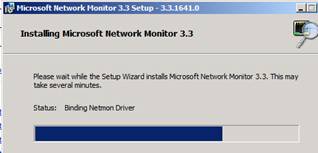
- Install the software.
- Use Windows Update (when it asks).
- It will install Network Monitor (aka NETMON) and the NETMON
Parsers.
|
|
- Open netmon.
- Netmon is for capturing and looking at packets on a network. You
can use it to identify problems on your network. For example, let’s say
your network bandwidth is suddenly being eaten up. You know something is
going on, but you don’t know what.
- You can use Netmon to capture the packets and find out where
they are coming from. What you might find is a Broadcast Storm. This
happens when a malfunctioning NIC sends a bunch of “noise” out onto a
network, slowing everything down.
- You get a LOT of information using Netmon, so don’t be
overwhelmed. Let’s just start a capture.
- Click New Capture.
- Go to that capture and click the Start button and let it run.
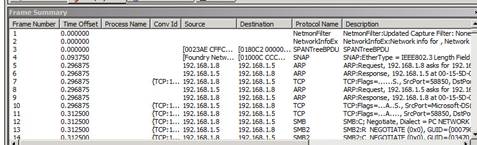
- Scroll down and you can see what your packets are doing. In
mine, for example, I see that one computer asked for IP address to MAC
address resolution to talk to it.
- I see some SMB (server message blocks) negotiating a connection
(at the transport layer, I might add).
- Notice you’re connecting to a “tree” (a tree is a bunch of
domains in a forest).
|
|
- Now go into your Windows 7.
- Open your command prompt and type ping nameofserver –t.
The –t switch tells it to keep running a ping command until you stop it.
(Where it says name of server, put the name of YOUR server.
- Now go back to your server. Scroll down in Netmon.
- You’ll see something like the picture to the right.
- You can see it’s using IPv4 (Internet Protocol Version 4), that
192.168.1.8 is pinging the computer named SNAPPY and the ICMP protocol
is sending requests. Then it is getting requests.
|

|
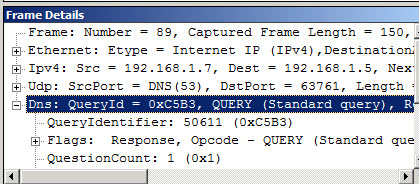
- Now click on any one of those frames and look at the Frame
Details window.
- What is the frame number?
- What is the length of the frame?
- What is the media type?
- What is some of the other information you see?
|
|
- Now start another capture. Go to your IE and open a website.
Click a few links.
- Go back to Netmon.
- Click on Internet Explorer to filter only queries that come from
IE.
- What do you see?
33.
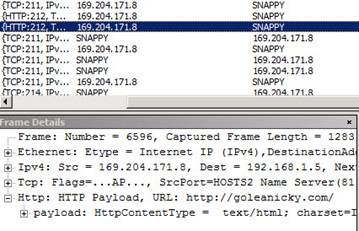
Go to
your IE and type in a URL that doesn’t exist (I used www.goleanicky.com). Make sure you get
an error (probably Could Not Connect to Server).
34.
Now go
back and look at the Frame Summary. Scroll over so you can see, under
description, the HTTP Payload that corresponds to the bad URL. (Payload is
what is delivered in request to www.goleanicky.com.)
35.
Right
above it should be a RESPONSE. Click that frame. Click on HTTP: Response in
the Frame Details window.
36.
It’ll
say “StatusCode”” somewhere. Why couldn’t it find this URL?
|
|
1.
Why use NetMon on your server?
2.
Look at your traffic and answer the following
questions:
a.
Locate an ARP Request. What IP address is making
the request?
b.
What is it asking for?
c.
What is the response (it should show the MAC
address)?
d.
ARP is Address Resolution Protocol where you can
give the computer an IP address and it will resolve it to the MAC address of
the device.
e.
Go under FilteràDisplay FilteràLoad FilteràDNSàProtocol
Filter DNS. Apply that filter. What do you see?
f.
Play around with a few other things. Don’t worry
if you don’t completely understand it right now.