Lab 3-5 Joining Your
Workstation to the Domain
Before you start:
- Make
sure your servers are turned on. If you don’t have enough RAM, at least
have one of them on, preferably ADDC1.
Directions
- Turn
on your Windows 7 Virtual Machine and log in.
- We
are going to make this computer a member of your new domain!
- Then
we’re going to play with some packets. J
- First
make sure your Windows 7 has an IP address and can get on the Interwebs.
- Don’t
use MY IP address, but use the one from lab 2-7 last unit that I told
you to use. Be sure your preferred and alternate DNS servers are YOUR
servers, not mine.
- Activate
it if you haven’t done so already.
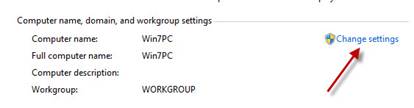
- Right click on Computer and select
properties.
|

|
- Click
the Change Settings button.
- Click
Network ID.
- This
computer is part of a business network.
- Your
company uses a network with a domain.
- Username:
Administrator
- Password:
P@ssword (that’s what it SHOULD be, at least).
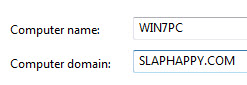
- Where
it says Domain name, you need to change the name of the computer to
whatever your domain is. Mine is slaphappy.com so I’d type that in
there.
- It’s
going to say it can’t find an account in the domain for your COMPUTER.
That’s because you haven’t created one, so that’s cool.
- Leave
Computer Name the same and type the domain in again.
|
|
- For
some reason it’s going to ask for your credentials…AGAIN! Type them in
again.
- It’ll
do its thing and add you to the domain. Here’s what it is doing:
- Checking
the domain to see if the username you used is correct and
authenticating you.
- Checking
to see if that username has the right to join the domain and create
computer accounts.
- Creating
a computer account in the domain.
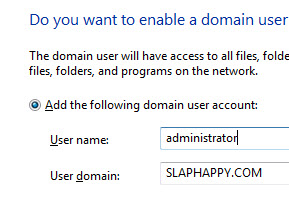
19. When
it’s done it will ask you if you want to create a domain user account on this
computer. YES you do.
20. Why?
Because if you set a domain account on your computer as a local
administrator, when the computer won’t talk to the domain you can log in with
that domain account locally and fix it.
21. Leave
it the same (since you’re only adding an already created account, not making
a new one). Click next.
22. Make
it an administrative account.
23. When
you’re done it will tell you that you have to restart your computer. Do that.
24. Note:
You can do the same thing with a server, but not a domain controller. You
might have, for example, a web server or file server that you don’t use for
authenticating and controlling users.
|
|
- Now
check to find that computer domain. Go back to your server.
- Go
to Administrative ToolsàActive Directory Users and Computers.
- Expand
your server.
- See
those folders? Those are called Organizational
Units. They are for organizing users, groups, and computers. Click
Computers and you should see the computer you just joined to the domain.
- Now
go to your OTHER server. Do you see the same account there?
- Wow!
That’s nifty! Why does it do that?
|

|
- Go
back to Windows 7. You’ll notice that now you have to log in as
administrator. Don’t log in yet. It’s not Best Practice to log in as an
administrator on a local machine.
- Let’s
do ONE more thing. We’ll do more users later, but for now lets create
you as a user.
|

|
|
33. Go
to ADDC1
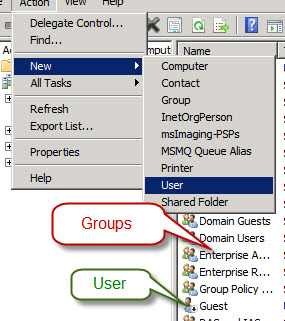
- Click
on the Users Organizational Unit (OU).
- Notice
that there are little one heads and little two heads.
- The
one heads are users. There should be only two.
- The
two heads are groups. There are a bunch.
- We’re
going to create a new users.
- Go
under the Action MenuàNewàUser
- Type
in your full name.
- Create
a logon name. Click next.
- Create
a password. Note that your password MUST have at least three of the
following:
- Capital
letter
- Small
letter
- Number
- Symbol
- It
must also be no less than 7 characters long.
- Tell
it that the user doesn’t have to change password at next logon.
- And
set it so password never expires.
- Now
to go ADDC2. WOW! That was fast, huh? It replicates immediately!
(Replicates means it completely copies the full Active Directory
Database from one domain controller to the other, so if one goes down
the other one can take over.)
- Now
go to Win7 and logon as your new account. Were you able to get in?
|
|
Questions
1.
What is the address of your preferred DNS
server?
2.
What is the address of your secondary DNS
server?
3.
What is your subnet mask?
4.
What is your Default Gateway?
5.
What is a default gateway?
6.
What is your domain name?
7.
How do you join a workstation to a domain?
8.
Can you do that to a server too?
9.
What kind of server do you NOT join a domain
this way?