Lab 3-4 Installing a Second Domain Controller

Before you start:

  1. Check your computer name on both of your ADDC servers. If they are some funky name, change them so it’s something easy to spell. NO LEET SPEAK.

Directions

  1. Log into your OTHER server as an administrator. Be sure ADDC1 is on and working and has Active Directory installed.
  2. Hyper V Manager.
  3. Start your ADDC2 server and log it in. Check the computer name. If it is a funky name, rename it a single, easy to spell word. We’ll be using UNC pathnames so you don’t want to have to type \\win-22390ea24 when it would be a lot easier to remember \\snappy and \\slappy (that’s what I named mine). Restart after naming.
  4. Under Customize this Server select Add Roles
  5. Select Active Directory Domain Services
  6. It will tell you that you have to add the .NET framework again, so say Add Required Features.
  7. Select install.
  8. When it’s done, open the RUN box and type the command to promote the server to a domain controller.

dcpromo.jpg

  1. Since you’re a new user, just click next. Do not go into Advanced Mode. Just like last time.
  2. You’re going to get some information about OS compatibility. Read it if you like. Press Next.


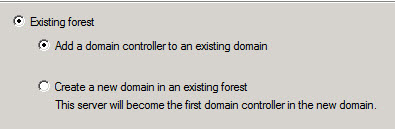
  1. This is going to be your backup domain controller, so you’re going to add a domain controller to an existing forest.
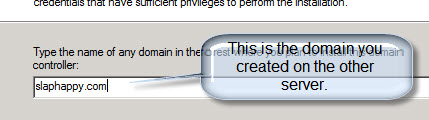
  2. You’re going to hit next and it will ask you what domain you’re going to join. The domain is the one you created in lab 3-3.
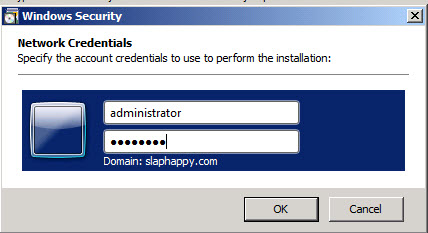
  3. It also tells you that the current user, which is your local computer administrator, can’t join the domain so you need some other credentials. You can’t move on until you set those, so click set.
  4. Type in the administrator name and password from your other domain.
  5. Hit next.
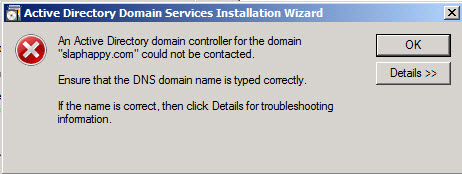
  6. The error below is common. It means it can’t see your other domain.

error.jpg


Potential issues:

a.     You spelled the domain wrong. Click OK and go back.

b.    Your server isn’t seeing the other DNS server. If that’s the case go into the properties of your network card on this server and make the first DNS Server address the address of the OTHER server.

c.     You put in the wrong username or password.

d.    Your server is off (the other controller).

e.     Your computers can’t see each other. Ping them by IP address and make sure they can see each other.

f.     Unknown. Try restarting the other server.

existing forest.jpg


slaphappy.jpg


credentials.jpg

  1. Once it’s going, it will ask you to select a domain. You only have one, so select that forest root domain.
  2. Next it will ask you about a site. Just hit next to select Default-First-Site-Name. (You become a site when you add a second DC, so that’s why the entry is already selected for you.)
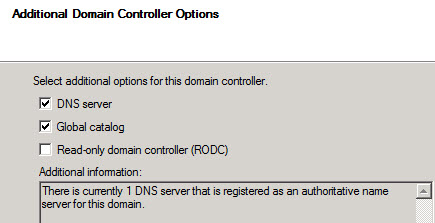
  3. Additional Domain Controller Options. Select DNS server and GC server.
  4. It is going to give you that same error about DNS, but this time pay attention. You ARE going to install a second DNS because you should have two, but when you’re all done you have to go in and manually create a delegation to this DNS server.
  5. A DNS Server is a Domain Name Server. It resolves names into IP addresses so all you have to remember is a computer name. It also knows where servers are. If you go to your other ADDC you’ll see DNS is installed.
  6. We’ll do that later so click yes.

additional dc options.jpg

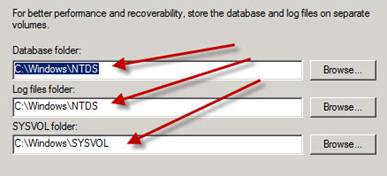
  1. The next screen will ask where you want to store your log files and your SYSVOL folders. Go ahead and it store in C:\
  2. Create a STRONG PASSWORD! We’ll use P@ssword.
  3. Review your summary. Does everything look correct? If so, click install.
  4. Note that it will “talk” about what it is doing. This can take awhile, and you can’t turn off your computer while it’s doing it.
  5. Nor can you install ADDC on your other domain controller because it’s going to be a backup domain controller. Sorry.
  6. Click “Reboot on completion” and answer the questions below.
  7. Note, when it reboots it takes a LONG time to restart to the point where you can log in. This only happens the first time as it sets up all the new services so don’t panic.

store databases.jpg


Questions

1.     What is DNS?


2.     Is DNS required for Active Directory?

3.     Where did you store the SYSVOL folder?


4.     What password did you use?

5.     Did you get the error message about the domain not being able to be found? What did you do to resolve it?


Don’t feel bad, I got that error too and had to change the DNS IP address.


While your AD is installing on this server, go into your other server and do the following:

1.     Open D

1.     Open your DNS Server (Administrative ToolsàDNS)

2.     What you see is your server. Expand that and you’ll see Global Logs, Foreward Lookup Zones, Reverse Lookup Zones, and Conditional Zones.

3.     Expand Forward Lookup Zones.

4.     You’ll see the name of your domain.

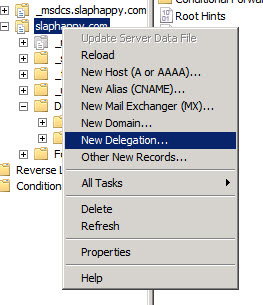
5.     Right click and select New Delegation.

6.     Click Next when the wizard comes up.

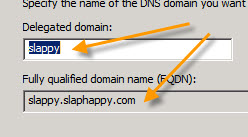
7.     It’s going to ask for the name of your DNS Domain. You want the DNS domain of your CURRENT server. So I’m on my server named SLAPPY so I’m going to type SLAPPY

DNS2.jpg

dns1.jpg

8.     On the next page you want to create a new Name Server Record. DNS has a lot of “records” in it. So if you have a computer named fred at IP address 10.10.2.5 there is a record for that. A name server record is the IP address and name of a server running DNS.

9.     If you don’t know the IP address of your OTHER server, type in the name and click RESOLVE. If you typed the name in correctly, it’ll show up with a green circle with a checkmark in it.

10.  Click OK

11.  Click Next.

12.  Click Finish.

dn3.jpg

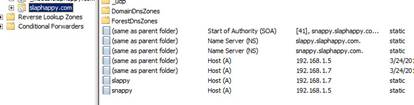
13.  Check to make sure it worked!

14.  Go into your second domain controller.

15.  Open Forward Lookup Zones

16.  Open Slaphappy.com (or your domain)

17.  You should see records similar to the ones on the right.

a.     Start of Authority (should be the name of your server)

b.    Name Server (NS) the other server FQDN

c.     Name Server (NS) this server FQDN

d.    Host (A) records including ones for each of your computers in your network.

dns zones.jpg