Lab 5-6 Installing WINS
Generally you don’t need a WINS server if your domain is all Windows 2000 or above, but just in case you have a Windows 98 floating around in there somewhere, let’s install WINS!
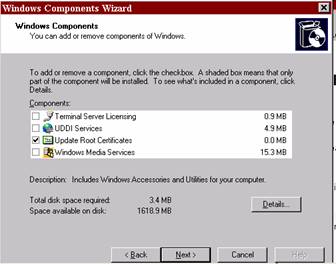
Let’s try a new way to install a service on Windows Server.
|
|
|
|
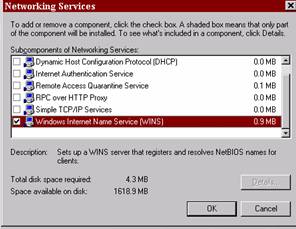
Click Networking Services and click the Details button. |
|
Scroll down and find Windows Internet Name Service (WINS) |
|
|
|
Click OK. Click Next. |
|
It’ll take awhile for WINS to install. You’ll probably need your disk. |
|
According to Microsoft, the default settings for the WINS server are all you need. There isn’t a lot of configuring you should do, although you can configure things if you need to. This would come with more advanced server management. |
|
Make sure your
workstation is registering on WINS |
|
Start up the workstation on your partner’s computer. |
|
Make sure it is set up to obtain an IP address from your DHCP server. |
|
Make sure it is obtaining an IP address from your server by either: m Checking the DHCP server to see if that computer name is getting an IP from you m Type ipconfig /all at the workstation command prompt to make sure the IP address is obtained from the correct scope |
|
Open your WINS server (it’ll be in the administrative tools on your server). |
|
In the console tree, select Active Registrations |
|
On the Action menu select Display Records. |
|
Click find now. |
|
The entire WINS database should show and in there you should be able to find your workstation’s registration. Do a print screen of this and attach it to your lab report. |