|
Do this
|
It’ll look like this
|
- Let’s start by creating a simple test page
using Fedora’s version of Notepad.
- Remember that root is the owner all of these
files, so we’re going to have to open the program as su (super user).
- Open your terminal
- Log in as superuser.
- Type gedit to open the text editor. It is now
running as root. BE CAREFUL with this. Do NOT run other programs as root
unless you know what you’re doing. The root account is used ONLY for
system maintenance and in special cases.
|
|
- Let’s make a simple website. Type the code
shown at the right, exactly as shown.
- Save this file as index.html in the
folder /var/www/html
- Go into Firefox and load up either localhost
or your ip address.
- What do you see?
|
<html>
<head>
<title>My happy little website</title>
</head>
<body>
Hello World!
</body>
</html>
|
- If it didn’t work, go back over the
instructions very carefully and fix it. Do not move on until you can see
your site.
- Let’s add a few more pages and test linking.
- On the page you have, add the code to the
right between the body tags.
- Note that the <br> tag sends a line
break, so put it wherever you want a hard return.
|
<a href=”test.html”>Testing a
link</a><br>
<a href=”test2.html”>Testing another link</a>
|
- Now create two more pages. One named
test.html. Add some stuff to it. Save in the /var/www/html folder.
(We’ll do test2 in a minute.)
- Put something on them so you know they work
when you click the links. Use the coding from step 6, just change it up
some.
- I know some of you know html, and others
don’t, so this is just a taste. It’s REALLY easy, actually. It’s your
basic open tag…stuff you want to say…close tag. So if you want something
bold you do <b>this is the stuff I want bold</b>. If you
want it underlined it’s <u></u> etc.
|
Have me check off your highly effective and wonderful
site before you go onto step 18.
|
- Test out the pages. Do they work? Beautimus!
- But who uses a text editor to write webpages?
Okay, I do but I’m old skool and I roll like that.
- Let’s open Openoffice to create your site.
You can delete those other pages if you’d like. You’ll be writing over
index.html.
|
|
- Close gedit. You should end up back at the
terminal.
- Normally when just using OpenOffice you
select it from the Applications menu, but we want to open it as su
because we’re going to save in the html folder, and as you, you can’t
save to that folder. (Test it first and see if you can, I could NOT even
with proper permissions applied.)
- Go to terminal.
- Log in as su
- type –c openoffice.org
- Go ahead and create a new writer page
- Save as test2 in /var/www/html. At the
bottom.
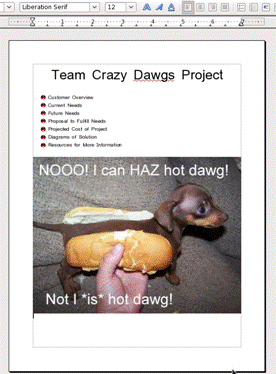
- Toss a picture or two on it, some text. Go
ahead and format it however. I put a picture of a Dachshund in a hot dog
bun. Whatever floats your boat! We’re just practicing.
|
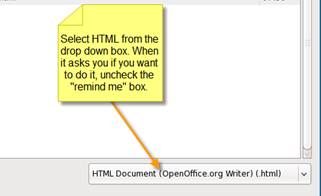
Uncheck when you save “ask when not saving in ODF format”
|
- One you have a feel for this, you’re going to
create a website where you will post your project. Decide which
webserver the project will be posted on.
- Create a page that looks like this (use your
own graphic) and save it as index.html in /var/www/html
- It should have the following sections:
- Customer Overview
- Current Needs
- Future Needs
- Proposal to Fulfill Future Needs
- Projected Cost of Project
- Diagram of Project
- Resources for More Information
- Once you have the homepage set up, you’re
going to set up your webserver so your partners can edit on their
computers and save to yours using ftp.
|
|