Lab L-5 Linux Basics : First Steps Into Linux
By Aarjav
Trivedi <aarjavtNOSPAM@yahoo.com>
Posted: ( 2002-02-04 14:35:18 EST by prakash )
For Linux newbies a quick lesson on
every day Linux commands.
Welcome!
We meet again. It has been some time now since I've heard you swear at your
computer so I assume your Linux installation went well and you have been
experimenting with your new system However If you are one of those wanderers
who ever so often chance upon random webpages on the net, here you
will find a detailed guide to installing Linux.
Now
during installation you chose a 'root'
password which you used to login when you were prompted for a username and a
password for the first time. 'Root'
on Linux is the centre of all power. He is the System Administrator who has
access to all files and folder and can add or delete users or change their
passwords.
Now
absolute power can corrupt absolutely. For eg. If you put in a virus infected
floppy as Root, (Not that there are many viruses for Linux, as of now I have
come across just two) the virus might be able to infect all files, since you
have access to all of them. Users other than root however have write access to
a limited part of the file-system which often excludes crucial library and
configuration files thus reducing the risk of damage due to such incidents. So
you must create a new user for yourself and when not performing administrative
tasks should log in using that username rather than root.
Lets
create a new user.
First
open the Linux Console which is found on the Panel at the bottom of your screen
generally shown by an icon that looks like TV switched off with a black screen.
The following commands are to be type in the console, pressing enter after you
have entered the full command. For us we will go under ApplicationsàSystemàTerminal
The
'useradd' Command
The
general syntax for the useradd command is :
useradd
-d home_directory -e expire_date -g initial_group -p password login_name
home_directory
: Is the main directory within which the user is expected to story all his
files and subdirectories.
For a user named 'foo' the home directory generally is /home/foo
expire_date : This is the date on which the user's account expires and he/she
cannot access the computer
anymore unless the account is renewed. This is somewhat similar to your ISP
account
expiring in 6 months or one year. The expire date is in yyyy-mm-dd format
(2002-0L-30)
initial_group : Every user in Linux belongs to a group which affects his file
permissions. The initial group
must be a group which already exists.
Password : This will be the user's password to access his account
login_name : This will be the user name with which the user will access his
account.
Eg
:
useradd
-d /home/einstein -e 2002-0L-30 -g root -p relativitysucks einstein
creates
a user named einstein on my computer.
His
home directory is /home/einstein
His expirty date is 30th august 2002
He belongs to the 'root' group
His password is relativitysucks
His username is einstein.
Incase you do not enter one of the parameters group, home, expire or shell they
are replaced by their default values. These default values can be viewed using
the " useradd -D" command
and can also be changed which however we will cover in a later document.
The
ls command
The ls command
is equivalent of the DOS dir command.
It lists the files and subdirectories contained within the present directory.
Some
possible flags which can be used with the ls command are :
ls
-a
List
all files (Some configuration files starting with a dot '.' are otherwise not
listed). Often the number of files in a directory is too large to be fitted
within one screenfull of data. In such a case we use dir/p for DOS. For linux a
similar command is
ls | more
Lists
files and directories page after page on keystroke. The above command actually
is a combination of two commands. It introduces a new concept called 'Piping'.
It is done using the logical OR or | character found just above the Enter key
on your keyboard. In Linux it is possible to give the output of one command to
another command as an input.The ls command lists files & subdirectories and
the more commands divides its input into page length views. Thus piping the ls
output to more results in page length views of files and subdirectories.
ls
-R
It lists the files and
subdirectories of a directory and further lists the contents of each
subdirectory recursively. The output of this command is usually large and is best
seen when piped through more.
The
pwd command
The
pwd or the present working directory command gives you the path to the
directory in which you presently are. It is used without flags simply as 'pwd'
The
su command
Many
a times you might have logged in as a normal used and might need to be root to
install a software or for some other small task. You could logout then login as
root complete the work logout and login back as a normal user. Instead, you can
just use the su command. The format is :
su
username
eg
: su root
when
you 'su' to become root from a normal user, you are asked for the root
password. But if you are root, you can use 'su' to become any user without
using a password. Once your work is finished, use 'exit' to become yourself.
The
whoami command
Sorry
folks! This command won't solve your teenage identity crisis but it will tell
you which user you are logged in as. Useful when you have used 'su' many times
and now don't know who you are.
The
cp command
This
one copies files / directories from one place to another it's syntax is
cp
source_file_with_path destination_path
eg
: cp /home/aarjav/secret.txt /ftp/pub
This
would make all my secrets public :). But my secrets wouldn't fit on my 8.4 Gb
hard-disk ;) The cp command can be used with some useful flags also :
cp
-i
Interactive copying, prompts
before overwriting files or directories
cp
-l source_file_with_path destination_path
Makes a link (shortcut) to the
source_file at the destination path instead of actually copying it there.
cp
-p
Preserve
file attributes while copying if possible
cp
-R
Copy
Recursively . Used when copying directories. This command also copies the
contents of the subdirectories.
cp
-u
Update
i.e. Copy only if the source file is newer than the destination file or the
destination file does not exist.
The
rm command
The
rm command is used to remove or delete files or directories. Its general format
is:
rm
-flag file_or_directory_with_path
eg
: rm /home/aarjav/waste.txt
Some
flags which can be used with the rm command are
rm
-v file.txt
Remove
verbosely, explain what is being done.
rm
-r my_directory
Remove
the directory and its contents recursively.
The
mkdir command
This
command is used to create new a new directory. Its syntax is
mkdir
-optional_flag directory_name
The
possible flags are
mkdir
-v directory_name
Tell what is going on.
mkdir
-p directory_with_path
This
is a cool command. Suppose you need a directory named SEIT within another
directory called PVPP in /usr/local and the parent directory PVPP itself does
not exist, then you can use :
mkdir
-p /usr/local/PVPP/SEIT
This
command creates the PVPP directory and the SEIT subdirectory in one go.
The
man command
For
someone new to linux, the man command is one of the most important commands.
The syntax is:
man
command_name
Suppose
you have not understood fully one of the above commands or want to find out
about a new command you have learnt , the man command provides a manual for
that command
Thus
man
cp
will
show you a manual on the cp command and so on.
I
think that is enough material to keep you busy for a few hours and get you
through some of the elementary tasks in Linux. So farewell friends, until we
meet again.
© Aarjav
Trivedi 2001
The
author grants you express permission to store, copy and republish this article
in electronic or hardcopy form
as
long as its contents including this instruction are not changed.
This
document prepared in Linux using StarOffice 5.1
I
would appreciate if some one using this article on their site or somewhere else
would drop me a mail.
<
a href=\"http://www.freeos.com/articles/3896/\">Linux demystified
|
Do this |
It’ll look like this |
|
Create a New
User
|
|
|
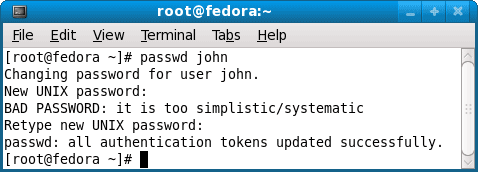
Change the
user password
|
|
|
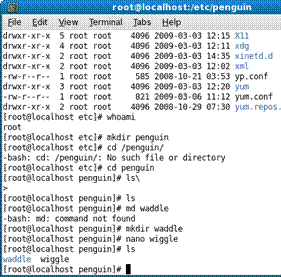
Moving around
directories
|
What do you
see?? |
|
What do you
see?? |
http://floppix.ccai.com/ls.html |
Rw =
____________________ R=
_____________________ Drwx
=______________________ Xr=_____________________ 1 (or 2 or 3)
___________________ Root root
_______________________ (note that root is a user here as well as a group…a
lot like administrator is part of the administrators group) |
|
|
|
Who are you? |
a.
Change
directory to the root. b.
Create a
directory named Penguin c.
Move into
penguin d.
Create a
directory named waddle e.
Move into
waddle f.
Create a FILE
named wiggle. a.
At the prompt
type nano waddle (nano is a text editor) b.
Type Hi! I
have wiggle in my waddle! c.
Notice the
bottom of the screen has things like ^X etc. If you select ^X it’ll exit. d.
Do you want to
save? Yes. Keep the name wiggle. g.
List the
directory contents. You should see waddle and wiggle. Why is waddle blue?
|
|
|
Answer here |
|
|
|
|
|
|
|
What happened? What does cp
–l mean? (to scroll down hit page down) |



Questions
- What command did you use to
change group membership of html to web?
- What command did you use to
change the permissions on the html folder?
- What was the purpose of denying
permissions to everyone for the intranet folder?
- So if some schmoe on the
interwebs goes into the intranet directory and starts poking around, what
can he do?
- What is the numerical (octal)
representation of owner and group rwx, everyone deny all?