Apache is an open
source webserver that has been around for years and
is used both on Linux and Windows boxes throughout the world. It is simple,
straightforward, and robust without all the bells and whistles of Windows
Internet Information Services.
You can install a
simple HTTP server, or you can get really fancy and allow it to host dynamic webpages, databases, etc. The sky is almost the limit with
Apache!
We installed Apache
in our initial installation of
|
Do this
|
It’ll look like this
|
- Log into root using your terminal.
- Now we’re going to install all the Apache
Packets. This gives you the option of using a number of packets to start
daemons. A daemon is a process that runs all the time and provides a
service. For example the http daemon provides web page serving.
- To ensure that you have Apache installed type
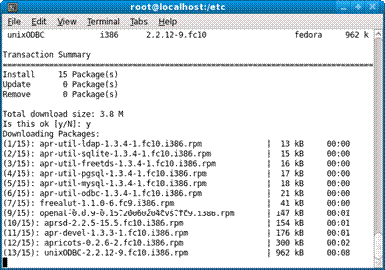
yum install apr*. This will install all
the apache resources.
- Now type yum install httpd*
- It may tell you that it is already installed
and latest version so there’s nothing to do. If only it said “Have a
nice day” it would be perfect.
|
|
- Before you do anything, we’ll use OpenOffice to create websites, so let’s make sure
it’s installed. It should be under ApplicationsàOffice.
- If you do not have OpenOffice
installed, open Terminal and log into root.
- Type yum groupinstall
Office.
|

|
- Make sure you have static IP addresses on all
computers in your network.
- To assign a static IP in Linux:
- Go into SystemàAdministrationàNetwork
- Type in your root
password
- You’ll see something
like the right picture img 1.
- Double click eth0
- Select the following
4 Activate device when network starts
4 Statically set IP Address settings
- Set address as
indicated from your subnet. This will be the address of your webserver.
- Click OK
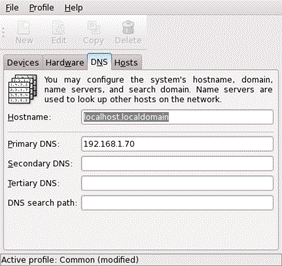
- Now in Devices click
DNS
- Type in the
addresses of two of your Windows servers for DNS
- Close, say yes you
want to save. Sometimes the interface then disappears from the active
settings. Eeek!
- Now restart the
network service.
- Go to systemàAdministrationàService Configuration.
- Find network
- Restart
- Test your connection by pinging the other
computers
- Log into root at terminal
- Send the ping command just like in Windows.
- To stop the ping type ctrl-c
- To set the ping to run only a certain number
of ping packets type ping ipaddress –c x where x=number of pings. –c stands
for count.
- At the prompt type man ping to learn
more options you can use in ping.
|
4 Subnet
mask: 255.255.255.0
4 Choose YOUR
two Windows Servers to be your DNS servers, and put THEIR IP addresses in for
DNS, as well as the other two we had in already.
4 Default
Gateway: 192.168.1.1 

|
- Let’s start the Apache Daemon. At # type /etc/init.d/httpd start
- It will say starting httpd:
- We want to configure Apache to start at
startup. Use the command chkconfig --level
35 httpd on (this turned httpd…aka apache http server…on and tells it to turn
on at boot, and sets the system level to 3 <non-graphics mode> and
5 <graphics mode>)
- Yay!
Note: You must have your proxy turned
OFF on your machine or it won’t work. Yeah, fought with that for two days
until I had a duh moment.
|

|
Questions
- What
is a daemon?
- What
is the name of the apache daemon?
- Where
can you change your IP address?
- Why
must a webserver have a static IP address?
- What
is the IP address of your Linux server?
- What
command would you use to send 5 pings with a packet size of 64k?
- What
command do you send to set the graphics level to non-graphics mode, and
graphics mode and make sure httpd starts at
startup?
- What
is the difference between groupinstall and
install in Yum?