Lab L-2 Working with Yum
YUM is a
package management system for Linux. It’s used to install packages (programs)
from the command line. YUM is used to install RPM packages (*.rpm). YUM stands for Yellow Dog Updater Modified.
Yum works by
looking in “repositories” which are basically computers that serve a buncha files. They may be mirrored (copies of the entire
directory on another computer in the interwebs). The
good thing about this is that the program (YUM) can look in other computers if
for some reason the repository is down or too busy. There
ARE some errors you may get, so read ALL of the directions.
A few notes:
/etc/=a directory that holds configuration files
and directories
.conf=a configuration file, so yum.conf
is the yum configuration file
Su - = logging in as Super User (tada). You have to be logged in as SU in order to change
these files.
Most commands are unix commands, but some dos commands work. If all
else fails, ask for help!
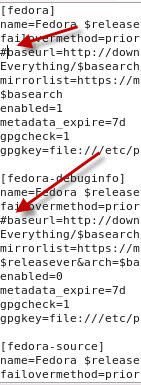
# = a comment in a configuration file. You can
“comment” out a line by putting a # in front of it.
|
Do this |
It’ll look like this |
|
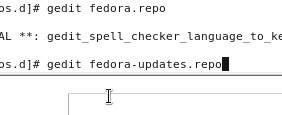
Yum.conf file
|
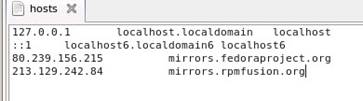
80.239.156.215
mirrors.fedoraproject.org 213.129.242.84
mirrors.rpmfusion.org
|
|
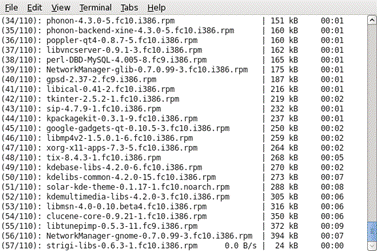
Note: If there is an error when
installing a package, you can simply restart the installation. YUM will
determine what parts have already been installed and pick up the other parts
from another mirror. When I installed KDE it did not fully install. I just
ran the command again, it grabbed the two RPM packets that didn’t download,
and I was in business! If it says
it is not installed, rerun the installer. That happened to me EVERY time I
installed it. While it’s installing, go to http://www.kde.org/
and take a look at the features of KDE Plasma Desktop. After you log back in it will
look very similar, but start poking around under menus and you’ll see…nope,
it’s added all sorts of new and exciting things to your desktop and programs! Answer the questions here:
|
K Desktop Environment works
with widgets. It’s cool, too. |
|
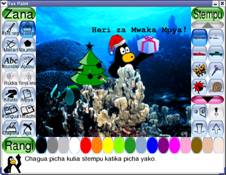
One of the
benefits of open source is that you can get programs ported to other
languages, such as Swahili. |
|
|



Questions
- What is YUM?
- What is an RPM?
- What is the hosts file?
- What is a .conf file?
- What is a baseurl?
- What is a .repo file?
- What is the command if you wanted
to install a program named Tory_Rocks?
- How do you switch between KDE and
GNOME?
- What is GNOME?
- What is KDE?
- What are three differences you
see between those two desktop environments?
- If you’re installing something
via YUM and one of the download mirrors goes down, what do you do?