Name: _______________________________________________________

Individual Linux Unit

Linux Lab Checkoff

`Lab

Excellent

Needs Work

Incomplete

Lab L-1 Installing Linux

  • Create Linux VM


  • Install Fedora


  • Set up NIC


  • Demonstrate Firefox


  • Install all updates


  • Answered Questions


Lab L-2 Using YUM

  • Demo how to log into ROOT as a Super User (no cape required)


  • Show to change the proxy


  • Install KDE


  • Install Tuxpaint


  • Install one more package from the website given


  • Answered Questions


Lab L-3 Install Apache

  • Install Apache


  • Install OpenOffice


  • Assign new  IP addresses


  • Answered Questions


Lab L-4 Creating Users and Folder Permissions

  • Create users


  • Create folders


  • Set permissions


  • Answered Questions


Lab L-5 Linux Basics

  • Demonstrate the LS command


  • Demonstrate the WHOAMI command


  • Copy something


  • Use a command with a switch


  • Create a directory


  • Answered Questions


Lab L-6 Creating a Website

  • Create a simple website


  • Serve the site


  • Get to it from another computer


  • Answered Questions


Lab L-1 Install Linux Server in your Network


Do this

It’ll look like this

  1. Create a New Virtual Machine.
  2. Name it FEDORA
  3. Set memory at 1000MB
  4. Select legacy network adapter and connect it to External Net
  5. Make the VHD 10GB and save it with your other VMs.
  6. Be sure to capture the DVD drive, or you can capture the ISO.
  7. Get a Fedora 10 DVD from me.
  8. Pop the DVD into the drive. If you do not have a DVD drive, capture the ISO.
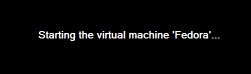
  1. Start your new server. It will boot into Fedora Live.
  2. It will boot into Fedora and automatically log in using some sort of Linux voodoo.
  3. Wow look! It’s already installed! No, not really. This is a LIVE disk. That means you can test the OS before you actually install it, or use it for recovery of data on other computers. Very handy. Not all LIVE disks can also install the OS, but this version of Fedora can. Sweet!
  4. You can poke around in Fedora and “try before you buy’ but let’s just install it into our virtual machine.


  1. Double click “Install to Hard Drive” (this makes it somewhat idiot proof).
  2. Click next
  3. Select English for your language, or if you do speak another language, knock yourself out!
  4. You can install to SCSI drives or even SANs (Storage Area Networks) but we’re going to just install to a Basic disk.
  5. It will examine your storage devices…(whistle a bit).
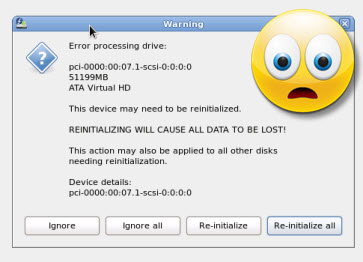
  6. Oh Em Gee! Danger Will Robinson! There is an error on your ADA drive! Panic! Clutch your throat in fear! Or just tell it to reinitialize because the drive isn’t formatted. We just created it.

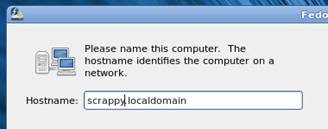
  1. Name your computer, but leave “localhost” there (see my example).
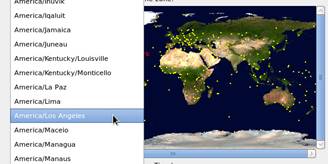
  2. Select Los Angeles as the time zone.
  3. Set the root password to p@ssw0rd. It will warn you that it is weak. Tell it that IT is weak and this is just a lab, and set it.


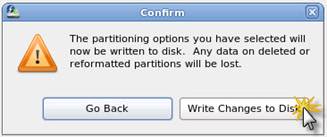
  1. Write changes to disk. It is going to format your drive and do all sorts of fun things.


  1. It’ll say Activating New Partitions then Formatting / file system…etc.
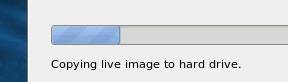
  2. It’s going to copy the entire Live disk to your hard drive. Nifty!
  3. It’ll take awhile…sit back, relax, or go answer the questions in your other labs.
  4. When it’s done, close and go under the system menu and shut down.
  5. Select restart.
  6. While it is restarting, uncapture the D: drive or ISO so you don’t restart in the live version. I had to turn off the virtual machine to eject.


  1. Restart. Click forward. Accept the EULA. Nice and short…never saw a EULA that short!
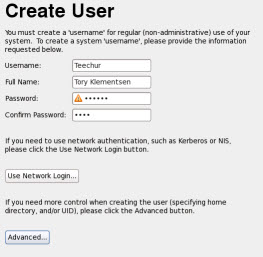
  2. Create a user (you). This will NOT be an administrator.
  3. You won’t create a network login. Nothing advanced.
  4. Go ahead and let it get the date and time from the network. Now it might not work at first because you may not yet have network connectivity, but it will once you get that.
  5. NTP=Network Time Protocol and it allows your computer to get time from a server that will automatically update time and date.
  6. Don’t send your hardware profile. No really, do not send.
  7. It will look like the screen freaks out and then restart. This is normal. It scared me the first time too.
  8. Log in as the user you created.
  9. The first thing that will happen when you log in is you will get a security alert. Totally normal. Linux updates a LOT! We’re not on the interwebs yet, so not to worry.

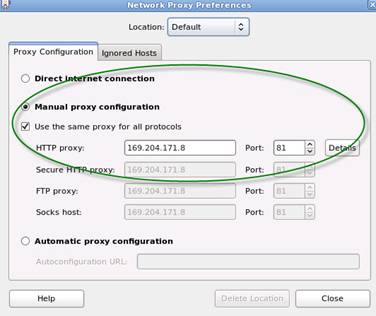
  1. Let’s set the proxy server. You can set it using configuration files in terminal (more on that later), or Fedora  makes it easy.
  2. SystemàPreferencesàSystem Proxy
  3. You CAN use different proxies for different protocols, but we’re going to use the same one for all protocols.
  4. Type in our proxy.
  5. Now let’s go into Firefox and make sure it can get online.
  6. If you get the error, Proxy refused connections (or something like that), do the following.
    1. Double check your proxy settings. This SHOULD apply out to all programs.
    2. Go into Firefox and manually set the proxy in there. Try again.
    3. Bust out the SUPER USER account!

                                          i.    Go into applicationsàsystemàterminal

                                         ii.    At the prompt type su -

                                        iii.    At the next prompt type the password p@ssw0rd

                                        iv.    You are NOW in super user, or administrative mode.

                                         v.    Type ifconfig and check that you’re getting an IP address. If you are, type chkconfig

                                        vi.    A big list will show up. Look for IRQbalance (these are all services). If it says “on” we want to turn it “off” so type chkconfig irqbalance off.

                                       vii.    Try again

                                      viii.     

  1. You may have to go into the network interface to set up DNS servers. I had to to make it work, although you should be able to get it from the DHCP servers.
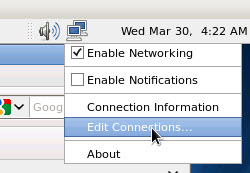
  2. Right click on the icon and select Edit Network Connections.
  3. You will see a familiar looking box pop up.
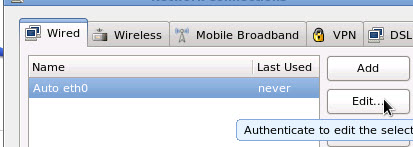
  4. Click eth0 and select edit.


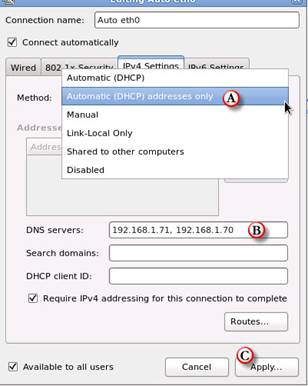
  1. Click IPv4 settings
  2. Click and drag to Automatic (DHCP) addresses only (A).
  3. Go down to DNS servers and type in the IP address of our servers, separated by a comma (B).
  4. Click apply (c).
  5. Go into Firefox and try again.
  6. If the icon for the network card shows a red x, restart the VM. For some reason I find that fixes things.


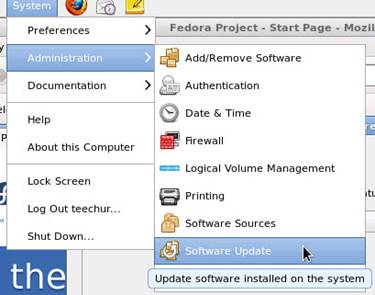
  1. Check for updates from under the system menu. Install any updates.
  2. I just downloaded this version on 3/29/2011 so likely there are no updates, but we should check anyhow.
  3. Go under preferencesàsoftware update preferences and set it to update daily and install security patches automatically.

  1. Let’s set up your web server.
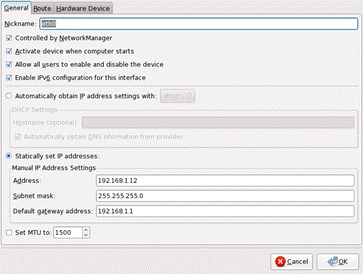
  2. Open up your Network properties. Web servers require a STATIC IP address. SystemàAdministrationàNetwork Connections (it won’t look the same as the one to the right, it’s an old picture).
  3. A window will pop up asking for your administration password. Remember the root password you set? Use that.
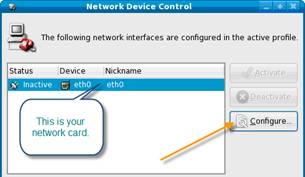
  4. In the Network Configuration box you’re going to select your network card. Double click on Active eth0 (stands for Ethernet card 0).
  5. Select Statically set IP addresses.
  6. Remember the addresses you assigned in an earlier lab? Assign based on that addressing scheme based on YOUR network.

  1. Play around with it for a little while. Don’t make any major changes, just change the desktop maybe download a few fun things.
  2. Have me check off that you’ve installed Fedora and it is running on your machine. We’ll put it into your network later on.


Questions to look up from your browser in Linux:


  1. Who created LINUX and why?


  1. What is the name of the mascot?


  1. Who currently “owns” Fedora?


  1. List three websites you can go to for more information about linux.


Lab L-2 Working with Yum

YUM is a package management system for Linux. It’s used to install packages (programs) from the command line. YUM is used to install RPM packages (*.rpm). YUM stands for Yellow Dog Updater Modified.


Yum works by looking in “repositories” which are basically computers that serve a buncha files. They may be mirrored (copies of the entire directory on another computer in the interwebs). The good thing about this is that the program (YUM) can look in other computers if for some reason the repository is down or too busy. There ARE some errors you may get, so read ALL of the directions.


A few notes:

/etc/=a directory that holds configuration files and directories

.conf=a configuration file, so yum.conf is the yum configuration file

Su - = logging in as Super User (tada). You have to be logged in as SU in order to change these files.

Most commands are unix commands, but some dos commands work. If all else fails, ask for help!

# = a comment in a configuration file. You can “comment” out a line by putting a # in front of it.


Do this

It’ll look like this

  1. Boot into Fedora
  2. First make sure you’re able to get on the Internet since YUM downloads packages from the Internet.
  3. You’re going to Telnet into root.
  4. ApplicationsàSystem ToolsàTerminal
  5. Log into root as a super user:
    1. At the prompt type: su
    2. Type your password you set for root
    3. Your command prompt will change to a #
  6.  First we need to make sure YUM uses our proxy..
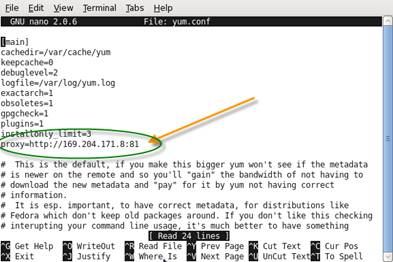
    1. You have to specify this in the yum configuration file. So let’s go there.
    2. Cd /etc/ (cd=change directory /etc/ is the directory where all KINDS of stuff is stored….type ls to see)
    3. We want to change the yum.conf file using the text editing program gedit.
    4. Type gedit yum.conf
    5. Scroll down until you find the entry proxy= if there is no entry, add it at the end (after the commands, before all the notes that start with #)
    6. Proxy=http://169.204.171.8:81
    7. Save and close. (If you see an error in terminal related to spelling, ignore it. I think some spelling dictionary isn’t installed.
  7. Let’s update YUM.  Type yum update
  8. Now if you get an error that says something about “cannot find a valid baseurl for repo:” that means that for some reason the repository that the YUM program is trying to look at isn’t working. There are two things you can do.
    1. CD into /etc/yum.repos.d
    2. You will see three configuration files
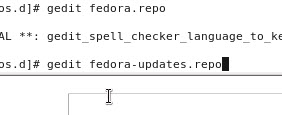
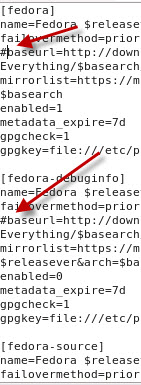
    3. Gedit fedora.repo and you’ll see some commands commented out. You’re going to remove the # from in front of baseurl lines.
    4. Put # in front of the mirrorlist lines. There should be three in all.
    5. Do the same for the other .repo files
    6. (baseurl is the first place it’ll try to get stuff).
    7. Next gedit fedora-updates.repo
    8. Try again
  9. It will take a LONG time to update all the files. Let her run! Answer the questions.


Yum.conf file


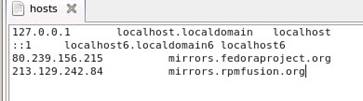
  1. You may also have to update the hosts file. Hosts is like a file that acts like a router. You put the IP address of the computer you’re trying to reach into that file and your operating system will start there.
  2. Cd enter to get back to root.
  3. Cd /etc
  4. Gedit hosts
  5. Type in the following:


80.239.156.215      mirrors.fedoraproject.org

213.129.242.84     mirrors.rpmfusion.org


  1. Save and exit. Note that you can also get to GEDIT from the GUI by going under applicationsàAccessoriesàGedit text editor

  1. Let’s start by installing another graphical environment called KDE.
  2. The syntax for installing anything in yum is yum install packagename
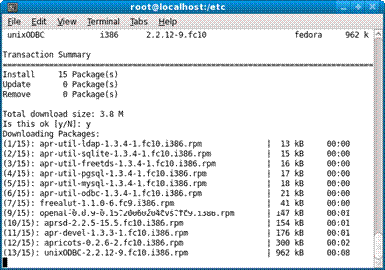
  3. Type Yum groupinstall @kde-desktop
  4. What this will do is install the KDE environment from the Internet. It will ask you if it’s okay to download it. Say “Y” for yes.
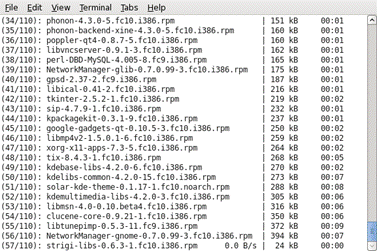
  5. When I installed it there was 110 packages. You can watch it download them one by one. It will take awhile.
  6. The cool thing is, as you watch you may see some errors. YUM will change to a different mirror if one stops working. So don’t stress if you see socket error or http error 403. Yum deals for you.
  7. Once KDE is installed, you can install the program switchdesk to change on the fly. Install switchdesk from yum (yum install switchdesk). After it’sinstalled you can type switchdesk kde to switch.
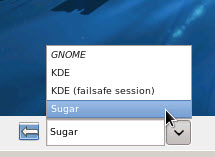
  8. Logout. At the login screen, put your cursor on the bottom and you can select which environment to log into:

  1. You will also see, if you logout, that down at the bottom you can select either Gnome or KDE before logging on.


Note: If there is an error when installing a package, you can simply restart the installation. YUM will determine what parts have already been installed and pick up the other parts from another mirror. When I installed KDE it did not fully install. I just ran the command again, it grabbed the two RPM packets that didn’t download, and I was in business!  If it says it is not installed, rerun the installer. That happened to me EVERY time I installed it.


While it’s installing, go to http://www.kde.org/ and take a look at the features of KDE Plasma Desktop.


After you log back in it will look very similar, but start poking around under menus and you’ll see…nope, it’s added all sorts of new and exciting things to your desktop and programs!


Answer the questions here:

  1. What does KDE stand for?


  1. What are some free programs available from the KDE community?


  1. What is the name of the current desktop build?


  1. Who “owns” KDE?


Plasma Desktop at a glance

K Desktop Environment works with widgets. It’s cool, too.

  1. Let’s install another fun package called tuxpaint. The command is install tuxpaint…easy peasy! (Easy peasy is NOT part of the command.)
  2. Also go into “Add remove programs” in the GUI and  notice that you’ll know have a listing for KDE Desktop. You can go in and download other programs as well. Pull a few!
  3. Install ONE MORE desktop environment:
    1. Yum install sugar
    2. This gives you three desktops to choose from!


One of the benefits of open source is that you can get programs ported to other languages, such as Swahili.

  1. Install one more package you find online. Not sure where to go? Try http://dailypackage.fedorabook.com and either install today’s package, or Google a specific type of program and find out what the RPM for it is.


Questions

  1. What is YUM?


  1. What is an RPM?


  1. What is the hosts file?


  1. What is a .conf file?


  1. What is a baseurl?


  1. What is a .repo file?


  1. What is the command if you wanted to install a program named Tory_Rocks?


  1. How do you switch between KDE and GNOME?


  1. What is GNOME?


  1. What is KDE?


  1. What are three differences you see between those two desktop environments?


  1. If you’re installing something via YUM and one of the download mirrors goes down, what do you do?


Lab L-3 Installing and Configuring Apache Web Server

Apache is an open source webserver that has been around for years and is used both on Linux and Windows boxes throughout the world. It is simple, straightforward, and robust without all the bells and whistles of Windows Internet Information Services.


You can install a simple HTTP server, or you can get really fancy and allow it to host dynamic webpages, databases, etc. The sky is almost the limit with Apache!


We installed Apache in our initial installation of


Do this

It’ll look like this

  1. Log into root using your terminal.
  2. Now we’re going to install all the Apache Packets. This gives you the option of using a number of packets to start daemons. A daemon is a process that runs all the time and provides a service. For example the http daemon provides web page serving.
  3. To ensure that you have Apache installed type yum install apr*. This will install all the apache resources.
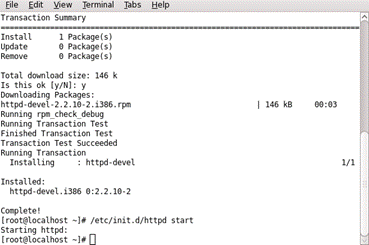
  4. Now type yum install httpd*
  5. It may tell you that it is already installed and latest version so there’s nothing to do. If only it said “Have a nice day” it would be perfect.


  1. Before you do anything, we’ll use OpenOffice to create websites, so let’s make sure it’s installed. It should be under ApplicationsàOffice.
  2. If you do not have OpenOffice installed, open Terminal and log into root.
  3. Type yum groupinstall Office.

See full size image

  1. Make sure you have static IP addresses on  all computers in your network.
  2. To assign a static IP in Linux:
    1. Go into SystemàAdministrationàNetwork
    2. Type in your root password
    3. You’ll see something like the right picture img 1.
    4. Double click eth0
    5. Select the following

4 Activate device when network starts

4 Statically set IP Address settings

    1. Set address as indicated from your subnet. This will be the address of your webserver.
    2. Click OK
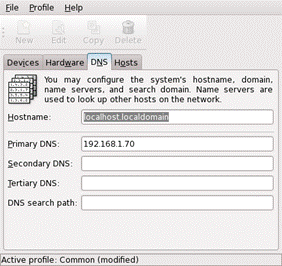
    3. Now in Devices click DNS
    4. Type in the addresses of two of your Windows servers for DNS
    5. Close, say yes you want to save. Sometimes the interface then disappears from the active settings. Eeek!
    6. Now restart the network service.
    7. Go to systemàAdministrationàService Configuration.
    8. Find network
    9. Restart
  1. Test your connection by pinging the other computers
  2. Log into root at terminal
  3. Send the ping command just like in Windows.
  4. To stop the ping type ctrl-c
  5. To set the ping to run only a certain number of ping packets type ping ipaddress –c x where x=number of pings. –c stands for count.
  6. At the prompt type man ping to learn more options you can use in ping.

4 Subnet mask: 255.255.255.0

4 Choose YOUR two Windows Servers to be your DNS servers, and put THEIR IP addresses in for DNS, as well as the other two we had in already.

4 Default Gateway: 192.168.1.1


  1. Let’s start the Apache Daemon. At # type /etc/init.d/httpd start
  2. It will say starting httpd:
  3. We want to configure Apache to start at startup. Use the command chkconfig --level 35 httpd on (this turned httpd…aka apache http server…on and tells it to turn on at boot, and sets the system level to 3 <non-graphics mode> and 5 <graphics mode>)
  4. Yay!


Note: You must have your proxy turned OFF on your machine or it won’t work. Yeah, fought with that for two days until I had a duh moment.


Questions


  1. What is a daemon?
  2. What is the name of the apache daemon?


  1. Where can you change your IP address?


  1. Why must a webserver have a static IP address?


  1. What is the IP address of your Linux server?


  1. What command would you use to send 5 pings with a packet size of 64k?


  1. What command do you send to set the graphics level to non-graphics mode, and graphics mode and make sure httpd starts at startup?


  1. What is the difference between groupinstall and install in Yum?


Lab L-4 Creating Users and Folder Permissions in Linux

In order to allow regular users to create documents that save in the /var/www/html folder you’re going to need to modify the permissions. This is a good place to learn about permissions in Linux.


Do this

It’ll look like this

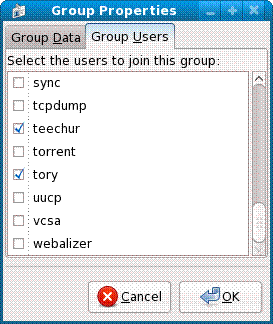
  1. First lets create a group named Webdesign. Go under the SystemàAdministrationàUsers and Groups
  2. Create a user for each of your partners.
  3. Click on the groups tab.
  4. Note that each person is a member of their own group. Did you ever think you’d be a group and a user at the same time?
  5. Create a group named web.
  6. Under the tab Group Users select all of the members of your team.
  7. Click OK.


How to: Change group ownership

  1. Chgrp (command) web (group to change to) html (name of folder)


Permissions on files

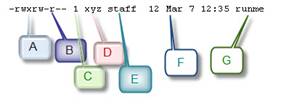
Below is an example of how a file may be listed when typing ( ls -l ) at the prompt as well as information on how to interpret it.

-rw-rw-r-- 1   hope  web  123   Feb 03 15:36   file.txt

-

rw

rw-

r--

1

hope

Web

123

Feb 03 15:36

file.txt

File

owner

group

everyone else

links

owner

group

size

mod date

file name

  • Owner can read and write
  • Group can read and write
  • Everyone else can just read

To change modes (chmod) use the following numbers. This seems hard, but it’s really not:


CHMOD can also to attributed by using Numeric Permissions:

400 read by owner
040 read by group
004 read by anybody (other)
200 write by owner
020 write by group
002 write by anybody
100 execute by owner
010 execute by group
001 execute by anybody

So if you want to change the mode of a file named fred so that the owner can read, write, and execute you add together the read (4) the write (2) and the execute (1) = 7 so the command would be


Chmod 7 fred


Or to make it easy

7=rwx

6=rw-

5=r-x

4=r--

3=-wx (which would be strange)

2=-w-

1=--x

0=deny all


So if I want to the folder, HTML owner=RWX, Group=RWX, and everyone else=R—


I would type the command chmod 774 html


Alternative I can do one type at a time. So if I wanted the owner to be RWX I could type


Chmod u=rwx html


That sets the first set. Then I could do chmod g=rwx html and finally o=r

Oops! It won’t let me put a space in, so we’ll just say web.

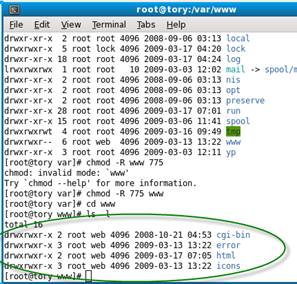
  1. Now go into terminal and log in as root.
  2. CD to /var/www/
  3. Do a listing with a –l
  4. You should see something that looks like this:
  5. We want to change the group membership to web.
  6. Use the chgrp command to change the group membership of html to web.
  7. Give the following permissions:
    1. Owner: rwx
    2. Group: rwx
    3. Others: r-x
  8. Use command chmod 774 html
  9. Let’s create another folder inside html. CD into html.
  10. Create a folder named intranet (mkdir intranet)
  11. Create a new group named “Employees”
  12. Create three new users
    1. Penny Pinkleton
    2. Tracy Turnbladt
    3. Link Hearthrob
  13. Add them and all of your partners to the employees group.
  14. Go into # and change the group ownership of the intranet folder to employees.
  15. Now give the intranet folder full permissions for the owner, read and execute for the group, and deny all for everyone.
  16. Do an ls –l and write in the box to the right what you see.


  1. To change all the folders in a folder (a folder and all its files and folders inside of it), use the –R (recursive) switch. CD so you’re in the /var/ folder.
  2. Change group ownership to web for all of the folders in www, including www
    1. Owner can have rwx
    2. Group can have at least rw
    3. Others need rx but not w
  3. Once you change the mode, then just type chmod –r www to set that mode to all files INSIDE the folder.

Before you do this…ask yourself “What numbers do I use to change the folder permissions in one command?”


Lab L-5 Linux Basics : First Steps Into Linux

By Aarjav Trivedi <aarjavtNOSPAM@yahoo.com> 
Posted: ( 2002-02-04 14:35:18 EST by
 prakash ) 
For Linux newbies a quick lesson on every day Linux commands.

Welcome! We meet again. It has been some time now since I've heard you swear at your computer so I assume your Linux installation went well and you have been experimenting with your new system However If you are one of those wanderers who ever so often chance upon random webpages on the net, here you will find a detailed guide to installing Linux.

Now during installation you chose a 'root' password which you used to login when you were prompted for a username and a password for the first time. 'Root' on Linux is the centre of all power. He is the System Administrator who has access to all files and folder and can add or delete users or change their passwords.

Now absolute power can corrupt absolutely. For eg. If you put in a virus infected floppy as Root, (Not that there are many viruses for Linux, as of now I have come across just two) the virus might be able to infect all files, since you have access to all of them. Users other than root however have write access to a limited part of the file-system which often excludes crucial library and configuration files thus reducing the risk of damage due to such incidents. So you must create a new user for yourself and when not performing administrative tasks should log in using that username rather than root.

Lets create a new user.

First open the Linux Console which is found on the Panel at the bottom of your screen generally shown by an icon that looks like TV switched off with a black screen. The following commands are to be type in the console, pressing enter after you have entered the full command. For us we will go under ApplicationsàSystemàTerminal

The 'useradd' Command

The general syntax for the useradd command is :

useradd -d home_directory -e expire_date -g initial_group -p password login_name

home_directory : Is the main directory within which the user is expected to story all his files and subdirectories.
For a user named 'foo' the home directory generally is /home/foo
expire_date : This is the date on which the user's account expires and he/she cannot access the computer
anymore unless the account is renewed. This is somewhat similar to your ISP account
expiring in 6 months or one year. The expire date is in yyyy-mm-dd format (2002-0L-30)
initial_group : Every user in Linux belongs to a group which affects his file permissions. The initial group
must be a group which already exists.
 
Password : This will be the user's password to access his account
login_name : This will be the user name with which the user will access his account.

Eg :

useradd -d /home/einstein -e 2002-0L-30 -g root -p relativitysucks einstein

creates a user named einstein on my computer.

His home directory is /home/einstein
His expirty date is 30th
 august 2002
He belongs to the 'root' group
His password is relativitysucks
His username is einstein.
Incase you do not enter one of the parameters group, home, expire or shell they are replaced by their default values. These default values can be viewed using the " useradd -D"
 command and can also be changed which however we will cover in a later document.

The ls command

The ls command is equivalent of the DOS dir command. It lists the files and subdirectories contained within the present directory.

Some possible flags which can be used with the ls command are :

ls -a

List all files (Some configuration files starting with a dot '.' are otherwise not listed). Often the number of files in a directory is too large to be fitted within one screenfull of data. In such a case we use dir/p for DOS. For linux a similar command is

ls | more

Lists files and directories page after page on keystroke. The above command actually is a combination of two commands. It introduces a new concept called 'Piping'. It is done using the logical OR or | character found just above the Enter key on your keyboard. In Linux it is possible to give the output of one command to another command as an input.The ls command lists files & subdirectories and the more commands divides its input into page length views. Thus piping the ls output to more results in page length views of files and subdirectories.

ls -R

It lists the files and subdirectories of a directory and further lists the contents of each subdirectory recursively. The output of this command is usually large and is best seen when piped through more.

The pwd command

The pwd or the present working directory command gives you the path to the directory in which you presently are. It is used without flags simply as 'pwd'

The su command

Many a times you might have logged in as a normal used and might need to be root to install a software or for some other small task. You could logout then login as root complete the work logout and login back as a normal user. Instead, you can just use the su command. The format is :

su username

eg : su root

when you 'su' to become root from a normal user, you are asked for the root password. But if you are root, you can use 'su' to become any user without using a password. Once your work is finished, use 'exit' to become yourself.

The whoami command

Sorry folks! This command won't solve your teenage identity crisis but it will tell you which user you are logged in as. Useful when you have used 'su' many times and now don't know who you are.

The cp command

This one copies files / directories from one place to another it's syntax is

cp source_file_with_path destination_path

eg : cp /home/aarjav/secret.txt /ftp/pub

This would make all my secrets public :). But my secrets wouldn't fit on my 8.4 Gb hard-disk ;) The cp command can be used with some useful flags also :

cp -i

Interactive copying, prompts before overwriting files or directories

cp -l source_file_with_path destination_path

Makes a link (shortcut) to the source_file at the destination path instead of actually copying it there.

cp -p

Preserve file attributes while copying if possible

cp -R

Copy Recursively . Used when copying directories. This command also copies the contents of the subdirectories.

cp -u

Update i.e. Copy only if the source file is newer than the destination file or the destination file does not exist.

The rm command

The rm command is used to remove or delete files or directories. Its general format is:

rm -flag file_or_directory_with_path

eg : rm /home/aarjav/waste.txt

Some flags which can be used with the rm command are

rm -v file.txt

Remove verbosely, explain what is being done.

rm -r my_directory

Remove the directory and its contents recursively.

The mkdir command

This command is used to create new a new directory. Its syntax is

mkdir -optional_flag directory_name

The possible flags are

mkdir -v directory_name

Tell what is going on.

mkdir -p directory_with_path

This is a cool command. Suppose you need a directory named SEIT within another directory called PVPP in /usr/local and the parent directory PVPP itself does not exist, then you can use :

mkdir -p /usr/local/PVPP/SEIT

This command creates the PVPP directory and the SEIT subdirectory in one go.

The man command

For someone new to linux, the man command is one of the most important commands. The syntax is:

man command_name

Suppose you have not understood fully one of the above commands or want to find out about a new command you have learnt , the man command provides a manual for that command

Thus

man cp

will show you a manual on the cp command and so on.

I think that is enough material to keep you busy for a few hours and get you through some of the elementary tasks in Linux. So farewell friends, until we meet again.


© Aarjav Trivedi 2001

The author grants you express permission to store, copy and republish this article in electronic or hardcopy form

as long as its contents including this instruction are not changed.

This document prepared in Linux using StarOffice 5.1

I would appreciate if some one using this article on their site or somewhere else would drop me a mail.

< a href=\"http://www.freeos.com/articles/3896/\">Linux demystified

Do this

It’ll look like this

Create a New User

  1. Log in as root.
    1. su
    2. password (note that the password does not show…no ***s or anything)
  2. When you see [root@localhost ~] # you know you’re in the write (haha) place (get it…you’re going to WRITE a command…WRITE…nevermind).
  3. While there are parameters that you might want to set with the adduser command (as shown in the reading), let’s make this one simple. Adduser –p password tory
  4. Now test if this user was added
    1. First go into the Places menu and select computer. Double click on the hard drive icon, go into the home folder. You should see a folder named tory with an x on it. That means the home folder was created in the default directory.
    2. Now go under systemàLog out
    3. Select Switch User
    4. Log in username tory, password password
  5. What happened?


User add to Linux system using useradd command

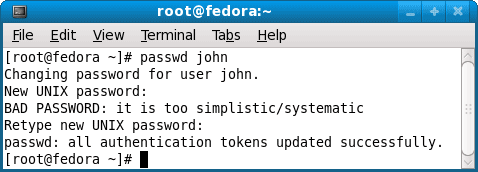
Change the user password

  1. Log into terminal as root.
  2. Type the command passwd tory (you’re saying “I want to change Tory’s password)
  3. You’ll get a prompt. Type in the new password as p@ssw0rd (0=zero).
  4. It’ll give you feedback on the password
  5. Type it in again.

Create user password on Linux using passwd command

Moving around directories

  1. Log into terminal as root.
  2. At the prompt type ls (list). This will list the directories and files. List what you see in the box to the right
  3. Type cd /etc/ and return.
  4. Huh? There was no listing for the etc directory?
  5. Type ls to see what’s in here.
  6. This is a lot like the system directory and program files all rolled into one. In other words don’t go mucking around in /etc/ unless you know what you’re doing!

What do you see??


  1. Type ls -l (note that like in DOS you can hit the up arrow to access the last command you typed in).
  2. Write down what you see in the box to the right.

What do you see??


  1. You see a lot of rs and ws and some ds and xs.
  2. What do those mean?
  3. Go here to find out:


http://floppix.ccai.com/ls.html


Rw = ____________________

R= _____________________

Drwx =______________________

Xr=_____________________

1 (or 2 or 3) ___________________

Root root _______________________ (note that root is a user here as well as a group…a lot like administrator is part of the administrators group)


  1. In the listing below, what do each of the sections mean?


  1. ____________________________
  2. ____________________________
  3. ____________________________
  4. ____________________________
  5. ____________________________
  6. ____________________________
  7. ____________________________


  1. Type whoami at the prompt.
  2. Well…what does it say?

Who are you?

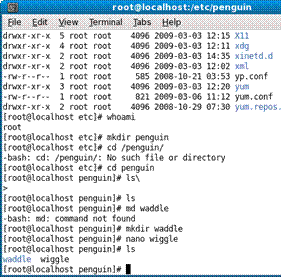
  1.  Using the information from the reading complete the following:

a.     Change directory to the root.

b.    Create a directory named Penguin

c.     Move into penguin

d.    Create a directory named waddle

e.    Move into waddle

f.     Create a FILE named wiggle.

a.     At the prompt type nano waddle (nano is a text editor)

b.    Type Hi! I have wiggle in my waddle!

c.     Notice the bottom of the screen has things like ^X etc. If you select ^X it’ll exit.

d.    Do you want to save? Yes. Keep the name wiggle.

g.    List the directory contents. You should see waddle and wiggle. Why is waddle blue?

  1. Now move wiggle from waddle to penguin
  2. You’ll have two wiggles, so delete (remove) the wiggle from waddle, so only the penguin contains wiggle and waddle is empty
  3. Do an ls –l and wrige down what you see inside penguin


  1. You want to learn more about commands in Linux, what can you do within the terminal?

Answer here


  1. List three websites you can use to learn more about linux commands.


  1. If you learn these commands within Fedora, will the same commands work in Ubuntu?


  1. Why or why not?


  1. Learn more about the cp command by typing man cp
  2. To get out of the manual type a q and hit enter.
  3. Try typing cp --help, what happens?

What happened?


What does cp –l mean? (to scroll down hit page down)


Questions

  1. What command did you use to change group membership of html to web?


  1. What command did you use to change the permissions on the html folder?


  1. What was the purpose of denying permissions to everyone for the intranet folder?


  1. So if some schmoe on the interwebs goes into the intranet directory and starts poking around, what can he do?


  1. What is the numerical (octal) representation of owner and group rwx, everyone deny all?


Lab L-6 Creating a Website

Let’s build a website. You’re going to create a project and put it on your website.


Do this

It’ll look like this

  1. Let’s start by creating a simple test page using Fedora’s version of Notepad.
  2. Remember that root is the owner all of these files, so we’re going to have to open the program as su (super user).
  3. Open your terminal
  4. Log in as superuser.
  5. Type gedit to open the text editor. It is now running as root. BE CAREFUL with this. Do NOT run other programs as root unless you know what you’re doing. The root account is used ONLY for system maintenance and in special cases.


  1. Let’s make a simple website. Type the code shown at the right, exactly as shown.
  2. Save this file as index.html in the folder /var/www/html
  3. Go into Firefox and load up either localhost or your ip address.
  4. What do you see?

<html>

<head>

<title>My happy little website</title>

</head>

<body>

Hello World!

</body>

</html>

  1. If it didn’t work, go back over the instructions very carefully and fix it. Do not move on until you can see your site.
  2. Let’s add a few more pages and test linking.
  3. On the page you have, add the code to the right between the body tags.
  4. Note that the <br> tag sends a line break, so put it wherever you want a hard return.

<a href=”test.html”>Testing a link</a><br>

<a href=”test2.html”>Testing another link</a>

  1. Now create two more pages. One named test.html. Add some stuff to it. Save in the /var/www/html folder. (We’ll do test2 in a minute.)
  2. Put something on them so you know they work when you click the links. Use the coding from step 6, just change it up some.
  3. I know some of you know html, and others don’t, so this is just a taste. It’s REALLY easy, actually. It’s your basic open tag…stuff you want to say…close tag. So if you want something bold you do <b>this is the stuff I want bold</b>. If you want it underlined it’s <u></u> etc.

Have me check off your highly effective and wonderful site before you go onto step 18.

  1. Test out the pages. Do they work? Beautimus!
  2. But who uses a text editor to write webpages? Okay, I do but I’m old skool and I roll like that.
  3. Let’s open Openoffice to create your site. You can delete those other pages if you’d like. You’ll be writing over index.html.


  1. Close gedit. You should end up back at the terminal.
  2. Normally when just using OpenOffice you select it from the Applications menu, but we want to open it as su because we’re going to save in the html folder, and as you, you can’t save to that folder. (Test it first and see if you can, I could NOT even with proper permissions applied.)
  3. Go to terminal.
  4. Log in as su
  5. type –c openoffice.org
  6. Go ahead and create a new writer page
  7. Save as test2 in /var/www/html. At the bottom.
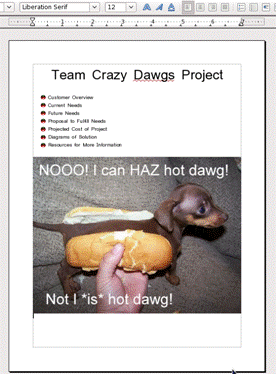
  8. Toss a picture or two on it, some text. Go ahead and format it however. I put a picture of a Dachshund in a hot dog bun. Whatever floats your boat! We’re just practicing.


Uncheck when you save “ask when not saving in ODF format”

  1. One you have a feel for this, you’re going to create a website where you will post your project. Decide which webserver the project will be posted on.
  2. Create a page that looks like this (use your own graphic) and save it as index.html in /var/www/html
  3. It should have the following sections:
    1. Customer Overview
    2. Current Needs
    3. Future Needs
    4. Proposal to Fulfill Future Needs
    5. Projected Cost of Project
    6. Diagram of Project
    7. Resources for More Information
  4. Once you have the homepage set up, you’re going to set up your webserver so your partners can edit on their computers and save to yours using ftp.


Questions

  1. What are two programs you can use to create a website?
  2. Why do you have to log in as a super user to save to the html folder?
  3. What groups are you currently a member of?
  4. What is gedit?
  5. What is openoffice.org?
  6. What is the html code for creating a link that says “Hot Dawg” and links to http://www.hotdawg.com?
  7. Why use OpenOffice over Gedit?
  8. Why learn a little HTML, when you have OpenOffice and other graphical programs available for creating websites?