Lab 7-2 Evaluating Power Options in Win 7
|
Check |
Task |
|
|
Elevate command prompt |
|
|
Run report |
|
|
Read report |
|
|
Three findings |
You can create a Power Efficiency Report in Windows 7. Why would you do this? If you’re using netbooks or laptops, you want them to be as efficient as possible. You also want to do the best you can to preserve energy both for the bottom line of your company or home, and for the environment.
Creating a Power Efficiency Diagnostics Report
|
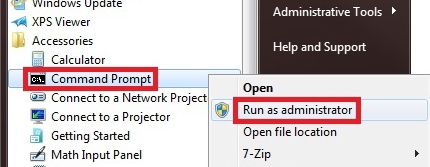
1. Open your command prompt elevated. a. Right click on Command Prompt b. Select run as administrator c. Tell it yes, you want to run it as an administrator. d. This is called “running a program in |
|
|
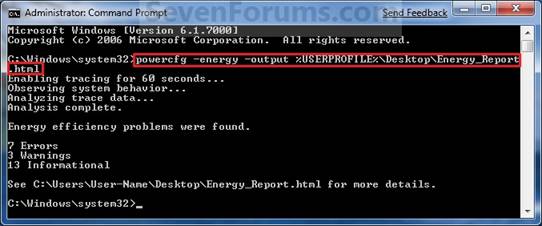
2. You’re going to run the powercfg command. 3. When you open the command prompt, you will be in System32. 4. Type powercfg -energy –output %USERPROFILE%\Desktop\Energy_Report.html a. Powercfg is the program you’re going to run b. –energy –output are the switches that tell it to create a report on the energy output c. %USERPROFILE% is a wildcard that tells the computer to save the report into YOUR user profile (the folder that stores all your user information). This way you don’t need the entire path to your user profile. Adding \desktop says save it on the current user’s desktop d. Energy_Report.html is the name of the report. 5. When you’re done you should find the report on your desktop. |
|
|
6. Go to your desktop and double click on the report. 7. In the box over there à tell me three things your report tells you |
|