Lab 5-6 Using FDISK
Objective
Low
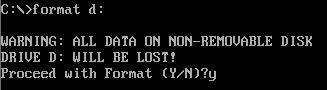
level formatting is done using the format command. Low level formatting divides
the disk in tracks and divides the tracks into sectors. This must happen before
high level formatting when the disk is new, and can also be done when a disk is
exhibiting a lot of unrecoverable errors. Generally this is done at the
manufacturer. You will rarely perform your own low-level format. The steps to
preparing a hard drive are as follows:
o
Perform
a low level format
o
Partition
the drive
o
Format
the drive with a high level format
You’ll
do the last two, only.
Viewing the
current hard drive configuration
|
|
|
|
|
|
|
|
|
Primary, extended and DOS partitions. o There are a maximum
of four partitions that can be placed on any DOS or Windows 9x hard drive. o These would be
primary partitions. However, you can create extended partitions and put
logical partitions inside extended partitions. Confused? Good. o This allows you to
get around the 4 partition limit. o You can have only
ONE extended DOS partition, but it can be split into lots of logical
partitions. o Only one partition
can be active. The active partition is the one that is used for booting the
system. o Primary—A partition that
can be named active and can hold boot files. There can be up to four. If you
need four use: o Extended—Used to hold logical
partitions. There can be only ONE. o Logical—used when you need more than four
partitions. Logical partitions may ONLY be created within the extended
partition. o Why? Because I said
so. (No, because that’s how DOS works. No one thought they’d need more than
two partitions, four max!) |
|
|
|
|
|
|
Write answer here |
|
Write answer here |
|
|
|
Write the answer here, be specific. |
|
Write the answer here. |
|
Write the answer here. |
|
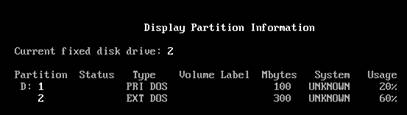
Take a screen shot of these partitions named (go into
FDISK) and staple it to your lab report. |
|
Delete a Partition |
|
|
Write the answer here |
|
|
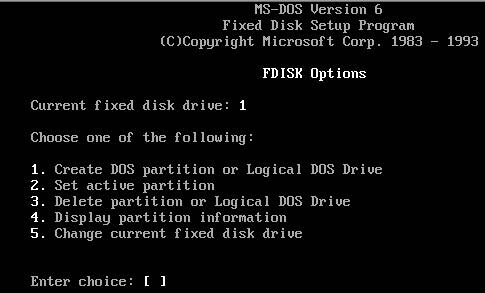
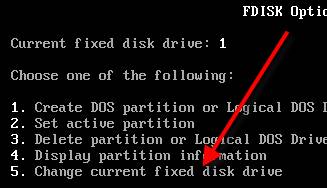
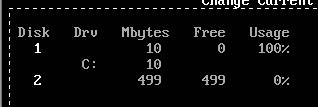

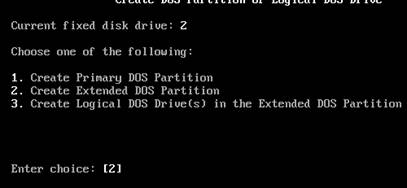
Setting an active
partition
- Select
option 2 from the FDISK Main Menu.
- Choose
the primary partition that you created by typing 1 and pressing Enter.
- Press
Esc to return to the main menu.
- Press
Esc to exit FDISK and press any key. Your workstation will restart.
- Note:
If you already have DOS installed, the installer creates a single
partition and sets it to active, so it will just tell you that it’s
already set to active.
Define
the following terms:
|
Term |
Definition |
|
Active Partition |
|
|
Partition |
|
|
Extended partition |
|
|
Logical drive |
|
|
FDISK |
|
|
MBR |
|
Circle True or False.
- When
a partition’s size is changed using the FDISK utility, the data contained
on the partition is lost. True / False
- The
FDISK utility is used to partition and format hard drives. True / False
- Extended
partitions are always placed within logical drives. True / False
- List
three functions of the FDISK utility.
- ____________________________
____________________________ ____________________________
____________________________ ____________________________
____________________________ ____________________________ _____
- ____________________________
____________________________ ____________________________
____________________________ ____________________________
____________________________ ____________________________ _____
- ____________________________
____________________________ ____________________________ ____________________________
____________________________ ____________________________
____________________________ _____
- You
are the desktop PC support technician for the Good Job Corporation. John,
one of your customers, suspects that his hard drive is not partitioned to
use its full capacity. Describe how you would use the FDISK utility to
show John his current hard drive configuration.
- Describe
the relationship between a logical drive and an extended partition.
- What
is the difference between a physical drive and a logical drive?