Lab 1-8 Using Microsoft Diagnostics and Device Manager with
Windows
Opening the computer case is
always a potential hazard. It is therefore important that you try to
troubleshoot any problems you can without opening up the case.
The device manager is the
tool to use for this purpose. It can tell you if an item is working, if there
are problems with it, or if it has been disabled. You can also disable it
(which can sometimes help in troubleshooting without you having to actually
remove the part from the computer), install a driver, or change resources.
Windows ME, 9x, 2000, and
XP and above contain a device manager. Windows NT and DOS do not.
You are going to do this
activity in Windows 7 and in Windows 98 so you can see the difference between
the two operating systems.
To access Device
Manager in Windows 9x, follow these steps:
- Click the Start button on the taskbar, click Settings,
and then click Control Panel.
- In the Control Panel window, double-click the System icon.
- In the System Properties dialog box, click the Device Manager tab.
Open device manager in each
operating system and answer the following questions.
- What is the brand of network card installed in your system?
- What devices are listed under floppy controllers?
- Describe another way to access the device manager.
- What are the resources you can discover in device manager?
- What devices are listed under CD ROM?
To get to Device Manager in
Windows 7
1. Right click on my computer,
select properties.
2. On the left under Tasks select
Device Manger. Select “Continue” when the UAC (User Access Control) pops up.
3. How is this different from W98?
4. Right click on My Computer and select
Manage. What things do you see?
5. Is the device manager here the
same or different from the one under properties?
6. Note: On tests you need to know
ALL ways to get to a program.
Disable a Device
- Boot into Windows 98.
- Go into your device manager and locate your network card.
- Right click on the network card and select disable.
- Restart your computer.
- Load Internet Explorer. What happens?
- Why?
- Go back into Device manager. What symbol is over the network card?
- Right click the network card and select “enable”.
- Restart your computer.
- Load Internet Explorer. What happens?
- Why?
12.
What would be the purpose of
disabling a device on your computer? List at least three reasons.
Answer the following questions:
1.
Which Windows operating systems
do not include device manager?
2.
What systems will have the
device manager?
3.
How do you open device manager?
4.
What is the purpose of the
device manager?
1.
DOS and Windows offer the
Microsoft Diagnostics command. This utility examines your system, displaying
useful information about ports, devices, memory, and the like. (For Windows 9x,
search for the MSD.EXE utility on your Windows 9x installation CD and copy it
to your hard drive.) Boot your PC to a DOS prompt. From the DOS prompt, execute
this command:
C:\>MSD
- You should see a
screen similar to that in Figure 1-44. Browse carefully through all the
menu options of this interesting utility and answer the following questions
about your system:
- List
the following or print the appropriate MSD screen:
|
Manufacturer |
version number |
date of your System BIOS |
video BIOS |
mouse device driver |
|
|
|
|
|
|
- What
kind of video card is installed?
- Use the information in
Appendix D, “The Hexadecimal Number System and Memory Addressing,” to
answer these questions:
How much memory is currently installed on this PC?
Look under TSR programs (terminate-and-stay-resident
programs, programs currently stored in memory but not running, will be covered
in a later chapter) for the MSD.exe program that you are executing.
What is the hex address of the beginning of this program?
Convert the hex address to a decimal address.
What version of DOS are you running?
What CPU are you using?
|
|
|
|
|
|
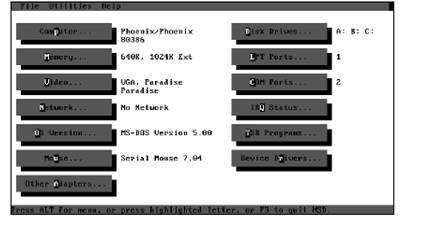
Sample Screen
When you
are finished, exit the MSD utility and return to the C prompt.