Lab
1-9 Using DOS!
Now that you have DOS
installed in your VM you’re going to practice with it! Click on your DOS
machine and click start. Do the stuff below!
Why DOS? Because commands
are used in a variety of applications in Windows, even though there is a fancy schmancy GUI. There is an entire server OS (ironically
still called Windows) that runs via command line. The command console in
Windows Server 2003 and Longhorn is all command line.
So learning DOS commands will help you in a variety of applications.
Creating a Directory Tree
In Windows you create
folders by selecting newàfolder. Pretty easy! In DOS
we don’t call them folders, we call them directories. To create a directory you
use the command: MKDIR (stands for Make
Directory…pretty clever, huh?)
Just like in Windows, you
can embed directories…that is create a directory
within a directory. A directory can contain other directories and files. A
directory that contains directories is called a directory tree.
You can organize
directories according to function, chronology, or subject. We’re going to
create directories according to subject.
- Right now you have one directory on your
computer. It is your root directory, C:\>.
To see the contents of this directory type dir. What do you see in your directory?
- Does your data scroll off the screen? In order
to see the contents of your directory in a “wide” version, type DIR /W. Note that capital and
small letters are interchangeable. What does this command do?
Let’s Create a directory tree:
- Type mkdir Chicken.
What happens?
- Type DIR.
What happens?
- You want to go into that directory, so type cd chicken. CD stands for change directory. What do you see now?
- How can you tell you’re in the chicken?
- Create a directory named egg.
- Go into the egg.
- Create a directory named chick.
- Go into chick.
- To back out of a directory you type cd.. (cd period period).
Type cd.. and where are you now?
- Back out until you are at your root directory (c:\). Now type the command tree. What do you see? (Draw it)
- Type the dir command. What is the difference
between the tree command and the dir command?
- Go back
into egg (all the way in, but not all the way to chick) by using the cd command.
- You’re going to create a text file using the
edit command. Type edit scramble.
A blue (probably) screen will show up that looks like this:
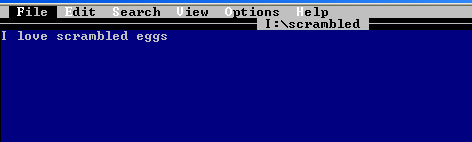
- Type I love scrambled eggs.
- Since you don’t have a mouse (yet) in DOS,
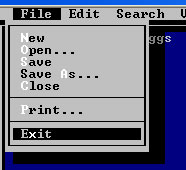
you’re going to have to use your keyboard. The alt key allows you to
select a menu by holding down alt-and typing the highlighted letter in the
menu (example alt-f opens the file menu as shown below)
- Type alt
f x to exit. Say yes you want to save changes. This is one way to
create a document. The edit command opens the text editor, by typing edit
scrambled you either:
- Open up a new document that has the name
scrambled, or
- Open up an existing document named scrambled.
- Type edit
and hit enter. You now have a blank document. Type I like poached eggs too. Hit alt f x and this time it will ask you if you want to save and
ask you to give it a name. Name it poached.
- Type dir
and what do you see?
- Go back to the root directory. Type tree. Do you see the files you
created? Why or why not?
Renaming a file
- To rename a file, type REN nameoffile newname.
- Go into your root directory and create a
directory named fun.
- Go into fun and create a text file named
games.
- Within fun type ren
games toys
- What happens? Do a DIR.
Renaming (moving) a directory
- Type CD \ and press Enter (“\” in DOS represents the
root directory).
- Create a directory named Student.
- To rename the Student directory to Student2, type MOVE
C:\STUDENT C:\STUDENT2 and press Enter.
- To observe the results, type DIR and press Enter.
Moving files
- Go to your root directory and create a file named test.txt by
typing edit test.txt. Type
something in, exit, save.
- Back in C:\ type move
c:\test.txt c:\student2\
- To observe the results, type DIR and press Enter.
What do you see?
- Go back to your root. You can also move and rename a file at the
same time! Create a new file named test2.txt in your root.
- Type move c:\test2.txt
c:\student2\test3.txt. Do a DIR. What do you see?
Okay, I know you’re asking yourself, why are we using
DOS? Why? DOS is deader than dead! Well there are a few reasons:
- You will be using a command driven interface when working with
routers and switches in CISCO. Getting used to it by using DOS helps you
to understand the importance of syntax, spelling, etc.
- In Windows Servers if you’re server dies and you can’t afford to
simply reformat it, you can use the command prompt and the CD to resurrect
it. It uses a minimal set of DOS commands.
- Many jobs you do within Windows 2003 server can be done from the
command prompt or a wizard. Why use the command prompt when you have a
wizard? It’s faster and you can’t create batch files that use a wizard.
(Well, you can but not as easily.)
- You can create DOS driven scripts (batch files) that can be
replicated across your network for doing simple jobs on the network.
Now back to your regularly scheduled programming.
Viewing and changing file attributes
- To change to the Student2 directory, type CD STUDENT2 and
press Enter.
- To view the attributes of the test2.txt, type ATTRIB
C:\STUDENT2\TEST2.TXT and press Enter.
- To make the file a hidden file, type ATTRIB +H C:\STUDENT2\TEST2.TXT and press Enter.
- To observe the results, type DIR and press Enter.
- To remove the hidden attribute from the file, type ATTRIB -H
C:\STUDENT2\TEST2.TXT and press Enter.
Putting it all Together!
You are going to take all
the stuff you learned above and create a directory, look at the tree, create
files and directories, rename them and move them on the test so let’s practice!
- Go to your root.
- Create a folder named Herd
- Go into Herd and create a subdirectory named
cow.
- Create another subdirectory (in herd) named
bull.
- Go into cow and create a text file named milk.
- Back out to your root directory.
- Do the tree command. Draw what
you see.
- NOW…you’re going to rename the bull directory to
steer (poor bull, but he’s nicer now and much happier…trust me). Write the
command you used to do this below:
- NOW…you’re going to move the milk file from the
cow into the steer and rename it cud all at the same time. Wipe your
brow…take a deep breath…get ready…you can do it! You can do it! GO! Write
the command you used to do this below:
Review Questions
Circle True or False.
- The TREE command is not always available in recent versions
of DOS. True /False
- When you receive the error message “Bad or missing command.com,” it
means that the entire operating system is corrupt and must be reinstalled.
True / False
- What does the CD command stand for?
- What is the ATTRIB command used for?
- Name one required DOS system file.
- Patrick, one of your customers, is trying to find a file located in
the MyData directory on his computer. What command
would you suggest that Patrick use to view the contents of the MyData directory?
- John has attempted to rename a directory using the following
command: REN C:\MYDATA C:\MYSTUFF
Explain why this command might not work, and recommend a different command
for John to use.