|
Company Name |
|
|||||||
|
Employee Names |
|
|||||||
|
Team Lead |
|
|||||||
|
Module Name |
Hard Drives |
|||||||
|
Certification Test |
|
Vendor |
|
|||||
|
Objectives covered |
|
|||||||
|
Time allotted |
10 days |
Time Taken |
|
|||||
|
Date Started |
12/3/2007 |
Date Completed |
12/14/2007 |
|||||
|
Item |
Complete |
Incomplete |
Points Awarded |
|
||||
|
Group Test Score |
|
|
|
|
||||
|
Lab Test Score for Each
Member |
|
|
|
|
||||
|
|
|
|
|
|
||||
|
|
|
|
|
|
||||
|
|
|
|
|
|
||||
|
|
|
|
|
|
||||
|
Completed solution to problem portfolio (see rubric
for score) |
|
|||||||
|
Task One: Three things
Jason should check first |
|
|
|
|
||||
|
Task Two: List of
vocabulary to be defined |
|
|
|
|
||||
|
Task Three: Team
evaluation |
|
|
|
|
||||
|
Task Four: Project
Questions turned in day assigned (five questions you want others to learn
from your presentation) |
|
|
|
|
||||
|
Project Sheet completed
and turned in |
|
|
|
|
||||
|
Personal Evaluation from
EACH team member |
|
|
|
|
||||
|
Project presented |
|
|
|
|
||||
|
Budget for Unit |
500 |
|
|
|
Expenditures |
|
Remaining Budget |
|
|
Tardies (5/day) |
|
Labs |
N/A |
|
Absences (20/day) |
|
Hardware Test Score
Average |
N/A |
|
Off Task
(50/student/episode) |
|
Objective Test Score
Average (100) |
|
|
Consultation Fees
(50/consultation) |
|
Project (400) |
|
|
Seminar (100) |
|
Total (500) |
|
|
Missed deadline (100/day) |
|
|
|
|
Total |
|
|
|
|
Budget remaining |
|
|
|
A+ Computer Technician
Understanding and Supporting Hard Drives
Tory Klementsen, A+ MCP
Sno Isle Skills
Center
You Will Learn:
lAbout hard drive technologies
lHow communication with hard drive
BIOS is accomplished
lHow a hard drive is logically
organized to hold data
lHow to install a hard drive
lHow to troubleshoot hard drives*
Hard Drive Technology
lHard drives use two forms of
technology
–Technology of how the hard drive __________ with the
system
–Technology used within the hard drive to __________and
__________data to the drive*
Types of Hard Drive Interfaces
lIDE and EIDE standards (AKA
__________)
lOther interface standards
– __________
– IEEE __________
– __________
– __________ Channel
– __________
– __________*
IDE Channels on a Motherboard
|
|
1.
2.
3.
4.
5.
6.
|
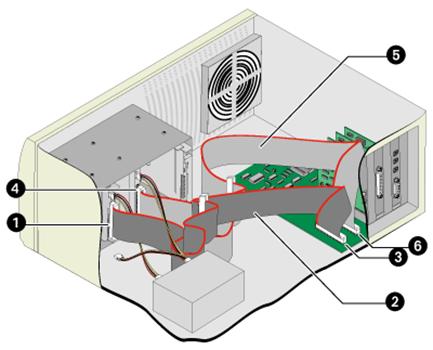
IDE Cable
lEnsure that the __________, indicated by a red line on
the cable, is connected to __________ on the hard drive.
Parallel vs Serial Communications
l
PATA
(__________ __________ __________
aka IDE) communicates using parallel communications.
– Parallel devices communicate by sending data in
__________ vs bits. A parallel device can send one or two __________ of data
down a bus at a time.
– Both the sending and receiving devices must __________
the transfer
– Originally parallel communications were more reliable
– Parallel devices must __________ __________
communicating*
Parallel vs Serial Communications
l
SATA
(_______ __________ __________
__________)
– Serial devices communicate one __________ at a time,
however communications are __________ and more __________
– Can go __________ Gbps (whew)
– SATA does advanced __________ checking, resulting in
more reliable communications
– Serial devices can communicate in __________ with
other __________ devices
– Serial devices operate at a lower voltage*
PATA vs SATA
|
|
Parallel ATA |
Serial ATA |
|
Maximum Speed |
|
|
|
Cable Length |
|
|
|
Cable Pins |
|
|
|
Power Connector Pins |
|
|
|
Data transfer wires used |
|
|
|
Power Consumption |
|
|
|
Hot Swappable? |
|
|
Serial Attachment SCSI (SAS)
lA drive specification that combines
the benefits of __________ with __________ communications
lhttp://specials.seagate.com/sac/flash/
SAS
l
More
commonly seen in __________ where large storage capacity, speed, and
reliability are mission critical
l
Works
much like __________ but uses some of the __________ benefits
– Allows up to __________ devices chained together
– Greater __________
– __________ cabling
– __________ cables
– Uses similar cables as __________
– __________ ported for __________ *
SAS Ports
l
Not
intended for single drive environments
l
Use
is mainly business at this point…high speed __________, __________, and
__________
l
What
is RAID:
l
What
is JBOD?
l
What
is SAN?
l
Extra
notch keeps you from plugging a regular __________ plug into SAS.
Vertical Drives
l
Traditionally,
bits are arranged in a flat, __________ manner
l
To
increase size of the disk, the size of the bits have been __________, however
we’re reaching the limits at about __________
l
Laying
the bits __________ frees up a lot of real estate, allowing the bits to be
__________ together and increasing the __________ of drives.
l
Also
known as __________ recording
Hybrid Hard Drives
l
A
__________ hard drive is a hard drive that contains a __________ memory chip
that stores __________ and __________.
l
Because
the processor can retrieve data from __________, the drive--which spins
constantly in an ordinary computer--can stay __________ most of the time.
l
Speeds
up __________ and takes out the issue of the hard drive being the __________ of
the system, depending on the amount of flash memory.
l
Improves
__________, __________ consumption, and __________ of hard drives (less wear
and tear on platters).
Lab Time!
lLab 6-1 Formatting and Partitioning
lLab 6-2 More FDISK and DOS utilities
lLab 6-3 Changing the File System
Types
How Hard Drives Work
l
Platter(s)
are stacked together and spin in __________
l
Read/write
heads are controlled by an __________ and move in unison across disk surfaces
as disks rotate on a __________
l
Require
hard drive __________ for instructions*
Tracks and Sectors on IDE Drive
l
Older
__________ and __________ technologies
– Have either __________ or __________ sectors per track
over entire drive platter
– All tracks contain same number of __________
l
IDE
drives use __________ bit recording formatting system
– Number of sectors per track is __________ the same
throughout the platter
– Tracks near center have smallest __________ of sectors
per track*
How Data is Written
lData is written from the __________
in towards the center.
lAs the heads get closer to the center
they must __________ for the smaller sectors
– __________: Speeds up writing of tracks on smaller
sectors.
– __________ __________ __________: A reduced current is
used towards the center of the platter on the smaller sectors.*
IDE Drives
l
__________
-level formatting
– Track and sector markings are written on hard drive at
the __________
– NEVER do this yourself. BAD!
l
High-level
formatting (OS formatting)
– Executed by the __________
– Create a boot __________, __________, and __________
directory*
Lab Time!
lLab 6-4
lLab 6-5
lLab 6-6
SCSI Basics
l
SCSI
= __________ __________ __________
__________
l
Acts
like a small __________ inside of the computer
l
Bus
can contain/be used by up to __________ or __________ devices
l
Bus
controller can be either:
– An __________ card (host adapter)
– __________ on motherboard
l
Faster,
more expensive, more difficult to install than similar IDE devices*
The SCSI Subsystem
l
Host
adapter
– Card inserted onto __________ slot on mother board
– Manages all __________ on SCSI bus
– Supports __________ and __________ SCSI devices
– Forms a single __________ chain with devices
l
Device drivers
– Enable OS to __________ with a host adapter*
Issues to Consider when Selecting a Host
Adapter
l
BIOS—SCSI
has its own __________ that sometimes will assign resources already in use.
l
Expansion
slot—does it __________?
l
Bus
mastering—allows access to __________ and other devices w/out accessing CPU.
l
__________
-compliant—allows devices to work like PnP automagically assigning __________
Ids
– Will be identified by logo “____________________”
– If not SCAM must use __________ *
SCSI Device Drivers
l
BIOS
that supports SCSI will see the drive, but __________ will be needed to use it.
– If using IDE and SCSI, __________ should be the boot
drive
– Some BIOS allow the __________ BIOS to boot first, but
not always.
l
__________
(Advanced SCSI Programming Interface)
l
__________
(Common Access Method)*
Variations in SCSI
l
Bus
__________
– Narrow __________ -bit uses __________ pin cable
– Wide __________ -bit uses __________ pin cable
l
Signaling
methods used on SCSI cables
– Two kinds used: __________ Ended and __________
l
Connectors
used with SCSI cables
– __________ pin A cable
– __________ pin P cable
– __________ pin SCA cable used with hot __________
drives*
lTermination
–Prevents __________ __________
–Required at __________ ends. If the card is first
either place a __________ on it or use __________ or a __________ to turn it
on/off*
Comparing IDE and SCSI
lIDE supports only __________ internal
devices; SCSI supports both __________ and __________ devices and allows you to
add __________ devices to a system.
lSCSI devices are generally of __________
quality than IDE devices and more __________.*
lIDE devices require a separate __________
for each channel; SCSI requires only __________ for the entire chain.
lBoth IDE and SCSI are generally __________
-compatible, in that most faster hardware can work with slower devices.*
lA SCSI subsystem provides __________ data
transfer than an IDE drive
lThe SCSI bus is the source of the
performance rather than the hard drive technology.
lSCSI generally provides better __________
than IDE and is often used on high-demand servers.*
lA good SCSI host adapter allows you
to connect other SCSI devices to it, such as a __________, __________, or __________
drive.
lWithout SCSI technology, if you have two IDE drives on the
same IDE channel, only one of them can be __________ at any one time.*
How System BIOS Helps Manage Data Transfer
l
Provides
__________ handler for software interrupts
l
Automatically
__________ /__________ hard drive
l
Helps
manage __________ transfer over I/O bus between hard drive and memory
– Using __________ mode, CPU is in charge
– Using __________ with DMA controller in charge (no CPU
involvement)
– With bus __________ using DMA, hard drive BIOS
controls data transfer*
How a Hard Drive Is Logically Organized to
Hold Data
lRequirements to boot from hard drive
and get to a command prompt:
– Drive must have __________ and __________ markings
written on it
– A __________ __________ must be installed
– __________ needed to __________ the PC must be copied
to __________ directory of drive*
How a Hard Drive Is Logically Organized to
Hold Data
lSteps for preparing a hard drive to
hold files (after physical installation)
–__________ -level format
–__________ hard drive
–__________ -level format*
Hard Drive Partitions and Logical Drives
lPartitions
– __________ -level divisions
lLogical drives (volumes)
– __________ division of partitions
– Have letters or name (in _____ /__________) assigned
to them
– Each has its own __________ system (eg, FAT16, FAT32,
NTFS)*
When to Partition a Drive
lWhen installing a __________ hard
drive
lIf existing hard drive is giving
__________
lIf you suspect a __________ has
attacked the drive
lTo wipe hard drive clean and install
new __________ *
What Happens During Formatting
lOS format for each __________ drive
creates these file system items at beginning of each logical drive:
–__________ boot record
–__________
–__________ directory*
An Ounce of Prevention
l
Make
__________ and keep them current
l
Run
__________ software regularly
l
__________
files; scan hard drive occasionally
l
Don’t
__________ around the hard drive
l
Don’t
leave PC turned __________ for weeks/months at a time
l
High
__________ can be dangerous for hard drives
l
Be
__________ with a hard drive
Commands to Use
with Hard Drives
lFdisk
lFormat
lDefrag and Windows Disk Defragmenter
lScanDisk to correct __________
-linked and lost clusters
Hard Drive Problems
lComputer recently __________?
lNew __________ recently installed?
lNew __________ recently installed?
lSoftware recently __________ or
upgraded?
lHistory of __________ problems?
Hard Drives
Lab
Check off Sheet and Report
|
Certification Tests and
Objectives Covered in Labs |
||||||||||||
|
A+ Operating System |
A+ Hardware |
Network+ |
Windows 2000 Professional 70-210 |
Windows 2003 Server 70-290 |
CISCO 640-801 |
|||||||
|
X |
1.0 OS Fundamentals |
X |
1.0 Installation, Configuration,
and Upgrading |
|
1.0 Media and Topologies |
|
Installation |
|
Managing and Maintaining Physical
and Logical Devices |
|
Planning and Designing |
|
|
|
2.0 Installation, Configuration and
Upgrading |
X |
2.0 Diagnosing and Troubleshooting |
|
2.0 Protocols and Standards |
|
Implementing and Conducting
Administration of Resources |
|
Managing Users, Computers, and
Groups |
|
Implementation and Operations |
|
|
|
3.0 Diagnosing and Troubleshooting |
X |
3.0 Preventative Maintenance |
|
3.0 Network Implementation |
|
Implementing, Managing, and
Troubleshooting Hardware Devices and Drivers |
|
Managing and Maintaining Accesses
to Resources |
|
Troubleshooting |
|
|
|
4.0 Networks |
|
4.0 Motherboards, Processors, and
Memory |
|
4.0 Network Support |
|
Monitoring and Optimizing System
Performance and Reliability |
|
Managing and Maintaining a Server
Environment |
|
Technology |
|
|
|
|
|
5.0 Printers |
|
|
|
Configuring and Troubleshooting the
Desktop Environment |
|
Managing and Implementing Disaster
Recovery |
|
|
|
|
|
|
|
6.0 Basic Networking |
|
|
|
Implementing, Managing, and
Troubleshooting Network Protocols and Services |
|
|
|
|
|
|
|
|
|
|
|
|
|
Implementing, Monitoring, and Troubleshooting Security |
|
|
|
|
|
Check off each of the labs as you complete them below. Turn this in with your lab reports.
|
Requirement |
Completed |
Filled Out Lab Sheet |
Not Attempted (0 on labs for unit) |
|
Lab 6-1 |
|
|
|
|
Lab 6-2 |
|
|
|
|
Lab 6-3 |
|
|
|
|
Lab 6-4 |
|
|
|
|
Lab 6-5 |
|
|
|
|
Lab 6-6 |
|
|
|
Lab
6-1 Install DOS using Floppy Disk Images
- Go into Virtual PC where you
have your DOS installation.
- Open DOS if you saved the state
last time.
- Close DOS, do not save state.
- Click on your DOS installation
and select settings
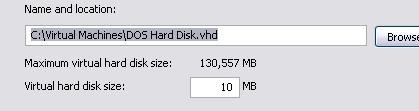
- Click on Hard Disk 1 and write
down, below, where your virtual hard disk is stored (no sense in creating
a new one, we’ll just reformat and install on this one).
- Click Cancel.
- Click your DOS and click
remove. Yup, you’re going to delete that DOS.
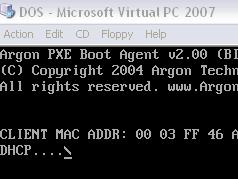
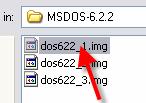
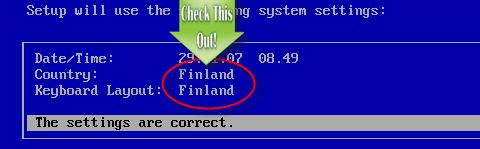
- Follow the instructions below
to reinstall DOS using the disk images online.
|
|
||
|
|
||
|
|
||
|
|
||
|
|
||
|
|
||
|
|
||
|
|
||
|
|
||
|
|||
|
|
||
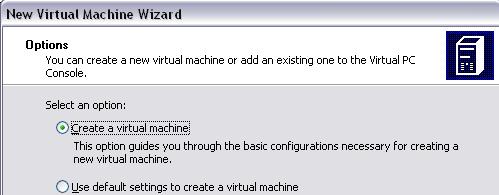
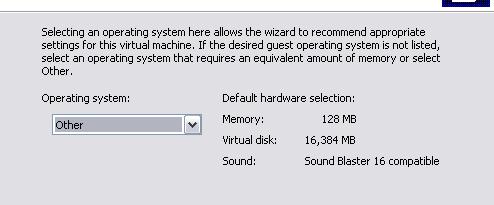
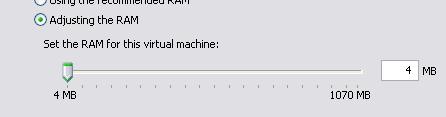

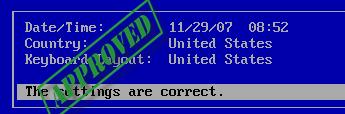
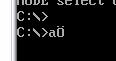
Answer the
questions below.
- What is a disk image?
- What was the cause of not being
able to type a colon in DOS if you installed from the images originally?
- Why did we reset the RAM so
low?
- Why do you only need 10 MB to
install DOS?
Lab
6-2 Creating a Virtual Hard Disk in DOS
|
|
|
|
|
|
|
|
|
|
|
Reboot
into DOS. |
|
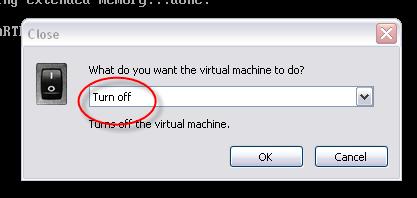
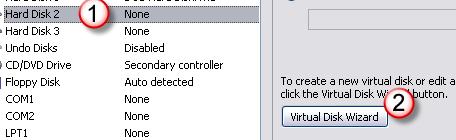
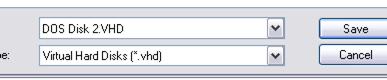
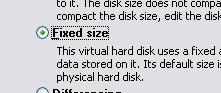


Questions
- What is a virtual hard disk?
- What can you do with this disk
you just created?
- What are you going to need to
do before you can use it? (Don’t do that, just tell me. The next lab has
you doing stuff to it.)
- How many hard disks can you
have in a virtual machine?
- How many network cards?
- Pretty cool, huh?
Lab 6-3
Using FDISK
Objective
Low level formatting is done using
the format command. Low level formatting divides the disk in tracks and divides
the tracks into sectors. This must happen before high level formatting when the
disk is new, and can also be done when a disk is exhibiting a lot of
unrecoverable errors. Generally this is done at the manufacturer. You will
rarely perform your own low-level format. The steps to preparing a hard drive
are as follows:
o Perform a low level format
o Partition the drive
o Format the drive with a high level
format
You’ll do the last two, only.
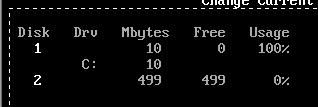
Viewing the current hard drive
configuration
|
|
|
|
|
|
|
|
|
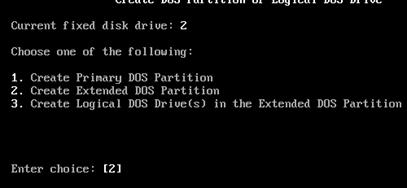
Primary,
extended and DOS partitions. o
There are a maximum of four partitions that can be placed on any DOS
or Windows 9x hard drive. o
These would be primary partitions. However, you can create extended
partitions and put logical partitions inside extended partitions. Confused?
Good. o
This allows you to get around the 4 partition limit. o
You can have only ONE extended DOS partition, but it can be split into
lots of logical partitions. o
Only one partition can be active. The active partition is the one that
is used for booting the system. o
Primary—A partition that can be named
active and can hold boot files. There can be up to four. If you need four
use: o
Extended—Used to hold logical partitions.
There can be only ONE. o
Logical—used when you need more than four
partitions. Logical partitions may ONLY be created within the extended
partition. o
Why? Because I said so. (No, because that’s how DOS works. No one
thought they’d need more than two partitions, four max!) |
|
|
|
|
|
|
Write
answer here |
|
Write
answer here |
|
|
|
Write the
answer here, be specific. |
|
Write the
answer here. |
|
Write the
answer here. |
|
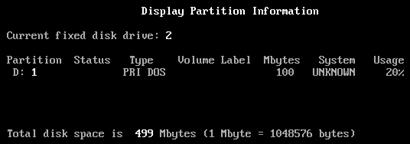
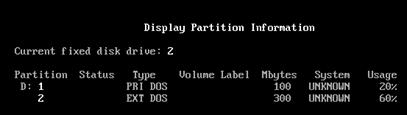
Take a
screen shot of these partitions named (go into FDISK) and staple it to your
lab report. |
|
Delete a Partition |
|
|
Write the
answer here |
|
|
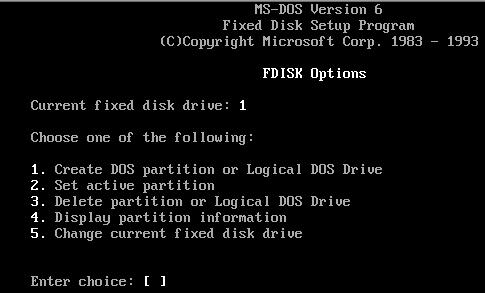
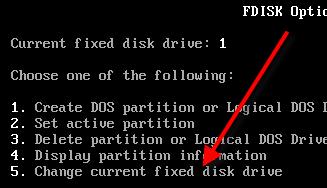
Setting an active partition
- Select option 2 from the FDISK Main Menu.
- Choose the primary partition that you created by
typing 1 and pressing Enter.
- Press Esc to return to the main menu.
- Press Esc to exit FDISK and press any
key. Your workstation will restart.
- Note: If you already have DOS installed, the
installer creates a single partition and sets it to active, so it will
just tell you that it’s already set to active.
Define the
following terms:
|
Term |
Definition |
|
Active
Partition |
|
|
Partition |
|
|
Extended
partition |
|
|
Logical
drive |
|
|
FDISK |
|
|
MBR |
|
Circle True or False.
- When a partition’s size is changed using the
FDISK utility, the data contained on the partition is lost. True / False
- The FDISK utility is used to partition and
format hard drives. True / False
- Extended partitions are always placed within
logical drives. True / False
- List three functions of the FDISK utility.
- ___________________________________________________________________________
- ___________________________________________________________________________
- ___________________________________________________________________________
- You are the desktop PC support technician for
the Good Job Corporation. John, one of your customers, suspects that his
hard drive is not partitioned to use its full capacity. Describe how you
would use the FDISK utility to show John his current hard drive
configuration.
- Describe the relationship between a logical
drive and an extended partition.
- What is the difference between a physical drive
and a logical drive?
Lab
6-4 Installing a Second Hard Drive
Objective
You must format a hard drive to
install a file system. In this lab exercise you will learn how to properly install
and optimize the FAT file system.
After completing this lab, you will
be able to:
- Format a partition.
- Use the SCANDISK utility to optimize
performance.
- Use the DEFRAG utility to optimize performance.
Materials Required
- Operating system:Windows 9x
- Lab workgroup size: 2 students
- You MUST do this on your LAB computer (not the
classroom DELLs. We never open those.)
- One DOS boot disk that includes the Format and
SYS commands
- One DOS disk that contains both the SCANDISK and
DEFRAG utilities
Lab Setup & Safety Tips
- Each workstation’s hard drive should contain one
unformatted primary partition that has been set as active during lab 6-1.
- Be sure that the data stored on your lab
workstation has been backed up before you proceed with this lab exercise.
Formatting the new drive
- Power off your lab workstation.
- Install a second hard drive that does not have anyone else’s OS on it! You
want a plain drive. Get it from me.
- Be sure that second drive is mounting in your
CMOS.
- Insert the boot disk into drive A. If you do not have a boot disk, make
one. You should have it in your disk set!
- Power on your lab workstation and allow it to
boot from your DOS boot disk.
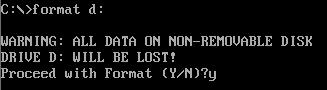
- At the A prompt, type FORMAT driveletterofnewdrive
- When asked to confirm before proceeding, type Y
and press Enter. The format command begins to format drive C.
- When formatting is completed, type a volume
label of DRIVE 1.
aking drive bootable
You can use many different commands
to make a drive bootable. Following are two examples of command sequences:
Using the SYS command
- Power off your lab workstation.
- Insert the boot disk into drive A.
- Power on your lab workstation and allow it to
boot from your DOS boot disk.
- At the A prompt, type SYS A: driveletter: and
press Enter.
Using the Format command
The /S switch tells DOS to add
system information to the drive after it has been formatted. Use the /? option
to view other FORMAT switches.
- Power off your lab workstation.
- Insert the boot disk into drive A.
- Power on your lab workstation and allow it to
boot from your DOS boot disk.
- At the A prompt, type FORMAT driveletter: /S.
- When asked to confirm before proceeding, type Y
and press Enter.
- When formatting is completed, type a volume
label of DRIVE 1.
Using the SCANDISK utility
- Insert the disk that contains the SCANDISK
utility.
- At the A prompt, type SCANDISK and press Enter.
- Allow SCANDISK to verify your file and directory
structure, and to complete a surface scan.
- When SCANDISK has completed, use the View Log
option to view any errors that SCANDISK might have encountered.
- After examining the view log, exit the SCANDISK
utility.
Using the DEFRAG utility
- Insert the disk that contains the DEFRAG
utility.
- At the A prompt, type DEFRAG and press Enter.
- Allow DEFRAG to reorganize the hard drive (this
should happen quickly if the drive was formatted recently).
- When the defragmentation is completed, exit the
DEFRAG utility.
Review Questions
Circle True or False.
- Using the SCANDISK utility will delete all files
less than 512 K in size. True / False
- The DEFRAG utility places file clusters in
consecutive order. True / False
- You should run the SCANDISK utility only once
every three months. True / False
- Describe the functionality of the DEFRAG
utility.
- You are currently employed as a PC desktop
support technician at My World. One of your customers, Jamie, calls to
tell you that her computer is running more slowly than it did last month.
List two utilities that Jamie might use to improve the performance of her
computer.
- John is currently running DEFRAG, and it is
taking a long time. John called you to ask what the DEFRAG program does,
and why it seems to be so slow. Over the last year John has never run the
DEFRAG utility. Describe to John both the purpose of the DEFRAG utility and
explain why it is taking so long to run.
LAB
6-5 TEST HARD DRIVE PERFORMANCE USING SANDRA
Objectives
The goal of this lab is to help you
use SANDRA to compare the performance of your system’s drives against similar
drives. After completing this lab, you will be able to:
➤ Use SANDRA to test your drive’s
performance
➤ Use SANDRA to compare your system’s
drives with similar drives
Materials Required
This lab will require the following:
➤ Windows 9x operating system
➤ SiSoft SANDRA 2008
Download and Install SANDRA
- Go to www.teechur.com
and download SANDRA (on this module’s homepage). Or get it in the PUB
folder
- Download SANDRA 2008.
- Log into your Windows XP.
- Install SANDRA. Do not install the PDA versions.
SANDRA Lite can be used to run all
sorts of tests on your hard drive. It should give you a nice indication of how
your drive is running. We’re going to use SANDRA to test our hard drives. SANDRA is actually updated quite often, so
if you use it at a tech you’d want to check for the newest version.
- Start SANDRA.
- Click the hardware tab.
- Click physical drives to analyze your hard drive
and fill in the information below.
|
Type (SCSI, ATA, SATA) |
|
|
Interface |
|
|
Cache size |
|
|
Total sectors |
|
|
Number of ECC Bytes |
|
|
Bytes per sector |
|
|
Capacity |
|
|
Partition information |
|
|
Temperature |
|
|
ECC Corrected count |
|
|
List four features of
your drive |
|
|
|
|
|
|
|
|
|
|
|
|
|
|
Space used |
|
- What are two performance tips the program gives
you to speed up the drive?
- Click on the Benchmarks tab and click Physical
Disks.
- How fast is your drive? __________ MB/S
(Megabytes per second)
- What four drives does the program compare your
drive with?
- ______________________________________________
- ______________________________________________
- ______________________________________________
- ______________________________________________
- Which ones are faster?
- Slower?
- What could you do with this information?
- Scroll down to benchmark breakdown. Fill out the
following information.
|
What was the drive index
speed? |
|
|
What was the random
access time? |
|
|
Is index speed good or
bad? |
|
|
Buffered write |
|
|
Look at detailed
benchmark results |
|
|
Which position shows the
fastest speed? |
|
|
Slowest? |
|
Review Questions
- Why might you want to test your drive with
SANDRA?
- Based on the drive ratings information from
SANDRA, do you think a drive performs better if it spins faster or slower?
- Based on the drive ratings information from
SANDRA, do you think a drive performs better if it reads data randomly or
sequentially?
- What does this tell you about a fragmented hard
drive?
LAB 6-6 TROUBLESHOOTING HARD
DRIVES
Objectives
The goal of this lab is to
help you troubleshoot common hard drive problems. After completing this lab,
you will be able to:
➤ Simulate common hard drive
problems
➤ Diagnose and repair common
hard drive problems
➤ Document the process
Materials Required
This lab will require the
following:
➤ A computer with a hard
drive subsystem that you can sabotage
➤ Bootable disk
➤ PC toolkit
➤ Workgroup of 2-4 students
Activity Background
This lab will give you
practice diagnosing and remedying common hard drive problems.
ACTIVITY
- Verify that your hard drive is working by using
a command prompt or Windows Explorer to display files on the drive.
- Switch computers with another team.
- Sabotage the other team’s computer by doing one of the following:
- Remove or incorrectly configure the drive
jumpers
- Remove the power connector from the drive
- Switch data cables to place devices on
incorrect IDE channels
- Disable IDE controllers in CMOS setup
- Return to your computer and examine it for any
symptoms of a problem.
- Before doing anything to fix the problem, answer
the following questions relating to the problem’s symptoms:
- What
symptoms would a user notice? (Describe the symptoms as the user might
describe them.)
- Does the system boot from the hard drive?
- Does POST display the hard drive?
- Can you boot from a floppy disk and change to
the drive in question?
- Does the CMOS HDD Autodetect option detect the
hard drive?
- State your initial diagnosis.
- Diagnose and repair the problem.
- Below, list the steps required to confirm your
diagnosis and solve the problem.
- __________________________________________________________
- __________________________________________________________
- __________________________________________________________
- __________________________________________________________
- __________________________________________________________
- __________________________________________________________
- __________________________________________________________
- Answer the following questions relating to your
final conclusions:
- What was the problem?
- What did you do to correct the problem? Was
your preliminary diagnosis correct?
- Repeat Steps 1-8, choosing actions at random
from the list in Step 2, until your team has performed all the items
listed in Step 2. Be sure to write down the relevant information (as
instructed in the steps) for each problem.
Review Questions
1. What was the first
indication that the power was disconnected from your drive?
2. What incorrect drive
configuration would still allow you to access files on the hard drive by
booting from the floppy?
3. What incorrect
configurations have similar symptoms?
4. What problem resulted in
no drives being detected except for the floppy drive?
- List the steps required to use a drive whose
partitions have been deleted.
Lab
6-7 Uses for Old Hard Drives
- Check out this link: http://www.techeblog.com/index.php/tech-gadget/top-10-strangest-hard-drive-projects
- Which use is your favorite use?
- As a group, come up with 10 NEW uses for old
hard drives.
|
New Use |
Purpose |
Picture |
|
|
|
|
|
|
|
|
|
|
|
|
|
|
|
|
|
|
|
|
|
|
|
|
|
|
|
|
|
|
|
|
|
|
|
|
|
|
|
|
Lab
6-8 Changing the File System Type
Objective
Sometimes you have a hard
drive that is formatted FAT but you want the security of NTFS. You would think
you’d have to format it all over again and lose your data, right?
Wrong! There is a little
utility that will allow you to change the way the drive is formatted from FAT
to NTFS.
Note: You cannot convert
from NTFS to FAT because of how the vector table is stored in NTFS. Think of it
the same way you can use an old device in a newer port (say you can use a SATA
1.5 drive with a SATA 2.0 port) but you can’t use the new stuff in the old
port.
Materials Required
- One small partition on your drive that is
formatted in FAT
- DOS boot floppy with FDISK on it
Lab Setup & Safety Tips
- Each workstation’s hard drive should contain one
unformatted primary partition that has been set as active during lab 6-1.
- You should have completed lab 6-2 to ensure your
hard drive is defragmented and has been checked for errors.
Here we go
- Boot into Windows XP.
- Ensure that you have one small formatted
partition on your drive and that it is formatted FAT. IF YOU DO NOT, DO NOT CONVERT YOUR C: DRIVE TO FAT OR YOU WILL NOT
BE ABLE TO BOOT INTO WINDOWS 98!
- What drive letter is assigned to your small
partition? (It should be probably E or F.)
- At the command prompt type convert driveletter:
/FS:NTFS
- What you’re saying is:
- Convert the drive at this
letter
- From FS FAT
to
- NTFS
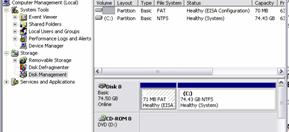 Give the drive a
volume label of mydrive.
Give the drive a
volume label of mydrive. - Press enter and it will tell you if you can do
this or not.
- If you were to install XP on a FAT32 on a single
hard drive and you converted, the conversion would take place next time
you rebooted your computer. If you looked in computer management, it would
still say it was FAT.
- If you convert a partition on a drive that
contains multiple partitions, the conversion takes place right away. Check
it out.
- Open computer management
- Look in Disk management
- Take a screen shot and print it. Attach it to
your lab report.
Review Questions
Circle True or False.
- You can convert an NTFS partition to FAT without losing data? True or false
- You can convert a FAT32 partition to FAT16 without losing data? True or false
- What is the benefit of FAT16 over FAT32?
- What is the benefit of FAT32 over NTFS?
- What is the benefit of NTFS over FAT?
Lab
6-9 Disk Utilities Built in to your OS
The
following disk utilities are built into your operating system:
- Chkdsk
- Scandisk
- Device manager
- MSConfig.exe (not really a disk
utility but helpful in troubleshooting)
- NTBackup
Learn what
each of these utilities does and describe them below.
|
Utility
name |
What it
does |
|
|
|
|
|
|
|
|
|
|
|
|
|
|
|
Perform the
following tasks:
- Use Chkdsk on your lab
computer’s hard drive. What is the outcome? (Describe what it found
below.)
- Use Scandisk on your lab
computer’s hard drive. What is the outcome? (Describe below.)
- Go into device manager and
identify the following (do this on XP)
- IRQ used
- Within XP do the following:
- Open MSCONFIG.EXE by typing
that command in the run box.
- Describe each of the tabs you
find and what’s under them.
|
Tab |
What you
can do here |
|
|
|
|
|
|
|
|
|
|
|
|
|
|
|
|
|
|
- What items startup when your
computer boots?
- Describe how to turn off one
or more startup item.
- Using MSCONFIG set it up to
reboot in a diagnostic startup.
- Describe what happens.
- Reboot normally.
- Open up NT Backup (it’s in the
accessories, or you can type NTBackup at the command prompt)
- Backup files and settings
- Backup your documents and
settings
- Put the backup on your desktop
- Name it “Myname’s Backup”
(replace Myname with your actual name…the one your mommy gave you).
- Restore files from NT Backup
- Go into your “My documents”
folder and delete a file that isn’t important, or move it to another
location.
- Run NTBackup again
- Restore files
- Go in and manually extract
ONLY the file you deleted from within your backup.
- Notes on NTBackup: There is a
lot more you can do with this, but we’ll use that more in networking. One
irritating thing to note is that you cannot backup to a CD burner in the
XP (this changed with
Unit Project—Hard Drives
Remember your customer from
the RAM unit? He has a new issue. You did such a great job fixing the RAM thing
that he has returned to you for your expertise.
Here is his email:
Dude. Thanks for fixing the RAM issue. Who knew that stupid
My friend just gave me four SATA hard drives. I want
them all to work in my system but I don’t want a bunch of different drive
letters going down. I know there must be a way to get this to work.
Any ideas?
There are THREE versions of “this” that are supported
natively in XP and
THEN
There are third party solutions, you will create a
package that includes hardware and software needed to use these drives in the
manner that he wants to use them. You will put pictures and prices and give him
full instructions how to do this.
Task One:
Create a list of words that must be defined in order to answer the customer’s
question.
Task Two:
Develop a list of questions that must be answered before you can begin
fulfilling the customer needs. Email your questions to jschmoe@teechur.com
Task Three: Develop
a customer overview. Who is this guy? What does he need? How can you help?
Task Four:
Determine a list of his current needs and potential future needs.
Task Five:
Research the requirements for his motherboard.
Task Six:
Develop a step by step list of troubleshooting steps to take.
Task Seven:
Research the requirements for the task he’s asking you to complete.
Task Eight:
Create a simple step by step package,
complete with diagrams and screen shots, that will explain to him:
- What it is he wants to do. Use proper terminology.
- How to set it up.
- The different
ways he can set it up. Be CLEAR.
- Any additional hardware or software
requirements.
- Troubleshooting tips for when it doesn’t work.
- Your suggestion
for the best way to set it up.
Task Seven: Create a complete proposal
that outlines what you can do for the customer. Include drawings and images,
price quotes, and other items as applicable. This proposal will be in
POWERPOINT format and will be presented with ALL tasks present.
Questions that Must Be Answered
|
Hard Drive
Technology Know/be able to answer the following:
|
|
SCSI Drives
Know and be able to answer the following:
|
|
Logical
Organization of Drives Know and be able to answer the following:
|
|
DOS know and be
able to use:
|
|
New Storage:
|