|
|
|
|||||||
|
Employee Names |
|
|||||||
|
Team Lead |
|
|||||||
|
Module Name |
Removable Media |
|||||||
|
Certification Test |
|
Vendor |
|
|||||
|
Objectives covered |
|
|||||||
|
Time allotted |
8
days |
Time Taken |
|
|||||
|
Date Started |
|
Date Completed |
|
|||||
|
Item |
Complete |
Incomplete |
Points
Awarded |
|
||||
|
Group Test Score |
|
|
|
|
||||
|
Lab Test Score for Each
Member |
|
|
|
|
||||
|
|
|
|
|
|
||||
|
|
|
|
|
|
||||
|
|
|
|
|
|
||||
|
|
|
|
|
|
||||
|
Completed
solution to problem portfolio (see rubric for score) |
|
|||||||
|
< Customer Overview |
|
|
|
|
||||
|
< Jargon list |
|
|
|
|
||||
|
< Questions |
|
|
|
|
||||
|
< Current needs |
|
|
|
|
||||
|
< Future needs |
|
|
|
|
||||
|
< Solution, including
graphics and drawings as necessary |
|
|
|
|
||||
|
< Resource list |
|
|
|
|
||||
|
< Presentation of solution. |
|
|
|
|
||||
|
Other |
|
|||||||
|
Review Questions |
|
|
|
|
||||
|
Floppy Drive
Troubleshooting |
|
|
|
|
||||

|
Budget
for Unit |
500 |
|
|
|
Expenditures |
|
Remaining
Budget |
|
|
Tardies (5/day) |
|
Labs |
N/A |
|
Absences (10/day) |
|
Hardware Test Score Average |
N/A |
|
Off Task (50/student/day) |
|
Objective Test Score
Average (100) |
|
|
Consultation Fees
(50/consultation) |
|
Project (400) |
|
|
Seminar (100) |
|
Total (500) |
|
|
Missed deadline (100/day) |
|
|
|
|
Total |
|
|
|
|
Budget remaining |
|
|
|
Removable Media
The first disk drive
• This
(1)_________________ just part of a the first “(2)_________________ drive”
being loaded onto a truck (3)_________________ 1956
• RAMAC
was the first (4)_________________ with a hard drive built in
(5)_________________
• Consisted
of 50 24” disks (6)_________________ held about 4.4 MB of data.
(7)_________________ at how far we’ve come in
(8)_________________ than 30 years
Why do we (9)_________________?
• Removable
media is going to (10)_________________ to be a necessity in the
(11)_________________ age
• We
can move data (12)_________________ networks, but securing data will
continually (13)_________________ some form of storage that can
(14)_________________ taken off site*
How Data is (15)_________________ on a Disk
• Floppies
are (16)_________________ up of mylar coated with cobalt (17)_________________
iron oxide that can hold a (18)_________________ charge.
• When
you format a (19)_________________ it maps concentric circles called tracks
(20)_________________ pie shaped wedges called sectors.
•(21)_________________ side of the disk has 80
(22)_________________ and 9 sectors.*
How data is (23)_________________, cont…
• Data
is written to (24)_________________ tracks as 1 or 0 (bits)
•(25)_________________ difference between a 1 and
(26)_________________ is the magnetization of the spot
•(27)_________________ bit is separated by a
(28)_________________ so bits don’t interfere with each (29)_________________
• Data
is written and read (30)_________________ the read/write head in the floppy
(31)_________________.*
Review
1.
Data is stored in ____ and ___s
2.
____ are concentric circles.
3.
_____ are pie shaped wedges.
4.
Floppies are made of ______ coated with either ____ or _____ oxide.
5.
Data is written via _____ ____ heads
6.
Why don’t bits interfere with each other?*
Floppy Drives
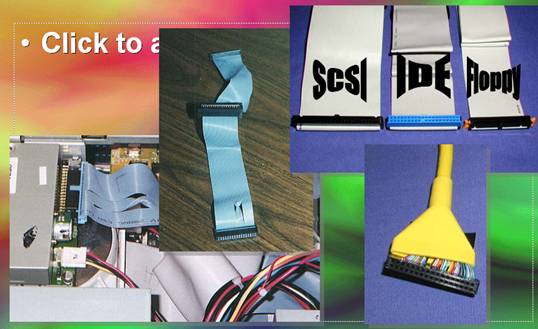
•(39)_________________ to the controller card or
motherboard (40)_________________ a ribbon cable with 34 pins
(41)_________________ 2 connections.
• Powered
by a (42)_________________ connector that connects to the power
(43)_________________.
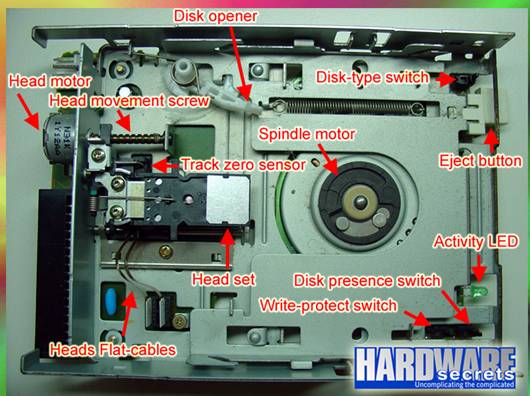
• Data
is written via a (44)_________________/write head that is housed on an
(45)_________________ arm.
• The
arm moves freely (46)_________________ the disk.*
Floppy Drives, cont.
•(47)_________________ arm has one read/write head
above (48)_________________ disk and below.
• The
heads (49)_________________ lightly across the disk as the
(50)_________________ spins either 300 or 360 rpm
•(51)_________________ heads do NOT touch the
(52)_________________. If they do it causes a (53)_________________ crash and
the disk is toast.*
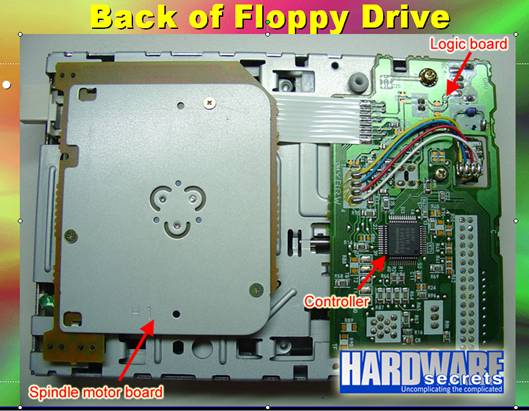
(54)_________________ Drives, cont.
• As
data is (55)_________________, eraser heads on either side of
(56)_________________ r/w head clean up so there (57)_________________ no data
bleed.
• This
ensures (58)_________________ track is uniform in size.
•(59)_________________ turns on a spindle
Floppy
Disk Types
|
Type |
Storage Capacity |
Numbers of Tracks/Side |
Number of sectors/side |
Cluster type |
|
3.5 in extra high density |
|
80 |
|
2 sectors |
|
3.5 in high density |
1.44 B |
|
|
1 sector |
|
3.5 in double density |
|
80 |
|
2 sectors |
|
5.25 in high density |
1.2 B |
|
15 |
|
|
5.25 in double density |
|
40 |
|
2 sectors |
Review Two
1.
Describe how the read/write arm works.
2.
Floppy drives attach to motherboard how?
3.
What is the point of the eraser head?
4.
Disks turn on a ____.
5.
____ pins on a ribbon cable.*
Flash Memory
•(67)_________________ memory is non-volatile
memory that can (68)_________________ electrically erased and reprogrammed. It
is (69)_________________ technology that is primarily used in
(70)_________________ cards.
• Unlike
EEPROM, it is (71)_________________ and programmed in blocks consisting of
(72)_________________ locations (in early flash the entire
(73)_________________ had to be erased at once).
•(74)_________________ memory costs less than
EEPROM (75)_________________ has become the dominant technology wherever
(76)_________________ significant amount of non-volatile, solid-state storage
(77)_________________ needed.
• Examples
of (78)_________________ include digital audio players, digital cameras (79)_________________
mobile phones.
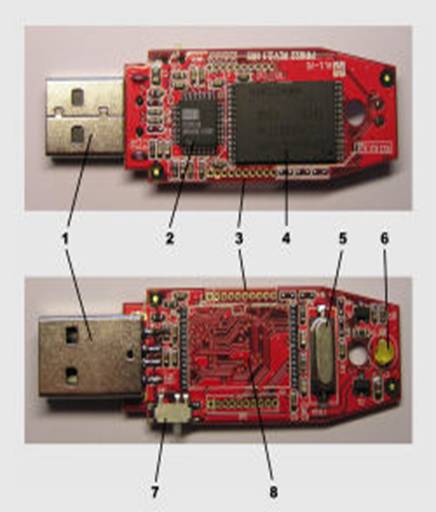
• Flash
memory is (80)_________________ used in USB flash drives
•(81)_________________ has also gained some
popularity in (82)_________________ gaming market, where it is often
(83)_________________ instead of EEPROMs or battery-powered SRAM
(84)_________________ game save data. *
|
|
Secure
Digital Cards
•(90)_________________ Digital (SD) is a flash
(91)_________________ (non-volatile) memory card format used in
(92)_________________ devices,
• SD
cards are based (93)_________________ the older MultiMediaCard (MMC) format,
but (94)_________________ are physically slightly thicker than MMC
(95)_________________.
• The
additional thickness offers two (96)_________________ over MMC cards:
– The
contacts (97)_________________ slightly recessed beneath the surface of
(98)_________________ card (like Memory Stick cards), protecting
(99)_________________ contacts from contact with the fingers;
–(100)_________________ SD card is shaped so
(101)_________________ it cannot be inserted upside down,
(102)_________________ slightly, whereas an MMC card will
(103)_________________ in most of the way but (104)_________________ make
contact if inverted.
• They
(105)_________________ boast higher data transfer rates, but
(106)_________________ is always changing, particularly in light
(107)_________________ recent improvements to the MMC standard.
(108)_________________ Digital Cards
• Most
offer a (109)_________________-protect tab on the side.
• This
(110)_________________ not a switch, and it is (111)_________________ to the
device into which the (112)_________________ is plugged to sense the tab
(113)_________________ protect the card from writes.
•(114)_________________ rights management features
are available but (115)_________________ little used.
• SD
cards generally (116)_________________ 32 mm × 24 mm × (117)_________________.1
mm, but can be as thin (118)_________________ 1.4 mm, just like MMC cards
(119)_________________ Digital Cards
• Each
of these (120)_________________ holds 2 GB data
– SDC
•(121)_________________
– SD
Mini
• MP3
(122)_________________
• Some
phones
– SD
Micro
•(123)_________________
ReReview
•
Flash drives are made of what kind of memory?
•
What are some applications for flash memory?
•
Flash memory is volatile/non-volatile
•
How is flash memory different from EEPROM?
•
What is the difference between MMCs and SDCs?
•
What must happen for write protect to work on an
SDC?
How (131)_________________ is Logically Stored on a
floppy
•(132)_________________ can refer to segment of
(133)_________________ track or the entire wedge. A (134)_________________
(segment of a track) holds 512 (135)_________________ of data.
• A
sector is (136)_________________ physical designation while a cluster is
(137)_________________ logical one.
• The
BIOS recognizes (138)_________________ disk as a set of sectors,
(139)_________________ the OS recognizes it as a (140)_________________ line of
2880 clusters.*
Clusters
•(141)_________________ OS reads data from and
writes (142)_________________ to chunks called clusters (aka file
(143)_________________ units).
• The
disk keeps track (144)_________________ what is stored where by way
(145)_________________ a file allocation table (FAT)
•(146)_________________ on the disk, a cluster can
(147)_________________ 512-720 K. Even if the data (148)_________________
smaller than 512, it’ll still take (149)_________________ the whole cluster.*
Formatting
• Creates
(150)_________________ and sectors by writing a series (151)_________________
F6s (hex value=246).
• Writes
a (152)_________________ address at the beginning of each
(153)_________________
• Creates
the master boot record ((154)_________________)
• Creates
2 copies of the (155)_________________
• Creates
the root directory.*
Master (156)_________________ Record (MBR)
• The
first sector (157)_________________ a floppy
• Contains
basic disk (158)_________________
– Number
of sectors
– Number
(159)_________________ clusters per sector
– Number
of (160)_________________ in each FAT entry
– Information
(161)_________________ BIOS needs to read the disk
–(162)_________________ small program that allows
the (163)_________________ to boot if there is an (164)_________________ on
it.*
MBR Continued
• MBR
(165)_________________:
– Contains
a record of which (166)_________________ of DOS or Windows was used
(167)_________________ format the disk.
– Is
always (168)_________________ track 0, sector 1 of the (169)_________________
– Is
also known as the (170)_________________ boot record (these are the same
(171)_________________ a floppy but different on a (172)_________________
disk).
• On
floppies, the MBR (173)_________________ always the same, even if it
(174)_________________ bootable.*
File Allocation Table (FAT)
•(175)_________________ the locations of the files
in (176)_________________ column table.
• Each
entry is (177)_________________ bits “wide” which is why floppy
(178)_________________ is FAT12.
• Lists
how each (179)_________________ is currently being used.
• Lists
(180)_________________ clusters (marked as FF7h)
• The
(181)_________________ copy is stored right after the (182)_________________ in
case of a problem.*
Writing (183)_________________ file to disk
• Writes
the (184)_________________ of the file, the size of (185)_________________
file, and other attributes into the (186)_________________ on the disk.
• Writes
the (187)_________________ the first bit is in (the (188)_________________ of
information is stored in the (189)_________________)
• The
end of the file (190)_________________ indicated by a cluster of all
(191)_________________ (fff or 111111111111)
Relationship of Hex (192)_________________ binary
• Each
cluster is 12 (193)_________________
• One
number in hex is (194)_________________ 4 bit number. If it is
(195)_________________ 1s=f in hex. (1+2+4+8=15, 15=f)
•(196)_________________ are made in hexadecimal.
Each cluster (197)_________________ a series of 3 hex numbers.*
(198)_________________ data is written to a disk
(199)_________________!
• Files
are not necessarily written (200)_________________ contiguous clusters. They
can be written (201)_________________ clusters all over the disk.
•(202)_________________ is called a fragmented
file.
The (203)_________________ Directory
• The
main directory on (204)_________________ disk
• Contains
a table that (205)_________________ all files and subdirectories in the
(206)_________________
• Depending
on the disk, a (207)_________________ can have up to a specific
(208)_________________ of files/subdirectories…no more.
• Each
directory (209)_________________ is 32 bits long (although only
(210)_________________ are used)*
Directory information
Attribute Bits
1.
Each sector can hold __ bytes.
2.
A sector is ____, while a cluster is ____.
3.
Define cluster.
4.
I write a 2 byte data to a normal disk. How much space will it use if
each cluster is 512 bytes?
5.
When a disk is formatted, what hex value is written in each sector?*
Review Four
1.
Steps of formatting
2.
Define FAT
3.
What is contained in the MBR?
4.
A bad cluster is marked with what hex value?
5.
A cluster with FFF indicates what?
6.
What is in the root directory?
7.
What is a fragmented file?*
Directory information
|
Root Directory Bytes |
Usage |
|
8 |
|
|
3 |
|
|
1 |
|
|
10 |
|
|
2 |
|
|
2 |
|
|
2 |
|
|
4 |
|
Attribute Bits
|
Bit |
Description |
Bit=0 |
Bit=1 |
|
1,2 |
Not used |
|
|
|
3 |
|
Archive |
Don’t archive |
|
4 |
|
File |
Subdirectory |
|
5 |
|
Not volume label |
Is volume label |
|
6 |
|
Not |
Is |
|
7 |
|
Not hidden |
Hidden |
|
8 |
|
Read/write |
Read only |
Review Five
1.
A directory entry is ____ bytes, but only ____ of them are used.
2.
Where is cluster information about a specific file stored (2 places)?
3.
Why are 2 copies of FAT created?
4.
What version of FAT is used on a floppy?
5.
The BIOS recognizes a floppy as a series of _____ clusters.
How data is written to (235)_________________
memory
• There
is a grid (236)_________________ columns and rows with a cell (237)_________________
has two transistors at each intersection
•(238)_________________ transistors are separated
by a (239)_________________ layer of oxide
– One
transistor (240)_________________ a floating gate
– The
other (241)_________________ a control gate
– The
control (242)_________________ allows the floating gate to connect
(243)_________________ the row. If this link is (244)_________________ place,
the value is 1.
•(245)_________________ change the power to 0 the
(246)_________________ in the floating gate are altered (247)_________________
an electrical charge of 10 to (248)_________________ volts.
• The
charge comes from (249)_________________ column aka bitline, goes through the
(250)_________________ gate, drains to a ground.
•(251)_________________ charge causes the FG
transistor to (252)_________________ like an electron gun
Repairing Floppy (253)_________________
• Don’t…they’re
so cheap and they (254)_________________.
• Buy
a new one.
Removable (255)_________________
• Increase
storage capacity of a (256)_________________
• Make
it easy to move (257)_________________ files from computer to computer
•(258)_________________ excellent for backing up
data
•(259)_________________ help secure data (store in
safe (260)_________________ off site)*
Other removable media
•(261)_________________ drives—generally used for
backup only
•(262)_________________ drives.
• Notebook
or pocket drives
–(263)_________________ are hard disks, but are
(264)_________________ small form factor like a notebook (265)_________________
drive
• MP3
players, cell phones, (266)_________________.
– More
and more as SD (267)_________________ get cheaper, these are being used
(268)_________________ carry data as well as music*
(269)_________________ Disk Alternatives
• USB
Flash Drives
•(270)_________________ Digital Cards
• Memory
stick
•(271)_________________ portable hard drives
• Cloud
(272)_________________
– Internet
based storage
• Other
(273)_________________ are currently in development
Why Cloud?
•(274)_________________ available wherever there is
Internet (275)_________________
• Platform
agnostic
• Storage
industries (276)_________________ your files are backed up (unless
(277)_________________ site is free, obviously)
Why Cloud?
•(278)_________________ are off site and more
(279)_________________
– Physically
– Logically
• Small
(280)_________________ may not be able to afford (281)_________________ storage
area network implementation, but they (282)_________________ afford a
subscription to the cloud.
•(283)_________________ on many platforms,
including mobile (284)_________________, MP3 players, etc.
• There
are (285)_________________ drawbacks
– Internet
goes down, data (286)_________________ not accessible (but that’s the same
(287)_________________ if a file server goes down, (288)_________________ with
the availability of wifi now (289)_________________, it’s a short drive to the
(290)_________________ Starbucks
– Ensure
the company is (291)_________________
– Cannot
ensure physical security…have to (292)_________________ another company
Future of removable storage (293)_________________
• Floppies
are dead as dead
•(294)_________________
– Holographic
drives aka 3-D (295)_________________ storage
– Metal
Disk for archival (296)_________________
– MRAM
(Magnetoresistive RAM)
– Optical
(297)_________________ Cards
– Blu-RAY
disks
– What
(298)_________________?
Review Seven
What do you do with a bad floppy drive?
How can you test a floppy drive?
What are some common errors?
What type of POST error will you get if a floppy
drive fails the POST?
How do you create an emergency DOS floppy?
Review Eight
Name the different kinds of removable drives.
Most removable drives are ___ and ___.
How do you create an emergency floppy in Win 9x?
Win NT? Win 2000?*
Lab
Check off Sheet and Report
|
Certification Tests and Objectives Covered in Labs |
||||||||||||||||
|
A+ Operating System |
A+ Hardware |
Network+ |
Windows 2000 Professional 70-210 |
Windows 2003 Server 70-290 |
CISCO 640-801 |
|||||||||||
|
X |
1.0 OS Fundamentals |
X |
1.0 Installation, Configuration, and Upgrading |
|
1.0 Media and Topologies |
|
Installation |
|
Managing and Maintaining Physical and Logical Devices |
|
Planning and Designing |
|||||
|
|
2.0 Installation, Configuration and Upgrading |
X |
2.0 Diagnosing and Troubleshooting |
|
2.0 Protocols and Standards |
|
Implementing and Conducting Administration of
Resources |
|
Managing Users, Computers, and Groups |
|
Implementation and Operations |
|||||
|
|
3.0 Diagnosing and Troubleshooting |
|
3.0 Preventative Maintenance |
|
3.0 Network Implementation |
|
Implementing, Managing, and Troubleshooting Hardware
Devices and Drivers |
|
Managing and Maintaining Accesses to Resources |
|
Troubleshooting |
|||||
|
|
4.0 Networks |
|
4.0 Motherboards, Processors, and Memory |
|
4.0 Network Support |
|
Monitoring and Optimizing System Performance and
Reliability |
|
Managing and Maintaining a Server Environment |
|
Technology |
|||||
|
|
|
|
5.0 Printers |
|
|
|
Configuring and Troubleshooting the Desktop
Environment |
|
Managing and Implementing Disaster Recovery |
|
|
|||||
|
|
|
|
6.0 Basic Networking |
|
|
|
Implementing, Managing, and Troubleshooting Network
Protocols and Services |
|
|
|
|
|||||
|
|
|
|
|
|
|
|
Implementing, Monitoring, and Troubleshooting Security |
|
|
|
|
|||||
Check
off each of the labs as you complete them below. Turn this in with your lab
reports.
|
Requirement |
Completed |
Filled Out Lab Sheet |
Not Attempted (0 on labs for unit) |
|
Lab 5.1 Configuring Removable Media |
|
|
|
|
Lab 5.2 Using a Recovery Tool in DOS |
|
|
|
|
Lab 5.3 Using Diagnostic Software |
|
|
|
|
Lab 5.4 Do some internet research |
|
|
|
|
Lab 5.5 Creating a Boot Disk in Windows 98 |
|
|
|
|
Lab 5.6 Troubleshooting |
|
|
|
|
Lab 5.7 Installing two floppy drives |
|
|
|
|
Lab 5.8 Working with a Cabinet File |
|
|
|
Lab 5-1: Configuring Removable Media
Objectives
4 Locate CMOS screen for configuring floppy, USB devices, and changing boot order.
4 Configure the computer to boot in various scenarios
Note: If your computer does not have a floppy, work with a partner.
- Enter the CMOS settings on your lab computer.
- Locate the floppy disk controller area.
- Disable the floppy disk controller.
- Restart.
- Put a floppy into the drive.
- From the run command, type A: and hit enter.
- What happens?
- Why?
- Go back in and re-enable the controller.
One purpose for disabling an FDC is to allow a kiosk computer to be available for use, but not allow users to access the floppy drive and potentially walk away with data. The controller can be re-enabled when an administrator needs it for some reason.
Repeat the steps above, only this time disable (from the CMOS) the USB controller. Before you hit save in your CMOS answer the following!
- What are the steps you took to disable the USB ports?
- Is your keyboard or mouse USB?
- If so, what will happen if you save and continue?
- Yeah, that would not be cool, would it?
- Don’t save the settings unless you LIKE reinstalling your lab system! I mean if you do, by all means knock yourself out!
Lab 5-2: Using a Recovery Tool in DOS
Objectives
4 Using DOS, recover files from a bad floppy.
4 Use the program to locate and recover files.
Note: If your computer does not have a floppy, work with a partner.
- Download a copy of RecoverFD from our website.
- Unzip it and write down where the file was unzipped (probably c:\unzipped\rfd14[1]). You will need this to run the program. ________________________________________________________
- Boot into Windows 98 and open the command prompt.
- Get a floppy disk from me. Put a bunch of files onto it. It doesn’t matter what they are. Just make some quick text and paint files and give them names. Create one or two directories (folders) and throw some stuff in there too.
- Head on into DOS.
- Navigate to the folder that your recovery tool is located in.
- Type recovrfd and hit return. It will show you a list of switches that can be used with the program. It should look like this.
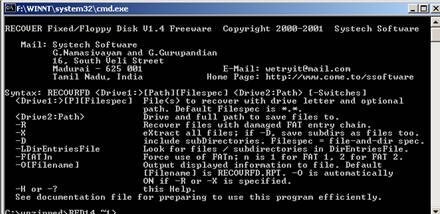
- List the switches you can use with this program. A switch is a modifier that works with a command.
|
Switch |
What it does |
|
|
|
|
|
|
|
|
|
|
|
|
|
|
|
|
|
|
- Type recovrfd a: List what you see:
|
|
- Do you see folders (directories)? Why or why not?
- What command do you type to show directories?
- Do that. Take a screenshot and attach to your lab report.
Lab 5-3 Using Diagnostic Software
·
Start in XP and
download the program below.
·
Go to: http://www.msdus.com/diags/
- MicroSystems
Development provides a diagnostic program called TestDrive for examining
and diagnosing problems with floppy drives and floppy disks. We have it available
on our website. Download and unzip it. Put it onto the C: drive so it is
accessible from Windows 9x.
- Reboot into 98.
- When you download or copy the zipped
file to your PC, explode it, and then do the following. (Most of the
options on the TestDrive menu require that you have a DDD disk, but you
can perform a few tests without one.)
- Execute the TestDrive software by
double-clicking the file TESTDRIVE.COM in
- Windows Explorer.
- Select the option to perform the Write/Read test. The warning box
will appear. Perform the test with a disk that has nonessential data on it
that can be erased. While the test is running, answer these questions.
1.
In what
order are these components on the disk tested: heads, tracks, and sectors?
2.
Did you
get any errors? If so, where?
3.
If you
got a significant number of errors, try another disk. Do you see a pattern of
errors when moving from one disk to another?
Installing Data Doctor Removable Media Recovery
- Go into the pub folder into software and
find the labfiles for this unit.
- Install Removable Media Recovery Tool.
- Insert a Flash drive (borrow one if you
don’t have your own).
- Open the program.
- What information does it give you about
your media?
|
Physical Disk
Number |
|
|
Model |
|
|
Media type |
|
|
Cylinder |
|
|
Head |
|
|
SectorsPerTrack |
|
|
Disk Size |
|
- Go into My computer and right click on
your drive. Write down the file system (it’ll be FAT, FAT16, FAT32, or
NTFS).
- Go back to the program. Click on your
drive and select “Standard Search”
- Click next.
- Read the directions. If it doesn’t like
standard mode, go back to advanced.
- Select Partition Type
- Let it do its thing.
- Were you able to find anything to
recover? What?
- Try this program on a floppy. Does it work?
Lab 5-4 Doing Some Internet Research
Comparing the Data Storage Cost of Devices
Research the market (using, for example, Computer
Shopper) and fill in the following table to compare the storage costs of
different secondary storage devices.
|
|
HD DVD |
REV Drives |
Zip Drives |
BluRay |
|
Manufacturer |
|
|
|
|
|
Capacity |
|
|
|
|
|
Price of drive
and first disk |
|
|
|
|
|
Price of
additional disks |
|
|
|
|
|
Cost per KB of
drive and first disk |
|
|
|
|
|
Cost per KB of
additional disks |
|
|
|
|
Lab 5-5 Create a Boot Disk in Windows 9x
- Get a floppy disk from me.
- Go to http://www.winxpcentral.com/basics/win98bootdisk.php and read the directions on how to create a Windows 98 boot disk.
- That page is gone? Google it!
- Show me your boot disk by booting into it and having me come check it off.
Answer the following questions.
- What control panel do you access to create a boot recovery disk in 98?
- List the files on the recovery disk below.
- What options are you given when you boot using this disk?
- What is the purpose of a recovery disk?
- Do you
need a boot disk for
- Why or why not?
Lab 5-6 Troubleshooting Skills
- A customer has Windows 98 installed and can’t
start up. She’s tried everything she knows, which isn’t much. Explain to
her how to go to another Windows 98 computer and create a boot disk.
- Wild Thing calls you. He has upgraded his version
of DOS to 6.22 but a program he’s running keeps giving him the error
“Incorrect DOS Version”. You have no idea what’s going on, but you pretend
you do and tell him you’ll get back to him within 3 hours. What would be
your first step to solving this problem?
- Go online and research this error. What are three
possible causes of this error?
|
|
|
|
|
|
- Your friend has just built a new computer. The
floppy drive is brand new so he knows it works (or at least SHOULD work).
When he starts the computer the BIOS finds the drive, the light comes on
and stays on, but floppy disks will not read in the drive. Research the
problem…what’s going on?
- Cause DOS to give you the error “Incorrect DOS version.”
Lab 5-7 Creating a REAL Windows 98 ERD
As you probably know, both
Windows 95 and Windows 98 allow you to create an emergency repair disk (ERD).
However, if you've ever looked at the contents of this disk, you may have
questioned its ability to help you out of a jam. For example, in some versions
of Windows 95, this disk contains nothing more than the files necessary for
booting to a DOS prompt from the disk. Although subsequent releases of Windows
95 and Windows 98 include more files on the ERD, you're still better off
creating your own repair disk. In this article, we'll show you how to make a
truly effective emergency repair disk.
What should an ERD be able to do?
Ideally, a good ERD should be
able to recover any PC from any crash. However, such versatility is impossible
because of limited disk capacity, and because it's impossible to predict every
potential problem. Therefore, you need to make the best possible use of the
space you do have on the disk. To do so, it helps to make a list of the
main functionality you hope to gain from your ERD. Such a list may contain
things like the following.
Bootable
Since the entire purpose of
an ERD is to repair Windows, you must assume when you create the disk that
Windows doesn't work. Therefore, it's important to make the disk bootable so
that you can access the hard disk of a damaged computer via a DOS prompt.
Access CD-ROM drives
As you probably know, you
can't access a CD-ROM drive through DOS unless you've loaded drivers for the
CD-ROM drive. Because virtually all software ships on CD-ROM, it's extremely
important for your ERD to be able to access your CD-ROM drive. You should also
keep in mind that you'll probably be using this disk in a variety of PCs.
Therefore, if possible, it's a good idea to set up a multiboot environment on
your disk that allows you to use a menu to load the driver for any CD-ROM drive
in your organization. Doing so isn't as difficult as you might think; we'll
show you how to do this later on.
Repair a damaged hard disk
Because corrupted files cause
many Windows problems, you should consider making a disk that's capable of
scanning your hard disk for damaged files and directories.
Maintain files and disks
Because you'll be working in
a DOS environment when using your ERD, it's especially helpful to include files
for maintaining your hard disk and files for maintaining individual files.
Although many commands such as COPY and ERASE are built into DOS, other, more
powerful commands aren't. Later on, we'll show you which of these files you should
include on your disk and why.
Edit text files
Some of Windows' most
critical files are text based. When there's a problem with Windows, you need to
be able to make changes to files such as Config.sys, Autoexec.bat, System.ini,
Win.ini, and other configuration files. Making these changes is virtually
impossible without a text editor. Therefore, it's important to include a text
editor on your ERD.

Our disk
So far, we've given you a
general explanation of what functionality you should include in your ERD. Now
it's time to go over the specifics of creating such a disk.
Making the disk bootable
To begin making your ERD,
boot your computer in the usual manner and open an MS-DOS Prompt window. Next,
insert a blank disk and type the command FORMAT A: /S
Doing so will create a
bootable floppy disk.
Adding the CD-ROM driver
Once you've made a bootable
disk, you need to add the CD-ROM drivers to it. If you look at your computer's
Config.sys file, you should see a command similar to the following:
DEVICE=C:\CDROM\D011V110.SYS /D:MSCD0000
Because this command varies
from computer to computer, yours may be slightly different. To add CD-ROM
drivers to your ERD, copy your Config.sys file to the floppy disk. Now, edit
the Config.sys file on your disk and remove each command except for the CD-ROM
driver command. Then, change the path of the device driver from the C drive to
the root directory of the A drive. For example, if your original CD-ROM driver
command looked like our earlier example, you'd change it to
DEVICE=A:\D011V110.SYS /D:MSCD0000
Now, copy the file specified
in your CD-ROM driver command from its original location on your hard disk to
the root directory of the disk you're creating. For example, if your original
command was the one we've been using, you'd copy the file D011v110.sys from
C:\Cdrom to A:\.
The device driver is only
half of the necessary CD-ROM files. Normally, Windows automatically loads
another file to make the CD-ROM drive functional. However, in DOS you must
manually load a similar file. To do so, copy the file Mscdex.exe from the
\Windows\Command directory to your ERD's root directory. Next, create an
Autoexec.bat file on your disk. Your Autoexec.bat file should contain a command
similar to the following:
A:\MSCDEX /D:MSCD0000
The A:\MSCDEX portion of this
command will work for all computers. The /D:MSCD0000 portion of the command
will vary depending on your device driver. Notice that part of our device
driver command contains /D:MSCD0000. Whatever your device driver command
contains in this location, you'll attach to the end of your MSCDEX command. For
example, if your Config.sys file contains the following command, you'd use the
command below it in Autoexec.bat:
DEVICE=A:\BPCDDRV.SYS /D:BPCDDRV$A:\MSCDEX /D:BPCDDRV$
Next, reboot your computer
with the ERD and make sure you can access your CD-ROM drive. As we mentioned
earlier, it's helpful to have your disk contain drivers for each type of CD-ROM
drive in your company. For example, in Figure A, you can see that our
disk boots to a menu we can use to select the driver that we want to use for
the CD-ROM drive.
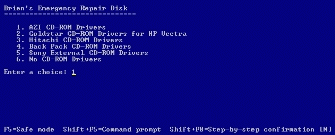
Figure
A: This menu lets us select the CD-ROM driver that our ERD will load.
Although creating such a menu
may seem complex, it's actually quite simple. DOS has all of the menu commands
built in—you need only make Config.sys and Autoexec.bat files that use this
built-in functionality. Below is a sample Config.sys file. You can use our
sample file to create your own multiboot environment.
Sample Config.sys
[MENU]MENUCOLOR=15,1MENUITEM=AZ, AZI CD-ROM DriversMENUITEM=HP, Goldstar CD-ROM Drivers for HP VectraMENUITEM=MC, Hitachi MENUITEM=BP, Back Pack CD-ROM DriversMENUITEM=SY, Sony External CD-ROM DriversMENUITEM=NN, No CD-ROM Drivers [COMMON]device=himem.sysdevice=drvspace.sys [AZ]REM AZI CD-ROM DriversDEVICEHIGH=a:\SGIDECD.SYS /D:MSCD000 [HP]rem The following line is for the HP VectraDEVICEHIGH=a:\gscdrom.SYS /D:MSCD000 [MC]REM Standard Hitache CD-ROM DriversDEVICEHIGH=a:\d011v110.SYS /D:MSCD000 [BP]rem the following line is for the backpack CD-ROMdevice=a:\bpcddrv.sys /d:bpcddrv$ [SY]rem the following line is for the external Sony CD-ROMDEVICE=SLCD.SYS /D:SONY_000 /B:340 /M:P /V /C /E:2 [NN]rem No CD-ROM Drivers
Notice the MENUITEM commands
at the beginning of the file. Each menu item contains two initials followed by
a description that will appear on the actual menu. When the user selects a menu
choice, the Config.sys file will process all instructions in the [COMMON]
section and all instructions in the section whose initials match those
specified in the MENUITEM command.
The Autoexec.bat file works
in a similar manner. DOS processes the commands at the beginning of the
Autoexec.bat file. When DOS reaches the GOTO %CONFIG% command, it causes the
command interpreter to skip to the section of Autoexec.bat that matches the initials
specified in Config.sys's MENUITEM command. Here is a sample Autoexec.bat file:
Sample Autoexec.bat
@echo offprompt $p$gpath=a:\;c:\windows\command;c:\windowsGOTO %CONFIG% :AZREM AZI CD-ROM Drivermscdex /d:mscd000GOTO END :HPREM Goldstar CD-ROM Driver for HP Vectramscdex /d:mscd000GOTO END :MCREM Hitachi mscdex /d:mscd000GOTO END :BPREM Back Pack CD-ROM DriverMSCDEX /D:BPCDDRV$GOTO END :SYREM Sony CD-ROM DriverMSCDEX /D:SONY_000GOTO END :NNREM No CD-ROM DriverGOTO END :ENDRem End of file
Other files to add to your disk
When you have your CD-ROM
driver or drivers working, you should add several other files to your ERD.
Below is a list of these files and the reason for including them. Unless we've
specified otherwise, each of these commands are available in the
\Windows\Command directory.
Sys.com
The Sys.com command allows
you to make any floppy disk or hard disk bootable. For example, if you were
working on a computer whose boot sector had been destroyed by a virus, you
might run the command SYS C: to add the Io.sys, Msdos.sys, and Command.com
files to the hard disk.
Attrib.exe
The Attrib.exe program is
critical for working with three types of files in a DOS environment. By
following the ATTRIB command with a filename, a plus or minus sign, and the
letter H, R, or S, you can add or remove the hidden,
read-only, and system attributes, respectively from a file. For example, if you
wanted to make every file in your current directory visible, you could type
this command to remove the hidden attribute: ATTRIB *.* -h
To hide a visible file, you'd
change the minus sign after the file name to a plus.
Mem.exe
The Mem.exe command is useful
for viewing what's currently loaded in memory. To use this command, simply type
MEM /C.
XCOPY*.*
XCOPY*.* includes all Xcopy
and Xcopy32 files. The XCOPY command works exactly like the COPY command.
However, you can add the /S switch to copy subdirectories, while the COPY
command can copy only the current directory. For example, if you wanted to copy
the current directory and all of its subdirectories to the D drive, you'd type XCOPY
*.* /S D:
Deltree.exe
If you've ever tried to
delete a large directory structure from the DOS prompt, you know how tedious it
can be. You must remove the contents of each subdirectory individually before
you can erase the main directory. For example, suppose you had a directory
called Letters that contained the subdirectories A, B, and C. Using the normal
DOS commands, you'd have to type the following sequence of commands to remove
the Letters directory:
CD\LETTERS\AERASE *.*CD..RD ACD BERASE *.* CD..RD BCD CERASE *.*CD..RD CERASE *.*CD..RD LETTERS
This long sequence of
commands can be easily replaced by typing the simple command DELTREE LETTERS.
Needless to say, the DELTREE command is a big timesaver.
EDIT.*
The Edit files allow you to
use the MS-DOS EDIT program. The EDIT program is a text editor that you can use
to alter system files such as Config.sys, Autoexec.bat, and System.ini, to name
a few.
Chkdsk.exe
Although CHKDSK's repair
capabilities are obsolete, using the CHKDSK command is still the quickest
method in a DOS environment to check your hard disk size and remaining free
space. To do so, simply type CHKDSK followed by the letter of the drive
you want to check.
Format.com
The FORMAT command is useful
for formatting blank floppies. You can also use it to reformat a damaged hard
disk.
Diskcopy.com
The DISKCOPY command
duplicates a floppy disk. To use this command, type DISKCOPY followed by
the source drive and the destination drive. For example, you might type
DISKCOPY A: A:
Extract.ext
If you've ever looked at the
contents of your Windows CD, you probably know that all the files that make up
Windows are stored in a compressed format within CAB files. If you need to
replace a damaged Windows file, you can use the EXTRACT command to decompress
the file you need. For detailed instructions on using this utility, type EXTRACT
/?.
Mode.com
Occasionally, a problem may
result in your not being able to read the screen. If this happens to you, you
can use the mode command to return the screen to a readable state. For example,
to view a standard DOS format screen you'd type MODE CO80.
Scandisk.exe
If you've used Windows for
any time at all, you're probably already familiar with the Scandisk utility.
Scandisk allows you to correct hard disk problems.
Fdisk.exe
The FDISK command can be used
to repartition your hard disk. You should be cautious when using FDISK, because
once you delete a partition, you can't recover it through conventional means.
Doskey.com
The DOSKEY command allows you
to repeat commands you've already typed by pressing the up arrow. This shortcut
is especially handy if you're doing a complex procedure with a lot of
repetitive typing.
More.com
Using the MORE command causes
the computer to show you only one screen full of information at a time. For
example, suppose you have a long text file called Readme.txt. If you type the
command TYPE README.TXT the computer will display the file too quickly
to read. However, typing TYPE README.TXT |MORE will cause the computer
to display the file while pausing after each screen full of information.
Himem.sys
You may have noticed that we
used the Himem.sys command in Config.sys. We did this to load our CD-ROM
drivers into high memory and preserve precious conventional memory. You can use
Himem.sys to load a variety of drivers into high memory.
PKZIP and PKUNZIP
Many times, when trying to
repair a malfunctioning computer, you'll have to use a patch that's stored in
ZIP format. Under normal circumstances, you'd probably use a utility like
WinZip to decompress such a file. However, if Windows won't load, you won't be
able to use WinZip. PKZIP and PKUNZIP offer similar functionality to WinZip,
but they work in a DOS environment. You can download these utilities from http://www.pkware.com .
What
about XP and
Keep this disk for
your lab test! Now take the ERD quiz on Examview!
1. Create a Windows 98 emergency startup
disk.
2. Copy the cabinet file to a new
directory on the disk.
3. Get a printed list of the files in the
cabinet file.
4. Extract all files from the cabinet file
into the new directory.
5. Get a printed list of the files in the
new directory.
|
Requirement |
Completed
(10) |
Incomplete
(5) |
Not
attempted (0) |
|
Create a Windows 98 startup
disk |
|
|
|
|
Extracted cabinet files |
|
|
|
|
Created new directory |
|
|
|
|
List of files in the new
directory |
|
|
|
So…what is a cabinet file?
Lab 5-8 Creating a Bootable USB ERD
This is a challenge lab. Anyone who can complete this AND type up the instructions on how they did it, will receive extra credit points for their group.
There are a number of ways to do this. There are utilities, there’s simply making the drive bootable from a floppy, or using the WinPE (MiniNT) from the Windows AIK (I have that on the server in software).
Unit
Project
Module: Removable Media
|
Description of Problem |
|
A customer comes into your shop. He has a small Real Estate franchise. He would like to purchase some form of removable storage that could be used to make things easier in his business. The files he’s using are too big for floppies. They can use USB, but they want something more reliably secure. USB drives have been left around by employees, and even lost. The data is too sensitive to risk that happening. |
|
Current Needs |
|
Removable storage that can be used to store large files, work with both MAC and PC operating systems, will work in laptops, cameras, and video cameras. They will probably need more than one type of storage to handle this. |
|
Interviews with employees |
|
After you have completed the jargon and list of questions you need to have answered, see me and I’ll give you the rest of this information. |
|
Expansion plans/Future needs |
|
The company plans to expand. The interviews will help you understand what they need. |
|
Your Requirements |
|
Task One: Develop a list of terms/jargon to be defined for the customer. Define the jargon. |
|
Task Two: Develop a list of questions that must be answered before you can begin your research. |
|
Task Three: Develop a list of current customer needs. |
|
Task Four: Develop a list of future customer needs. |
|
Task Five: Research solutions to the problems and develop a solution to present to the customer. |
|
Task Six: Keep a list of resources consulted as you go. It will be part of your portfolio. |
|
Task Seven: Create a spreadsheet of prices to the solution. |
|
Task Eight: Present the solution. Be sure to include pictures of the items you have chosen. |
|
Deliverables |
|
m Jargon list |
|
m Questions |
|
m Current needs |
|
m Future needs |
|
m Solution, including graphics and drawings as necessary |
|
m Resource list |
|
m Presentation of solution. |
Project
Rubric
|
Criteria |
Outstanding |
Good |
Needs Work |
Poor |
0 |
|
|
Customer Overview |
20 |
17 |
13 |
8 |
|
|
|
Definitions of jargon/terms used in project |
20 |
17 |
13 |
8 |
|
|
|
Developed a list of questions that should be answered before
beginning. |
20 |
17 |
13 |
8 |
|
|
|
Customer current needs identified. |
40 |
34 |
26 |
15 |
|
|
|
Customer future needs identified |
40 |
34 |
26 |
15 |
|
|
|
Media can be read in cameras |
40 |
34 |
26 |
15 |
|
|
|
Media can be read on all different computers |
40 |
34 |
26 |
15 |
|
|
|
Media can be read in video camera |
40 |
34 |
26 |
15 |
|
|
|
Backup solution |
40 |
34 |
26 |
15 |
|
|
|
Solution is completely priced out |
20 |
17 |
13 |
8 |
|
|
|
Media is clearly defined |
40 |
34 |
26 |
15 |
|
|
|
Entire team participates in project |
20 |
17 |
13 |
8 |
|
|
|
List of resources used |
20 |
17 |
13 |
8 |
|
|
|
Project portfolio is put together and is complete |
20 |
17 |
13 |
8 |
|
|
|
Total Points on Project |
|
|
|
|
|
REVIEW
QUESTIONS FOR REMOVABLE MEDIA MODULE
1.
How many sectors
per track are there on a 3 ½ " high-density floppy disk?
2.
What two cables
are connected to a floppy drive inside a computer?
3.
What symbol is
written to a disk to indicate that the track is formatted and data can be
written to it?
4.
What is the
difference between a sector and a cluster?
5.
What is another
name for a cluster?
6.
What is the
purpose of the master boot record on a disk?
7.
If a file is
fragmented, describe how the entries in the FAT will look.
8.
What cluster
information for a file is found in the directory entry for the file?
9.
Which bit in the
file attribute byte tells if the file is a hidden file?
10.
What is the
difference between an external DOS command and an internal DOS command?
11.
How can you make
an exact copy of a disk if you only have one floppy drive on your computer?
12.
List the steps to
create an emergency startup disk using Windows 9x.
13.
Why is it helpful
to have EDIT.COM on the startup disk?
14.
If a floppy drive
is not working, why is it better to replace the drive than to repair it?
15.
What might cause
the error, “General failure reading drive A”?
16.
How can you look
at a 3 ½ -inch floppy disk and tell if it is a high-density or double-density
disk?
17.
What do you check
if you get the error, “Write protect error writing drive A:”?
18.
List the steps
that you would follow to install a new floppy drive as drive B.
19.
How does the
computer distinguish drive A from drive B?
20. Which holds more data, a Zip drive or a Jaz drive?
21. What are the names of the three upcoming storage technologies?
22. List the description and maximum capacity of the following storage technologies.
|
Type |
Description |
Capacity |
|
SDC |
|
|
|
USB flash drive |
|
|
|
Microdrive digital |
|
|
|
Magnetic ZIP drive |
|
|
|
Magnetic portable USB drive |
|
|
|
CompactFlash |
|
|
|
SmartMedia |
|
|
|
PocketZip |
|
|
|
Micro-optical |
|
|
|
Memory stick |
|
|
|
Flash drives |
|
|
|
QIC |
|
|
|
DAT |
|
|
|
DLT |
|
|