Lab 2-10 Using Batch Files
Suppose you have a list of OS commands that you want to execute several
times. You can create them to run certain programs, map hard drives on a
network, install printers automagically…and
do all sorts of evil stuff. We, however, will not do evil stuff in here…will we
Cody?
Batch files are simply text files created in notepad or even in the edit
program in DOS. The only difference is, when you save them you save them with a
.bat extension. If you then double click the file, it will run your commands.
Do this in Windows 98.
Let’s practice:
Creating a BATCH File
First
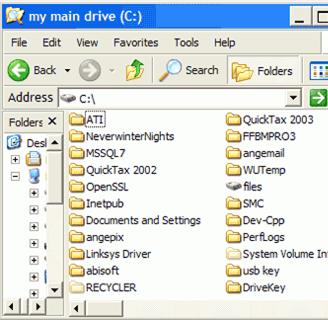
open an explorer window to your c: drive, using Windows Explorer or 'my
computer.' Arrange the window so you can see both your desktop and your c:
drive contents.
|
|
|

Open
the notepad application by
going to 'start\all programs\accessories\notepad' or 'start\run' and type
'notepad'.
In the
blank notepad window, type:
md
c:\testsource
md c:\testbackup
Now go
to 'file' and 'save as'.
(in case you did not read our guide to the command
prompt, the 'md' command instructs the system to
create a directory using a name and location following the command.)
|
Save
your first batch file on the desktop as 'myfirstbatch.bat'. |
|

Close
notepad and you'll see that 'myfirstbatch.bat' has appeared on the desktop.
Double click the file to run it. Check your c: window. The 'testsource'
and 'testbackup' directories have appeared.
Your first simple batch file is a success! Delete the 'myfirstbatch.bat' file
from your desktop. Beautiful!
Creating
your second batch file
Now to create a batch file to backup these files into your
c:\testbackup directory automatically. Open up notepad and type the
following:
@echo
off
xcopy c:\testsource c:\testbackup /m /e /y
The
'@echo off' line tells the computer not to display anything onscreen when it
runs this batch file.
The
second line uses the xcopy command to copy all
contents of the c:\testsource' directory to
c:\testbackup the first time the batch file is run. The second time and all
remaining times, it will only copy new files and files which have changed since
it was last run. It will not copy unchanged files which it previously copied,
even if you delete the copies it made from the c:\testbackup' directory.
Now
save your batch file as 'testbackup.bat' on your desktop and double click it to
run the script.
Check
the contents of your c:\testbackup directory. It should now have copies of the
two files you created in c:\testsource. Good stuff. Now open 'testdoc1' in your
c:\testsource directory and add some text then save it.
Run
your testbackup.bat batch file again, and go to the 'testdoc1' file in the
c:\testbackup folder. It should have been updated with the changes you made in
the other folder.
You've
now created a useful backup utility with
a simple two-line batch file that just takes a double click to run. Starting to
see the potential usefulness of knowing your batch files yet?
Third trial batch file: getting fancy
Now
that we've seen some of the extra commands that can be used in batch files,
let's play with one of the most powerful of them, the FOR command. In this
case, we're going to alter our simple backup batch file and make it a bit more
sophisticated. It's going to differentiate between two different types of files
(text/Word documents and pictures) and back each file type up to a different
directory. To set up for this we need to create two more directories in
c:\. Call them
C:\Text
C:\Pics
Delete
the existing text and .bmp files in your c:\testsource directory and create a
couple of new versions of each.
Now
open notepad and enter the following:
@echo
off
cd c:\testsource
for %%f in (*.doc *.txt) do xcopy
c:\testsource\"%%f" c:\text /m /y
for %%f in (*.jpg *.bmp *.gif) do xcopy
c:\testsource\"%%f" c:\pics /m /y
Now this is a bit more complicated than the files we did before, so let's take
a close look at what this batch file is going to do.
cd
c:\testsource
Tells
the computer that the directory we are going to be working in is c:\testsource
for %%F in (*.doc *.txt) do xcopy c:\testsource\"%%F" c:\text /m /y
This
line tells the computer that FOR any file with the .doc or .txt file extension
(meaning any standard Word doc or text file), DO an xcopy
command to copy that file to the c:\text directory using the same options we
used in the last batch file. The confusing
looking '%%F' character represents the variable that the FOR command uses to
carry out this operation. For example, if your first text file in the
c:\testsource directory is 'texttest1.txt', the batch file would look at it,
see that it had a .txt extension and assign it as the value of '%%F'. The
second part of the command
do xcopy
c:\testsource\"%%F" c:\text /m /y
takes whatever %%F is (in this case your
'texttest1.txt' file) and copies it to the c:\text directory. The quotation
marks around %%F are to allow the command to deal with file names containing
spaces. The command then loops until it has looked at every file in the current
directory before moving on to the next part of the batch file.
for %%F in (*.jpg *.bmp *.gif) do xcopy c:\testsource\"%%F" c:\pics /m /y
The
only thing that is different here is that we are looking for graphics file
extensions instead and copying them to the 'c:\pics'
directory.
Save
your third batch file on the desktop as 'trickybackup.bat' and try it out.
You'll see that your newest creation neatly differentiates between text
documents and pictures and splits them up accordingly.
Questions:
- What is a batch file?
- What program should you use to create a
batch file?
- What is the three letter extension for
batch files?
- What does @echo off mean?
- What are some other uses you can think
of for batch files?
- Now does it make sense to learn some
DOS? Even if you never use the DOS OS, you can use the commands in batch
files to do things.