|
Company Name |
|
|||
|
Employee Names |
|
|||
|
Team Lead |
|
|||
|
Module Name |
Operating
Systems and Resource Management |
|||
|
Certification
Test |
A+ |
Vendor |
Comptia |
|
|
Objectives
covered |
|
|||
|
Time allotted |
8 Days |
Time Taken |
|
|
|
Date Started |
10/5 |
Date Completed |
10/15 |
|
Portfolio Contents
|
Item |
Complete |
Incomplete |
Points Awarded |
|
Lab reports for all labs (List labs) |
|
|
|
|
Lab 2-1 Assigned
Hardware Resources |
|
|
|
|
Lab 2-2 Using
Microsoft Technet |
|
|
|
|
Lab 2-3 Windows
98 and XP System Files |
|
|
|
|
Lab 2-4 CMOS
Manipulation |
|
|
|
|
Lab 2-5 Hardware
Resource Manipulation |
|
|
|
|
Lab 2-6 DOS
Games |
|
|
|
|
Lab 2-7
Protecting Hardware and Software |
|
|
|
|
Lab 2-8 Windows
Update |
|
|
|
|
Lab 2-9 Windows 98 System File Checker Tool |
|
|
|
|
Lab 2-10 Creating Batch Files |
|
|
|
|
Hardware/Lab Test Score for Each Member (attach sheet) |
Score |
|
|
|
|
|
|
|
|
|
|
|
|
|
|
|
|
|
|
|
|
|
|
|
Completed solution to problem portfolio |
|||
|
:
Customer Overview |
|
|
|
|
:
Jargon |
|
|
|
|
:
Identify Customer Needs (list both current and
future) |
|
|
|
|
:
Identify Possible Solutions |
|
|
|
|
:
Define terminology used (jargon, technical terms) |
|
|
|
|
:
Solution to Problem |
|
|
|
|
:
Spreadsheet |
|
|
|
|
:
Diagram of solution |
|
|
|
A+ Computer Technician
Mod Two
Operating
Systems and Resources
Tory
Klementsen, MCP A+
In this unit
you will learn
•
What happens between hardware and software when you first turn on a
computer.
•
How hardware interacts with the system.
•
How software supports hardware.
•
Practical and easy ways to protect your computer.*
Hardware and
Software Interaction: An Overview
•
Software
–
__________________________ of
the computer
•
Determines what __________________________ is present
•
Decides how hardware is __________________________ and used
•
Uses hardware to perform __________________________
–
Consists of __________________________
that instruct computers to perform specific tasks*
Categories of
PC Software
•
BIOS (__________________________
/__________________________ ) and
device drivers
•
Operating system (OS)
•
__________________________
software
–
__________________________
Software
–
Games
–
__________________________
Software*
Operating
System (OS)
•
Software that controls a computer
– Manages
__________________________
– Runs applications
– Provides user
__________________________
– __________________________ , __________________________ , and __________________________ files
•
Communicates with hardware using system resources; uses BIOS or device
drivers for interface to system resources
– Windows
– Linux
– MacOS
– OS/2*
Operating
System (OS)
•
Works with system BIOS and __________________________ __________________________ to provide instructions to hardware to
perform tasks
•
Acts as a liaison between the user and the
__________________________ through the
use of drivers
•
Provides user interface
– __________________________
– __________________________ line
– __________________________ *
BIOS
•
Without the BIOS nothing would work on your PC.
•
Four jobs:
– Tests the computer’s
__________________________ through the
POST
– Assigns
__________________________ to the
__________________________ hardware on
the motherboard
– Boots to an
__________________________ from a hard
disk, CDROM, floppy, or allows a PXE network card to find an OS
– Provides access to some of
the computer’s components that are standard, such as the keyboard, so they
react in the same way regardless of the OS. (Linux does not do this.)
•
BIOS can be updated by __________________________ it. A BIOS may need to be flashed if:
– There are
__________________________ in the
original BIOS
– A new
__________________________ comes out
that has features not contained in the original BIOS
– A piece of
__________________________ doesn’t
interact correctly with the BIOS
BIOS
•
Find the BIOS flash program/and new BIOS at the
__________________________ site.
•
The BIOS may soon be replaced by an __________________________ __________________________ Interface (EFI)
–
A mini OS that allows various tasks to be run before the regular OS
executes
•
The OS has taken over many of the tasks that the BIOS used to do. In
fact, in Mac OSX, all of the BIOS tasks are handled by the OS.
BIOS and
Device Drivers
•
Categories of BIOS (firmware) programs
– __________________________ BIOS
– __________________________ BIOS
– __________________________ setup
•
Device drivers
– Small
__________________________ stored on
hard drive that tell computer how to communicate with an input/output device
– Necessary for communication
between OS and more complex devices
– Some are built into the OS
(__________________________ , basic mouse)*
DIP Switches
and Jumpers
•
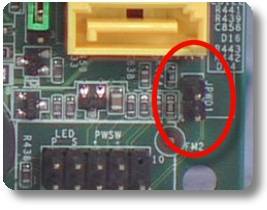 DIP switches were used to
set IRQs and other settings now done in BIOS with PnP
DIP switches were used to
set IRQs and other settings now done in BIOS with PnP
•
Jumpers do the same.
•
On is _____, off is_____on
•
In a jumper a __________________________ is closed (1) or open (0)*
System Resources
•
When a piece of hardware is installed, it is assigned specific system __________________________
•
It allows the device to __________________________ with the OS and with
software
–
__________________________ addresses
–
__________________________ addresses
–
__________________________ request numbers (IRQs)
–
Direct __________________________ access (DMA) channels
•
All four types depend on certain lines on a bus on the motherboard*
First part of
Chapter Review
•
This is the intelligence of the Computer.
•
What are the three things software does for your computer?
•
What are the three kinds of software?
•
This manages hardware, runs applications, and provides a way for the
user to talk to the computer.
•
What are the three categories of BIOS present in a computer?
•
I must install one of these with each piece of hardware.
Let’s look at
a PCI Slot
•
PCI=
__________________________ __________________________ Interconnect
•
Local system BUS standard that was introduced by __________________________ , but is used with all processors now.
•
First appeared in 1993 and has been standard for the last 10 years.
•
Supports 32- and 64-bit data.
•
Runs at speeds of 33MHz and 66MHz
•
Supports __________________________ mastering
– Allows a PCI card to talk
to other PCI cards without bugging the CPU
•
Totally PnP
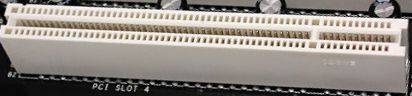
• Comparing 8 bit to 16 bit
–
Which would have more capabilities?
–
Which would be faster?
–
Which might be more prone to errors?
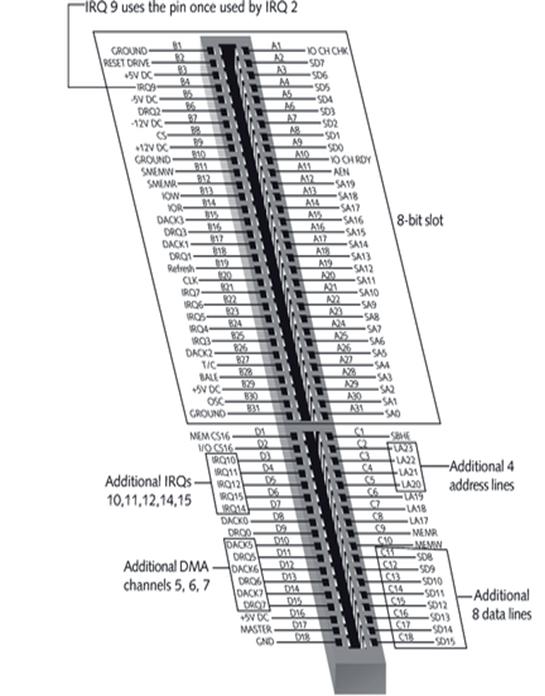
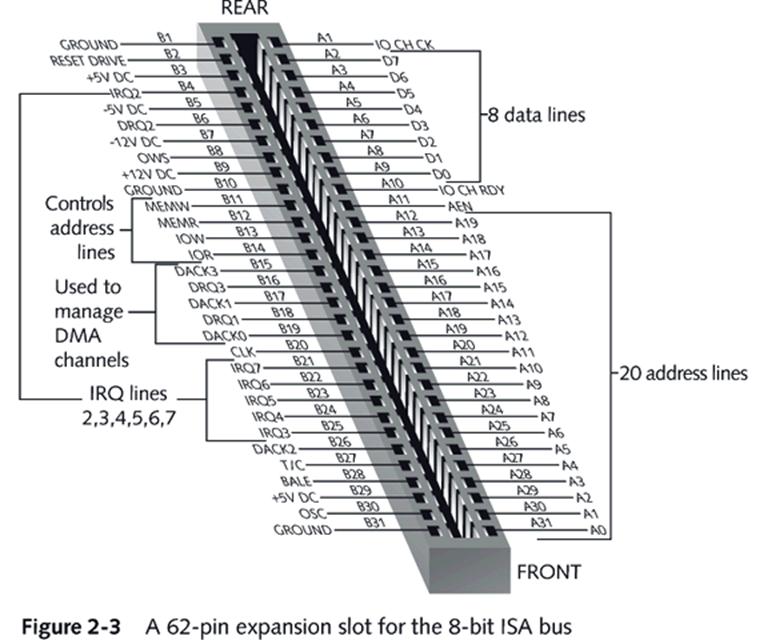
• Even though this is old
technology, it still demonstrates that each pin has a specific job.
• Each pin uses a bus to
communicate. The communication works because of IRQs, I/O Addresses, and Memory
addresses (and sometimes DMAs).
System
Resources
•
IRQ—A line that allows a device to signal the CPU that it needs __________________________ .
–
Some lines have higher __________________________
–
Each line has a number __________________________ assigned to it
•
I/O Addresses—numbers assigned to hardware devices that software uses to
talk to it. Each device “__________________________ ” on those numbers and
responds when it gets a message.
•
Some devices use __________________________ —joysticks, for example.*
•
Memory __________________________ —Numbers assigned to physical memory either in RAM
or
•
DMA channel—A channel assigned to some hardware allowing it to
communicate directly with __________________________ without bugging the CPU.*
Why IRQs
•
Preconfigured assignments make it easier to configure devices and avoid
conflicts with other devices
–
COM1 and COM2 (for serial devices such as modems)
–
LPT1 and LPT2 (for parallel devices such as printers)
–
Things that need a higher __________________________ can get CPU time before things with lower
priority.*
IRQs on a 16
bit system
Task
•
IRQ Assignments in a 32-bit system
•
Each person take one
•
You have TEN minutes to find them!
|
IRQ |
General
Assignment |
IRQ |
General
Assignment |
|
0 |
|
8 |
|
|
1 |
|
9 |
|
|
2 |
|
10 |
|
|
3 |
|
11 |
|
|
4 |
|
12 |
|
|
5 |
|
13 |
|
|
6 |
|
14 |
|
|
7 |
|
15 |
|
IRQ Sharing
•
Because there are only 15 physical IRQs, new Operating Systems use IRQ
__________________________
•
PCI Cards use IRQ sharing through IRQ __________________________
–
More than one __________________________ can share the IRQ
–
Can cause some __________________________ , but the OS usually irons it out
•
Sharing is not possible with __________________________ devices
•
That’s why you have higher IRQ numbers than the actual number of lines!*

Memory
Addresses
•
__________________________
numbers, assigned to RAM and ROM so that the CPU can access both
•
It works like a seat in a theater. Each device is assigned a specific
place to put it’s “stuff” in RAM or ROM
•
Older 16-bit drivers required __________________________ addresses, but the new ones will take what’s
given them.*
How Memory
Addresses
Are Assigned
•
CPU has fixed number of memory addresses, determined by CPU and
__________________________ it is using
•
They can be assigned to any type of __________________________ memory in the system that needs to be
addressed by the CPU
•
Once addresses have been assigned (usually during
__________________________ process),
CPU sees physical memory as a single list that can be accessed using memory
__________________________ *
Shadowing ROM
•
Process of __________________________
programs from ROM to RAM for execution
•
The first memory __________________________ will be taken by the ROM
•
This way the computer doesn’t have to access the ROM chip, it can find
all it needs in RAM.
•
This is why if you make ROM changes, you have to
__________________________ .*
I/O Addresses
•
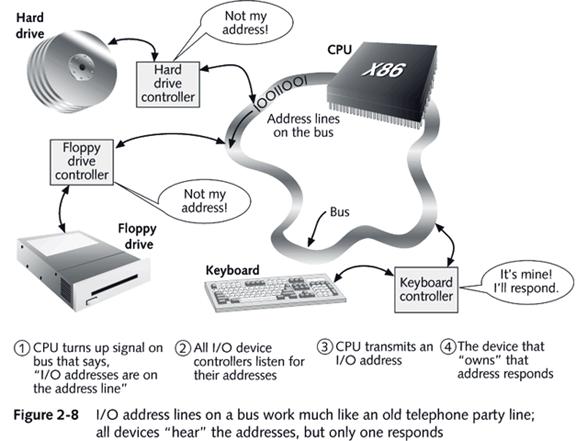
Numbers the CPU can use to access __________________________ devices, in same way it uses memory
addresses to access physical memory
•
Also called __________________________
addresses or __________________________
*
How it works:
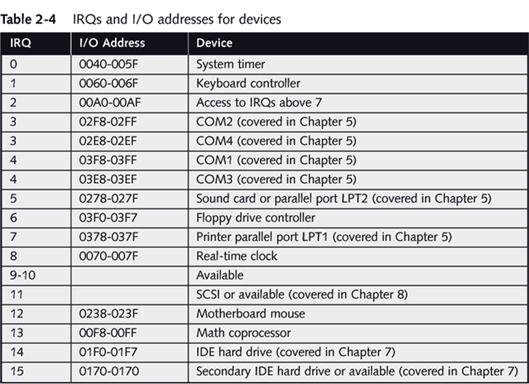
Common
Assignments for I/O Addresses
DMA Channels
•
Provide __________________________
for a device to send data directly to memory; bypasses CPU
•
A chip on the motherboard contains DMA logic and manages the process
•
Each channel requires __________________________ lines to manage it
– One for DMA __________________________ to request clearance from CPU
– One used by CPU to
__________________________ that DMA
controller is free to send data over data lines without interference from CPU
•
If more than one device wants to use the same channel, there is a DMA conflict.*
Tools for
Examining Your System
•
__________________________
Manager
– Properties of “My Computer”,
click hardware, click device manager
•
__________________________
__________________________
– In the run command type
__________________________
•
Microsoft __________________________
Utility (MSD)
– Used in Windows 9x/ME
– Type MSD.EXE at the command
prompt
•
Let’s try one! Log into the aa account and open the device manager.
Review
•
What four resources are assigned to hardware devices?
•
Of those four, which one is only sometimes assigned
•
How many IRQs are there on an 8-bit system?
•
How did they enable 8 more IRQs on a 16-bit system?
•
IRQ ______ is used in 32-bit systems so you don’t run out of IRQs
•
Only ____ buses can use IRQ sharing (aka steering)
•
How many DMA channels are there?
•
What is the purpose of a DMA?
•
Which resource allows software to talk to a device and vice versa?
•
How many lines of a DMA channel are used?
•
Which IRQ is used to enable IRQ sharing?
•
Which DMA is not available?
•
Which IRQ is not available?
•
Why?
•
This is the address assigned to a piece of hardware that the CPU uses to
talk back
•
This is assigned to some devices so they don’t have the bug the CPU when
they need to use RAM
•
This is the area of RAM a device can use to store stuff.
•
Which has a higher priority, IRQ 3 or 9?
•
What is ROM shadowing?
Booting up
Your Computer
•
Refers to the computer bringing itself up to an
__________________________ state
without user intervention
•
Hard boot (__________________________
boot)
– Involves initially turning
on __________________________ with
on/off switch
– More stressful than soft
boot because of initial __________________________ surge through equipment
•
Soft boot (__________________________
boot)
– Uses OS to reboot
– Faster than hard boot*
Plug and Play
(PnP) Standard
•
Makes installing __________________________ devices less complicated
•
Rather than having to reset __________________________ switches and jumpers, OS and/or startup BIOS
automatically __________________________
hardware devices to reduce or eliminate conflicting requests for system
resources
•
Applies to OS, __________________________ on the motherboard, and BIOS on
__________________________ *
Functions
Performed During the Boot
- Startup BIOS tests __________________________ hardware components (power-on self test
or POST)
- Setup information is used to __________________________ both hardware and software
- Hardware components are assigned system
__________________________ they
will later use for communication
- Startup BIOS finds the OS, which is __________________________ , configured, and executed
- Hardware devices are __________________________ up with the BIOS and device drivers
that control them
- Some application __________________________ may be loaded and executed
Startup BIOS
Controls the Beginning of the Boot
•
Startup BOS is in control for first __________________________ steps and beginning of the fourth, where
control is turned over to the OS*
Parts of the
Boot Process
•
Step 1: __________________________
•
Step 2: ROM BIOS startup program searches for and loads an
__________________________
•
Step 3: OS __________________________
the system and completes its own loading
•
Step 4: User __________________________
application software
More Review for You
•
What is the boot process?
•
Describe the POST
•
Step 1
•
•
Step 2
•
•
Step 3
•
•
Step 4
•
•
What is the order of the POST?
•
•
Why do we care?
What happens
when it doesn’t work?
•
If the problem is before the OS takes over, the __________________________ will beep at you
–
One beep=__________________________
–
Many beeps= __________________________
–
Look up beeps in the __________________________ manual
•
If the problem is with the OS
–
__________________________
Repair disks
–
Boot __________________________
–
__________________________
__________________________
utilities*
Batch Files
•
Simple text files that can act as a __________________________ prompt.
•
Type in the commands using Notepad and save it with the extension .
__________________________
•
Can be used for startup scripts, __________________________ scripts, or to play evil tricks on your
friends.
•
We don’t do the evil tricks thing…will we?
__________________________
Common Batch
File
•
In DOS and Windows 9x/ME the autoexec.bat is a batch file that contains
commands that are to be automatically executed on boot.
•
Other files
– __________________________ —Contains software that manages files, runs
apps, and interfaces with hardware
– __________________________ —Contains more BIOS software related to
input/output
– __________________________ —the program in charge after boot. Contains
commands that can be executed in DOS and Windows 9x.
•
Windows NT, 2000, XP, and
LAB 2-1 Assigned Hardware Resources
Objective
The
objective of this lab is to provide you with experience managing I/O addresses.
After completing this lab exercise, you will be able to:
_ List
examples of standard I/O address usage.
_
Explain how to determine which I/O addresses are being utilized.
_
Explain how to modify I/O address settings to resolve resource conflicts.
_
Explain the importance of unique I/O addresses.
Materials
Required
_
Operating systems: Windows 9x, XP, and
Additional
Devices
_ 1
I/O expansion card for each lab workgroup
Lab
Setup & Safety Tips
_
During this lab exercise, you will use Device Manager to view the properties of
your lab workstation. It is important that you not change the parameters of
Device Manager; otherwise, your lab workstation may not function properly. You
will get a chance to modify Device Manager parameters in later labs.
ACTIVITY
Recording
your lab workstation’s I/O Address settings
- Start your
lab workstation, and allow it to boot into Windows 9x.
- Click the Start
button.
- Point to Settings.
- Click Control
Panel.
- Double-click
the System icon.
- Click the Device
Manager tab.
- Click the Properties
button.
- Click Input/output
(I/O). Record below.
- Do the same
for IRQ, DMA, and Memory Addresses.
- Record all of
the resources assigned to each of the following devices. Note:
Not all devices will have all resources assigned.:
|
Device |
IRQ |
DMA |
|
|
|
NIC
(Network Interface card) |
|
|
|
|
|
Sound
Card |
|
|
|
|
|
Keyboard |
|
|
|
|
|
|
|
|
|
|
|
Direct
memory access controller |
|
|
|
|
|
USB
Controller |
|
|
|
|
|
|
|
|
|
|
|
Hard
Drive |
|
|
|
|
|
Mouse |
|
|
|
|
- Close all
open windows and dialog boxes.
Viewing the Edit
Input/Output Range window using Device Manager
- Start your lab workstation, and allow
it to boot into Windows 9x.
- Click the Start button.
- Point to Settings.
- Click Control Panel.
- Double-click the System icon.
- Click the Device Manager tab.
- Double-click Sound, video, and game
controllers.
- Double-click the installed sound card
driver.
- Click the Resources tab.
- Deselect Use automatic settings.
- Double-click Input/Output Range.
(Note: Some Input/Output ranges may not be configurable. When they
are not configurable, double-clicking produces no effect.)
- The Edit Input/Output Range window
allows I/O address modification.
- Do not make any changes.
- Click Cancel three times.
- Close the Control Panel window.
- Note: You cannot change device settings
in modern versions of Windows.
Managing Devices
in Windows XP
- Right click
on my computer and select properties.
- Click the
hardware tab.
- Click on
device manager.
- Go under the
View menu and select “Resources by Type”. What four resources do you see
listed?
- What two or
three devices have been assigned DMAs?
Managing Devices
in Windows
- Open the Run
command in your Vista VM.
- Type
devmgmt.msc and hit enter. What happens?
- View “Resources
by Connection”.
- What item has
memory addresses 00000000-0009ffff assigned to it?
Review
Questions
Circle
True or False.
- An I/O address is an address stored on
the hard drive, and is assigned to the operation of one particular device.
True / False
- All LPT ports require one I/O address.
True / False
- The term I/O card is often used to
refer to an expansion card which contains a serial, parallel, and game
port. True / False
- Floppy drives do not require an I/O
address assignment. True / False
- Describe why some I/O ranges are not
configurable in Device Manager.
- John has configured the jumpers on his
NIC (Network interface card) to use I/O address 300. Using Device Manager,
what steps must John complete to confirm that I/O address 300 is properly
assigned to the NIC?
2
Lab 2-2 Using
Microsoft Technet
Using the
Internet for Research
Microsoft
offers a knowledge base of information on all its products. Learning to find
information in the knowledge base is important to your success as a PC support
person in a Windows environment. Go to the Microsoft support site at http://technet.microsoft.com
follow these directions, and answer these questions:
- Heartly is trying to
install Windows 7 on a netbook with no optical drive. Yes, this article exists. I verified it on September 30, 2010.
- List four keywords or
phrases you can use to search for this information.
i. __________________________________________________
ii. __________________________________________________
iii. __________________________________________________
iv. __________________________________________________
- Locate the Technet
article and tell me who wrote it?
- Where was the article
published originally?
- Briefly describe the
first four steps to installing on a netbook with no optical drive.
i. ______________________________________________________________
ii. ______________________________________________________________
iii. ______________________________________________________________
iv. ______________________________________________________________
- A client just bought a
250 GB hard disk. He has
- Search for information in Technet (aka the
Knowledge Base).
- Where do you find
this information?
i. Article ID
number: ____________________________
ii. Article name:
_________________________________________________
- What will you tell
the customer?
Lab 2-3
Windows 98 and Windows XP System Files
Yes, this is on
the certification. It sucks, but you need to know it.
Go online and
Google system file descriptions. When I typed Windows 98 system files the second link down had a Microsoft
Technet Article.
Windows 98 Files
|
File Name |
Purpose |
Where it’s
located |
|
IO.SYS |
|
|
|
COMMAND.COM |
|
|
|
WIN.COM |
|
|
|
SYSTEM.DAT |
|
|
|
SYSTEM.INI |
|
|
|
WIN.INI |
|
|
|
EXPLORER.EXE |
|
|
|
DETLOG.TXT |
|
|
|
MSDOS.SYS |
|
|
Annoyances.org is a great website for finding solutions to your
problems on any Windows OS. The problem with the Knowledge Base is that it only
gets updated once Microsoft acknowledges that there is a problem and publishes
it into the KB. Annoyances is full of solutions from people around the world.
- Go to annoyances.org
and find out how to get a mouse to work in DOS. What is the URL?
- Are all the solutions
reasonable?
- Why or why not?
Windows XP Files (Again, I Googled Windows XP system
files, first link took me to a resource.)
|
File Name |
Purpose |
Where it’s
located |
|
BOOT.INI |
|
|
|
NTDETECT.COM |
|
|
|
NTLDR |
|
|
|
PAGEFILE.SYS |
|
|
|
NTBOOTDD.SYS |
|
|
|
NTOSKRNLE.EXE |
|
|
|
NTKRNLPA.EXE |
|
|
|
HAL.DLL |
|
|
|
WIN32.SYS |
|
|
|
NTDLL.DLL |
|
|
|
KERNAL32.DLL ADVAPI32.DLL USER32.DLL GDI32.DLL |
|
|
Which of the
above are the essential startup files in Windows XP?
LAB 2-4 CMOS MANIPULATION
Objective
Play with the
CMOS.
ACTIVITY
Creating a
System Configuration Worksheet
A System
Configuration Worksheet is a spreadsheet or other type of document that
contains all of your workstation’s CMOS configuration parameters. Use the
sections below to develop your own System Configuration Worksheet for your lab
workstation.
For each of the
following system components, record the information currently saved in your lab
workstation’s CMOS. NOTE: Not all things will be in all computers.
|
CPU |
|
Memory |
|
IDE 1 |
|
IDE 2 |
|
IDE 3 |
|
IDE 4 |
|
SCSI |
|
SATA 1 |
|
SATA 2 |
|
Serial 1 |
|
Serial 2 |
|
LPT 1 |
|
Network card |
|
CACHE |
Changing CMOS
Values
- Review the System
Configuration Worksheet provided for your computer.
- Start your PC.
- Following the
instructions provided on your screen, enter the Setup program.
- Change the DATE for
your computer to today’s date, in the year 2010.
- Change the boot order
to boot from floppy. Get a floppy disk from me and put it into your a:
drive.
- Save your changes.
- Shut down your
computer, and allow it to reboot.
- Observe the changes in
the startup sequence. What happens?
- Why?
- Enter the Setup
program.
- Reconfigure your hard
drive to match the parameters of your System Configuration
- Worksheet.
- Activate the Power
Management on your PC.
- Assign the password of
SNO123 in all uppercase letters to your CMOS (BIOS).
- Save your changes.
- Shut down your
computer and allow it to reboot.
- Observe the changes in
the startup sequence. Write down
what happens.
When you finish, remove the BIOS password.
Restoring your lab workstation using the System Configuration Worksheet
- Enter the Setup
program.
- Refer to the System
Configuration Worksheet, and reconfigure all CMOS settings to their
original configuration.
- All better? Yes or no?
Review Questions
Circle True or
False.
- A System Configuration
Worksheet is used to record your operating system’s configuration. True /
False
- The system time and
date are configured using the CMOS SETUP program. True / False
- It is best practice to
always record your CMOS settings before making changes. True /False
- Describe some of the
dangers of flashing a BIOS.
- You just finished
installing 1 GB of RAM into Umair’s computer. You now want to verify that Chicken
Little’s computer recognizes all of the RAM. Describe below how you can
verify the memory configuration of his computer.
- Describe how replacing
a CMOS battery affects a CMOS password and other configured CMOS
parameters.
- Why does this happen?
Because newer
systems do not respond immediately to a dead CMOS battery, we won’t pull the
battery to see what happens. If you don’t know, ask someone else or go find the
information online. In older systems, if you pulled the battery it would react
immediately.
LAB 2-5 Resource Manipulation
Objective
_ List examples
of standard IRQ and DMA usage.
_ Explain how to
determine which IRQ and DMA channels and addresses are being utilized.
_ Explain how to
modify IRQ and DMA address settings to resolve resource conflicts.
ACTIVITY
Recording your
lab workstation’s IRQ settings
- Start your lab
workstation, open Windows XP.
- Click the Start button.
- Point to Settings.
- Click Control Panel.
- Double-click the System
icon.
- Click the Device
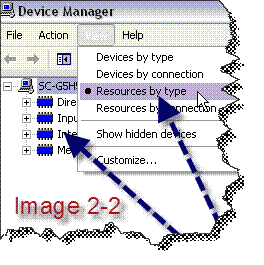
Manager tab, then click ViewàResources by type as
shown in Figure 2-2.
- Click Interrupt
Request
- Record the device name for each of the
following IRQs:
|
IRQ 00 |
|
IRQ 01 |
|
IRQ 02 |
|
IRQ 03 |
|
IRQ 04 |
|
IRQ 05 |
|
IRQ 06 |
|
IRQ 07 |
|
IRQ 08 |
|
IRQ 09 |
|
IRQ 10 |
|
IRQ 11 |
|
IRQ 12 |
|
IRQ 13 |
|
IRQ 14 |
|
IRQ 15 |
Recording your lab workstation’s DMA settings
- Start your lab workstation, and allow
it to boot into Windows 9x.
- Click the Start button.
- Point to Settings.
- Click Control Panel.
- Double-click the System icon.
- Click the Device Manager tab.
- Click viewàResource by type.
- Click the Direct Memory Access (DMA)
option button.
- Record the device name for each of the
following DMA channels:
|
DMA 01 |
|
DMA 02 |
|
DMA 03 |
|
DMA 04 |
Windows 7
- Open 7.
- Right click on My Computer and select manage.
- You are now in System Tools. Nifty,
huh? Select Device Manager.
- View devices by resources.
- Click on IRQ
- Fill out the table below
|
IRQ |
Device |
|
|
|
|
|
|
|
|
|
|
|
|
|
|
|
|
|
|
|
|
|
|
|
|
|
|
|
|
|
|
|
|
|
|
|
|
|
|
|
|
|
|
|
|
|
|
|
|
Viewing Device Resources by
Device
- ViewàDevices by type.
- Find your Network Adapter.
- Right clickàProperties
- What resources are assigned to this
device?
- Why does it NOT have DMA assigned?
- What two things (probably, maybe 3) do
have DMAs assigned?
Note: For the A+
Certification you should know:
1.
IRQs
2.
What I/O addresses are
3.
What might be assigned a DMA.
4.
What resources can be assigned (all four)
5.
What memory addresses are.
6.
More than one way to get to device manager. List the two ways you know
to get to device manager in Windows XP
Lab 2-6 DOS Games
- Open virtual PC.
- Create a new disk.
Make it really small (like 2 MB). You’re not creating a new virtual PC,
just a new FLOPPY disk (not hard disk). Name it test floppy.
- Boot into your DOS VM.
- Capture test floppy.
- It will probably be
the b:\ drive. Move to that drive by type b:\ or try a:\ Write down what
the drive letter is:
- Make a bootable disk
using either of the two following DOS commands. If the disk is already
formatted, but has no files stored on it, use this command: C:\>SYS A: (or the letter of your drive
instead of A). To format the disk and also make it bootable,
use this command: C:\>FORMAT
____:/S Your
disk should now contain a boot record, the two hidden files, and
COMMAND.COM. Compare the bytes available on the disk to a disk that is not
bootable. Calculate how many bytes must be in the two hidden files.
- Test your bootable
disk by restarting the virtual machine while you still have test floppy
captured. It should boot.
- At the DOS prompt,
enter this prompt command as follows (where the space between P and $ can
be used to customize the DOS command prompt): PROMPT
$P $G
- What prompt did you
get? By examining the prompt, guess what $P in the command line
accomplishes and what $G accomplishes. Test your theory by changing the PROMPT
command, leaving first $P and then $G out of the command line. Have some
fun. Change the prompt to read “I
Rock>”.
- Using EDIT, create an
AUTOEXEC.BAT file on your bootable disk. Create a PROMPT command to
include your first name. Test the command by booting from this disk. (Type
edit AUTOEXEC.BAT).
- Without the
appropriate PATH command in your active AUTOEXEC.BAT file, you cannot
execute software stored on drive C from the A prompt. Test this theory by
trying to execute some applications software that you know is stored on
your hard drive. For example, if you have WordPerfect on your hard drive,
try to execute the software at the A prompt by using the following
command:
A:\> WP
What error did you get? Why?
- Using the information
below, do the following:
a.
Create a folder in DOS named EAR.
b.
Go into that folder.
c.
Create a text file using DOS named hair.txt
d.
Create another text file using DOS named wax.txt. I know,
gross. But hey, it keeps things interesting, right?
e.
Using the attrib
command, display the attributes for wax.txt
f.
Change the attributes for wax.txt to hidden.
g.
Change the hair.txt file to read only.
h.
Display those attributes and have me check off
______________
i.
Use the command to clear the screen AFTER I check you off.
j.
Within EAR create a folder named bug.
k.
Within bug create a folder named stomach
l.
Within stomach create a file name food
m.
Go back to EAR so that you can see the folder bug if you
type dir.
n.
Type tree and
show me your tree. ____________
o.
Now use the command to delete that tree.
p.
Why should you be REALLY careful with DELTREE?
q.
Put a floppy into your floppy drive (or work with someone
who has a floppy drive). Using the format command, format that floppy.
r.
Switch to the a drive (just type a:\ and hit enter). Type
DIR. What’s on the disk?
s.
Let’s SYS this disk. Go back to your C:\ drive and using the
SYS command, create a system disk on A:\.
t.
Now go BACK to the A:\ drive and type DIR. What’s on the
disk?
u.
How did it get there?
v.
Is that ALL the files there?
w.
Using attrib, unhide the other hidden files. (You might have
to look this up!)
Common MS-DOS Commands

|
Command |
Purpose |
Switches
or example usage |
|
ATTRIB |
displays or changes file attributes Syntax: ATTRIB [+R | -R] [+A | -A] [+S | -S] [+H | -H] [[drive:][path]filename] [/S] Attrib +r dog.txt turns the file dog.txt
to read only |
o +h
hides a file (attrib +h chicken.txt) o -h
shows a hidden file (attrib –h *.* shows all hidden files) o +r
makes a file read only o +s
makes a file a system file (hides it even better than hiding) o +a
turns on the archive bit (so when a backup is done, the file will be backed
up) o Can
nest them attrib +r +s makes a file a system file that is read only |
|
CHDIR or CD |
displays the name of the current directory or changes the
current directory |
o Cd..
moves up one directory o Cd
chess moves you into chess. Note: the
chess directory MUST be in the directory you are currently residing in |
|
CHKDSK |
checks the status of a disk and displays a status report;
it can also fix disk errors. Use only with DOS and Windows 9x. |
o /f
checks for errors and fixes them (ex: chkdsk
c: /f) o >logfile.txt
creates a log of all errors found that can be printed out (rather than just
showing on the screen) (ex: chkdsk c:
>log.txt) o /v
displays all path and filename information for all files on the disk |
|
CLS |
clears the screen |
|
|
COPY |
copies one or more files to a destination you specify |
C:\ copy fred.txt a:\ C: copy c:\docs\*.* a: copies
all docs in that folder to the A drive. C:\windows\copy system.ini
system.bak makes a copy of system.ini and names it system.bak |
|
DEBUG |
Runs the debug program and editor to view and manipulate
the components of a file system on floppy and hard drives, including the FAT,
directories, and boot records. You can also use it to view contents of memory
and hexadecimal memory addresses. |
o Enter
the command DEBUG at the command prompt. |
|
DEFRAG |
Defragments fragmented files on a hard drive. |
o /S:N
sorts the files by name on the disk o /S:D
sorts the files by date and time on the disk |
|
DELTREE |
deletes a directory and all the files and subdirectories
that are in it. Be very careful with
this command!! |
o C:\deltree
would delete all of C:\ |
|
DIR |
displays the files and subdirectories that are in the
directory you specify |
o Dir
/p—list one screen at a time o /w
use wide format o *.txt
use a wildcard character o Dir
myfile.txt checks to see if that file is present |
|
DISKCOPY |
copies the entire contents of one floppy disk to another
floppy disk. It writes over the existing contents of the destination disk as
it copies the new information on it. |
o |
|
ECHO |
displays or hides the text in batch programs when the
program is running. |
o |
|
EDIT |
starts MS-DOS Editor, a text editor you can use to create
and edit ASCII text files. |
o Edit
a:\autoexec.bat |
|
|
deletes the files you specify |
o o o |
|
EXIT |
quits the MS-DOS command interpreter and returns to the
program that started it, if one exists. |
o |
|
FASTHELP |
displays a list of all MS-DOS 6 commands and gives a short
explanation of each. |
o |
|
FDISK |
Used to prepare hard drives for first use. Creates
partitions and logical drives on the hard drives. Displays partition
information, and also used to restore a master boot record. |
o /mbr
restore master boot record o /status
shows installed partitions |
|
FIND |
searches for a specific string of text in a file or files |
o |
|
FORMAT |
formats a disk for use with MS-DOS |
o /s
Stores system files on disk after formatting (io.sys, msdos.sys, and
command.com) o /v:volumename
allows you to assign a volume name (ex. Format
/v:happy) o /q
recreates the root directory and FATs if you want to qucily format a
previously formatted disk that is in good condition o /F:size
specifies size of floppy. (ex. Format
f:360 to format it as a 360k floppy) o /u
allows an unconditional format which completely erases the drive, not just
the FAT o /autotest
does not prompt the user before and during the format |
|
HELP |
starts MS-DOS Help |
o |
|
MKDIR or MD |
creates a directory |
o Mkdir
c:\chicken |
|
MEM |
displays the amount of used and free memory on your
computer |
o |
|
MORE |
displays one screen of output at a time |
o |
|
MOVE |
moves one or more files to the location you specify |
o |
|
MSBACKUP |
backs up or restores one or more files from one disk onto
another |
o |
|
MSD |
Provides technical information about your computer |
o |
|
PRINT |
prints a text file while you are using other MS-DOS
commands |
o |
|
QBASIC |
starts MS-DOS Qbasic |
o |
|
RD or RMDIR |
deletes a directory |
o |
|
REN |
changes the name of the file or files you specify |
o Ren
tory.txt mrsk.txt |
|
RMDIR or RD |
deletes a directory |
o The
directory can only be deleted if there are no files in the directory o If
the directory contains another directory, that other one must be removed
first o Example:
c:\chicken\lips o
C:\chicken rd lips o
Cd.. o
C:\ rd chicken |
|
SCANDISK |
starts a disk analysis and repair tool that checks a drive
for errors and corrects any problems that it finds. Use with NT, 2000, and XP |
o /p
displays information and fixes errors o /n
starts and stops it automatically (you could put it into a batch file and
have scandisk run on boot or shutdown using this command) |
|
SCANREG |
Scans and restores Windows 98 registry |
o /restore
restore the registry from a backup o /fix
scans and fixes common problems o /backup
backs up registry-good if you’re going to make some registry changes and aren’t
sure if they’ll work |
|
TREE |
graphically displays the structure of a directory |
|
|
UNDELETE |
restores files that were deleted previously by using the |
o Only
recovers if you used the |
|
UNFORMAT |
Might be able to reverse the format command…maybe…if you’re
lucky. Used if a used disk was formatted by accident. |
|
|
VER |
displays the MS-DOS version number |
|
|
XCOPY |
copies directories , their subdirectories, and files
except hidden and system files. Not available on a DOS boot disk unless you
add it. |
o /c
continues copying even if there are errors o /s
copies all files and subdirectories o /y
overwrites existing files without asking you o /-y
turns off overwriting without asking o /h
copies hidden and system files |
LAB 2-7 Protecting Hardware and Software
Objective
The objective
of this lab is to research ways to keep your hardware and software safe.
Ž List common “ailments”
of computer operating systems and utilities that can prevent problems.
Ž Identify ways
to protect computer data.
Ž Identify ways
to protect computer hardware.
Lab Setup &
Safety Tips
During this lab
you will be installing software to protect your computer from viruses, spyware,
and malware. When installing software it is imperative that you make sure you
know where you are downloading your utilities from. Some programs can
masquerade as utilities but are really Trojans in disguise.
ACTIVITY
Researching
Computer Threats
- Start your lab
workstation, and allow it to boot into Windows XP.
- Go to the following
website: http://www.calicutnet.com/yourpc/pc-security/issues/threats-issues.htm
(there is a link on the module 2 website). Also check out http://www.spamlaws.com/virus-types.html
for different types of viruses. Also look up the definition of phishing.
After reading that site, take the virus quiz online.
- Describe the different
threats to your computer software and hardware and identify avoidance
solutions and removal solutions (as appropriate).
|
Threat/Type |
Description |
Avoidance |
Removal |
|
|
|
|
|
|
|
|
|
|
|
|
|
|
|
|
|
|
|
|
|
|
|
|
|
|
|
|
|
|
Research
Hardware Protection
One of the
greatest threats to your hardware can be electricity. It can be friend,
powering your devices, or foe. Surges can wreak havoc with your system. Power “browns”
(dips in power) can cause your power supply to fail if it has to compensate too
often.
Go online and
research the following items and describe their purpose and where you can buy
them.
|
Device |
Purpose |
Vendors |
|
Surge
protector |
|
|
|
Line
conditioner |
|
|
|
Uninterruptible
power supply |
|
|
Lab 2-8 Windows Update
Windows Update—The Easy Way
- Log into Windows XP as
an administrator.
- Go under the Start menu and select Windows Update.
- Scan for updates.
- Install all critical
updates.
- Restart if necessary
Windows Update Catalog
Sometimes
Windows Update won’t work for some reason. Often this indicates an operating
system malfunction that can be fixed by applying a service pack (a collection
of Windows Updates packaged together). The problem is, if you can’t run Windows
Update, you often can’t apply the service pack!
When
this happens your best bet is to go through Windows Update Catalog and download
updates individually then run the executables individually.
- Go to http://update.microsoft.com
- Click on the link that
says Use Administrator Options.
- Click Search the Microsoft Download Center.
- At the bottom you’ll
see download categories. Let’s look to see if we can find any updates for
an Intellitype Pro Keyboard driver.
- Locate the driver and
download it.
- Do not install it,
just save the file to show me.
- Now go back and
download the following update: Internet Explorer Service Pack 1.
- After downloading the
file and running the executable, where is the file stored?
_________________________________________________________
Repeat the same
with
- What do you see in
the Start Menu that’s different in
- Are the updates
different?
- Why or why not?
- Update
Lab 2-9: Windows 7 System File
Checker Tool
Checking your
system files for problems
System files are the hardest working files in
your computer: they literally "drive" the computer and house the
"drivers" for your mouse, printer, and monitor, among others.
Every application you install has its own set of system files, so when an
application stops working or won't open, there is a strong possibility that something
could be wrong with its system files. These files reside in the
C:\windows\system directory and usually have extensions such as .386, .COM,
.DLL, .DRV, and .VXD, among others.
To Run the SFC
/SCANNOW Command
1. Open
a elevated command prompt. (Right click on “command”
and select run as administrator.)
2. In the elevated command prompt, type sfc and press Enter. You will see a list of “switches” you can use with the SFC program. SFC stands for System File Checker.
3. Now type SFC /VERIFYONLY
4. When the scan is complete, hopefully you will see all is ok.
5. If
you need to FIX anything, you can type SFC /SCANNOW and it will repair.
NOTE: If not, then you can attempt to
run a System Restore using a restore point dated
before the bad file occurred to fix it. You may need to repeat doing a System
Restore until you find a older restore point that may work.
6. When done, close the elevated command prompt.
Questions
- What does the SCANNOW switch do?
- What does the VERIFYONLY switch do?
- SFC is what?
- What is a switch?
Lab 2-10 Using Batch Files
Suppose you have a list of OS commands that you want to execute several
times. You can create them to run certain programs, map hard drives on a
network, install printers automagically…and do all sorts of evil stuff. We,
however, will not do evil stuff in here…will we Cody?
Batch files are simply text files created in notepad or even in the edit
program in DOS. The only difference is, when you save them you save them with a
.bat extension. If you then double click the file, it will run your commands.
Do this in Windows 98.
Let’s practice:
Creating a BATCH File
First
open an explorer window to your c: drive, using Windows Explorer or 'my
computer.' Arrange the window so you can see both your desktop and your c:
drive contents.
|
|
|


Open
the notepad application by
going to 'start\all programs\accessories\notepad' or 'start\run' and type
'notepad'.
In the
blank notepad window, type:
md
c:\testsource
md c:\testbackup
Now go
to 'file' and 'save as'.
(in case you did not read our guide to the command prompt, the 'md' command
instructs the system to create a directory using a name and location following
the command.)
|
Save
your first batch file on the desktop as 'myfirstbatch.bat'. |
|

Close
notepad and you'll see that 'myfirstbatch.bat' has appeared on the desktop.
Double click the file to run it. Check your c: window. The 'testsource' and
'testbackup' directories have appeared.
Your first simple batch file is a success! Delete the 'myfirstbatch.bat' file
from your desktop. Beautiful!
Creating
your second batch file
Now to
create a batch file to backup these files into your c:\testbackup directory
automatically. Open up notepad and type the
following:
@echo
off
xcopy c:\testsource c:\testbackup /m /e /y
The
'@echo off' line tells the computer not to display anything onscreen when it
runs this batch file.
The
second line uses the xcopy command to copy all contents of the c:\testsource'
directory to c:\testbackup the first time the batch file is run. The second
time and all remaining times, it will only copy new files and files which have
changed since it was last run. It will not copy unchanged files which it
previously copied, even if you delete the copies it made from the
c:\testbackup' directory.
Now
save your batch file as 'testbackup.bat' on your desktop and double click it to
run the script.
Check
the contents of your c:\testbackup directory. It should now have copies of the
two files you created in c:\testsource. Good stuff. Now open 'testdoc1' in your
c:\testsource directory and add some text then save it.
Run
your testbackup.bat batch file again, and go to the 'testdoc1' file in the
c:\testbackup folder. It should have been updated with the changes you made in
the other folder.
You've
now created a useful backup utility with
a simple two-line batch file that just takes a double click to run. Starting to
see the potential usefulness of knowing your batch files yet?
Third trial batch file: getting fancy
Now
that we've seen some of the extra commands that can be used in batch files,
let's play with one of the most powerful of them, the FOR command. In this
case, we're going to alter our simple backup batch file and make it a bit more
sophisticated. It's going to differentiate between two different types of files
(text/Word documents and pictures) and back each file type up to a different
directory. To set up for this we need to create two more directories in
c:\. Call them
C:\Text
C:\Pics
Delete
the existing text and .bmp files in your c:\testsource directory and create a
couple of new versions of each.
Now
open notepad and enter the following:
@echo
off
cd c:\testsource
for %%f in (*.doc *.txt) do xcopy c:\testsource\"%%f" c:\text /m /y
for %%f in (*.jpg *.bmp *.gif) do xcopy c:\testsource\"%%f" c:\pics
/m /y
Now this is a bit more complicated than the files we did before, so let's take
a close look at what this batch file is going to do.
cd
c:\testsource
Tells
the computer that the directory we are going to be working in is c:\testsource
for
%%F in (*.doc *.txt) do xcopy c:\testsource\"%%F" c:\text /m /y
This
line tells the computer that FOR any file with the .doc or .txt file extension
(meaning any standard Word doc or text file), DO an xcopy command to copy that
file to the c:\text directory using the same options we used in the last batch file. The confusing
looking '%%F' character represents the variable that the FOR command uses to
carry out this operation. For example, if your first text file in the
c:\testsource directory is 'texttest1.txt', the batch file would look at it,
see that it had a .txt extension and assign it as the value of '%%F'. The
second part of the command
do
xcopy c:\testsource\"%%F" c:\text /m /y
takes
whatever %%F is (in this case your 'texttest1.txt' file) and copies it to the
c:\text directory. The quotation marks around %%F are to allow the command to
deal with file names containing spaces. The command then loops until it has
looked at every file in the current directory before moving on to the next part
of the batch file.
for
%%F in (*.jpg *.bmp *.gif) do xcopy c:\testsource\"%%F" c:\pics /m /y
The
only thing that is different here is that we are looking for graphics file
extensions instead and copying them to the 'c:\pics' directory.
Save
your third batch file on the desktop as 'trickybackup.bat' and try it out.
You'll see that your newest creation neatly differentiates between text
documents and pictures and splits them up accordingly.
Questions:
- What is a batch file?
- What program should you use to create a
batch file?
- What is the three letter extension for
batch files?
- What does @echo off mean?
- What are some other uses you can think
of for batch files?
- Now does it make sense to learn some
DOS? Even if you never use the DOS OS, you can use the commands in batch
files to do things.

A customer comes in
with his laptop. He has a Dell Inspiron 11z, Windows Vista, and the following
components:
This is what he had
to say: “I think something is wrong with
my notebook. When I close the lid, Vista goes to sleep or hibernates; which I
hate. Well, in order for me to get back into my computer I had to push the
sleep button, wait for the computer to go to sleep, and finally push the button
once more to make it come alive.
This was working fine, although it was annoying,
until yesterday. I pushed the button and the thing would not go to sleep. I
pushed it again and waited fifteen minutes and it still had not gone to sleep.
Finally I gave up and restarted.
When I restarted the computer it would only come
to a black screen with a cursor in the center of the screen. The cursor would
move if the mouse was moved but everything else was black. The cursor is dead
center and not blinking.”
You take in the
computer and need to start doing some research on what might be causing the
problem.
Task One: Create a list of words that must be defined in order for the customer
to understand the training.
Task Two: Develop a list of questions that must be answered before you can begin
fulfilling the customer order. When you have developed this list, show it to me
and in exchange I will give you the information from the customer. Note: You will not get the right answer
unless you do this. Email this to the customer. You might also ask him if he
has any future needs.
Task Three: Write up a short customer overview. You can’t fill your customer’s needs
unless you know who you’re dealing with.
Task Four: Develop a list of current customer needs. Develop a list of future
customer needs. (You did ask him if there were any other needs you might meet,
didn’t you?)
Task Five: Research the problem. Describe precisely what’s going on.
Task Six: Design a complete how-to with screen shots so he can fix the problem
on his own.
Task Seven: Create a
spreadsheet of prices and resources. Example (obviously this has nothing to do
with barcodes):
|
Your Company Name |
|
|
|
|
||
|
|
|
|
|
|
|
|
|
|
|
|
|
|
|
|
|
|
|
|
|
|
|
|
|
Component |
Brand |
Cost |
# Items |
Total |
Site |
Purpose |
|
Handheld Barcode Scanner |
Linear Imager |
$
595.00 |
1 |
$
595.00 |
Will enable you to scan purchases |
|
|
Barcode Printer |
Zebra |
$
360.00 |
1 |
$
360.00 |
Will enable you to print bar codes for
inventory |
|
|
Create A Label Software for Windows |
Create-a-label |
$
137.00 |
1 |
$
137.00 |
Will enable you to create the bar code
labels on your Windows computer |
|
|
Totals |
|
$1,092.00 |
3 |
$1,092.00 |
|
|
P
A picture of the device/devices (if any) you’re
suggesting.
Turn In (in order, typed, using full sentences and paragraphs):
:
Customer Overview
:
Jargon
:
Identify Customer Needs
o
Current
o
Future
:
Identify specifically tasks to be completed and
refer to the manual for steps.
:
Define terminology used (jargon, technical terms)
: Price Out
Solutions