Lab 6-1 Using Active
Directory Users and Computers
- Log into your server.
- Click start and go into Administrative
Tools. Can’t see them? Right click on the taskbar and select properties.
Tell it to show the administrative tools They
should be showing on a server, but you never can tell.
- Open Active Directory Users and Computers.
- You should see something that looks like
this:
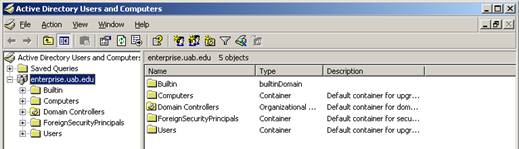
Create
a new user for yourself.
- Right click on the server name and select
“New—User”.
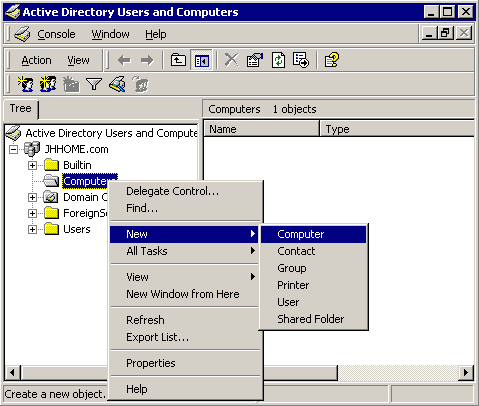
- Enter your information.
- Give yourself a username.
- Click on the “Member of” tab and select
groups.
- Add yourself to the Administrators group.
Create
a new user from a template
- Create an administrative user for me! Right
click on your user your just created and select copy.
- Create a user with my name, Tory O.
Klementsen and username teechur, password password.
- Have me not have to change the password.
- Set it so the password never changes.
Change
user properties
- Double click on your username or right
click and select properties.
- Put in your address, set me as your
manager, make up a phone number and all that
stuff. It all gets published in a directory. How cool is that? Put
yourself in a department in a company.
Set
up a home directory
- Go into your root directory (probably your C: drive) and create a folder named users.
- Share this folder with the sharename users.
- Go back into Active Directory Users and
Computers. Double click on your account. Select the profile tab. You’ll
see something like this:
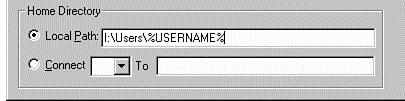
- Click on Connect. The default drive letter
is z:\, leave that. In the to: box type \\nameofyourserver\users\%username%.
The %username% is a wildcard used in Active Directory. When you hit apply
you should not get a message (if you do, you did something wrong so try
again). But what will happen is a folder will be created in that shared
folder named users with the name of your user. That user will be set as
the “owner” of the folder and he/she will be given full control. When he
logs onto his workstation, the server will send a command to map a network
drive to z:\. All files saved into z:\ will be available to this user no
matter where he logs on in the network! It’s pretty cool. In fact, later
you can set a policy that will map the My Documents folder to z:\ for your
users so that any time something is saved in My Documents the server will
snag a copy, put it on the server, and the user will have a copy on their
home computer and the server.
- Check the Users directory to make sure a
folder was created for your user.
Poke
Around Active Directory
- Click the Builtin
container and write down the list of built in users already available in
Active Directory.
|
|
|
|
|
|
|
|
|
|
|
|
|
|
|
|
- Poke around Computers. What computer
accounts are set up?
- In AD every computer that is joined to the
domain has an account created. You can create them before joining (just
type in the name of the computer, exactly) or it’s created automatically
when you join the computer to the domain.
- Poke around Domain Controllers. What domain
controllers have accounts?
- Right click on the domain name
(at the top) and select find. Type in admin and hit return. What did you
find?
- Close Active Directory Users and Computers.
No wait, have me check you off, THEN close it! (Be sure you answered the
questions first.)